Wallpaper Creator is one of the three AI features Amazon offers to their recent Fire tablets, together with Webpage Summaries and Writing Assist.
This Fire tablet guide explains Wallpaper Creator, how to access and use Wallpaper Creator on your Fire tablet to create your unique wallpapers, how to manage and edit these AI-generated images on Fire tablet, the limitations of this feature, and its availability for Fire tablets.
For other generative AI features, you may check this guide for Webpage Summaries and this guide for Writing Assist for your Fire tablet.
Wallpaper Creator for Fire Tablet is essentially an AI image generator. It was announced with Fire HD 8 2024 (12th Gen) and was also offered to the latest generation of Fire HD 10 (Fire HD 10 2023) and Fire Max 11 with a Fire OS update in late October.
With Wallpaper Creator, you can describe what you want (i.e., prompt) to dictate the wallpaper generation. The actual image generation is done on Amazon servers, not on the tablet, which is not capable of running such a generative AI model locally.
In addition to the prompt (text description), you need to also specify one of the following styles to generate substantially different wallpapers:
The image generated will be in a fixed resolution of 2048px by 2048px. The generated image will be saved on the phone Gallery automatically. You can also apply it as the wallpaper directly in the Wallpaper Creator.
There are at least two frequently used ways to access the Wallpaper Creator on Fire tablet:
The outcome is identical. So, you can choose either of them.
In addition to these two ways, you can also access it from the Gallery app, within which there is a shortcut to access the Wallpaper Creator.
After the Fire OS update in late October, 2024, you can find a new app named Wallpaper Creator with this icon:
You can tap it to start to generate your wallpapers (read on).
An alternative way to launch and use Wallpaper Creator is from the wallpaper settings.
You can follow these steps.
On the Fire tablet Setting app, as shown in the screenshot below, tap Display to access wallpaper settings.
On the Fire tablet Display settings page, as shown in the screenshot below, you can adjust some aspects of the display, including:
Some of these settings can also be accessed from the Quick Settings.
Tap Wallpaper, as shown below to access wallpaper settings.
On the wallpapers settings page, as shown in the screenshot below, you can set the wallpaper for your Fire tablet with:
Tap the Create your own wallpaper option to launch Wallpaper Creator to generate some unique wallpapers you want. Read on.
If your tablet does not support Wallpaper Creator, you will not see the third option.
Once you access the Wallpaper Creator (with either method mentioned above), you can start to use AI to create some unique images and then use them as wallpapers for your Fire tablet as you want.
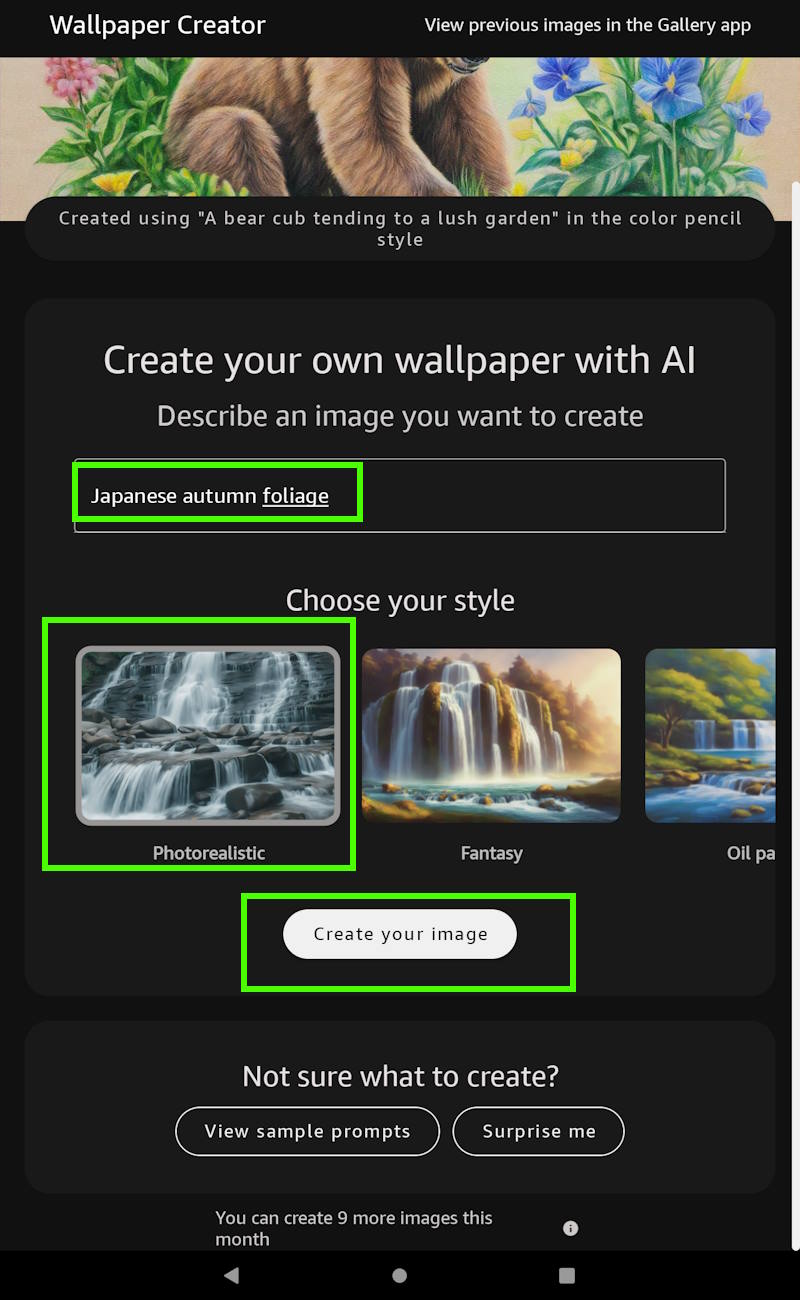
To create a wallpaper (actually just an image), you need to specify what you want with:
These 3 parts are highlighted in the screenshot below.
For example, you want to generate a wallpaper with the Japanese autumn foliage scene.
So, as shown in the screenshot below, in the prompt (description) field, you type the prompt.
Then select the image style. The default suggested style usually is good enough if you are not sure about the style.
Of course, after playing around with the Wallpaper Creator, you can choose the style you want for the specific wallpaper.
After providing the description and choosing the image style, you can now tap the “Create your image” button to let the AI do the rest.
Because the image (wallpaper) is always created on Amazon servers, just like the Webpage Summaries, not on the Fire tablet locally, it usually takes at least 30 seconds (up to one or two minutes) to receive (download) the generated image.
Before the final image is retrieved, you will see the progress screen, as shown in the screenshot below.
At this stage, you have to wait.
Once the wallpaper is created, you can see it immediately on the screen, as shown below.
All wallpapers created by Wallpaper Creator are automatically saved on your Fire tablet. You can check and edit them in the Gallery app.
For example, as shown in the screenshot below, a wallpaper with the suggested style was created.
If you are satisfied with the image, you can tap Set as wallpaper to use it to replace the current wallpaper instantly.
You may also edit the image in the Gallery app (or any other third-party photo editing tools) and then use or share it.
As mentioned, all wallpapers generated with Wallpaper Creator are automatically saved onto your Fire tablet. They are just normal images.
So, you can edit and share them, in addition to using them as wallpapers for the tablet.
The new Gallery app can be found on your Fire tablet with this icon:
The default Gallery app offers some basic photo editing capabilities for your Fire tablet. You can install other third-party photo editing apps on Fire tablet from the Amazon Appstore or Google Play store.
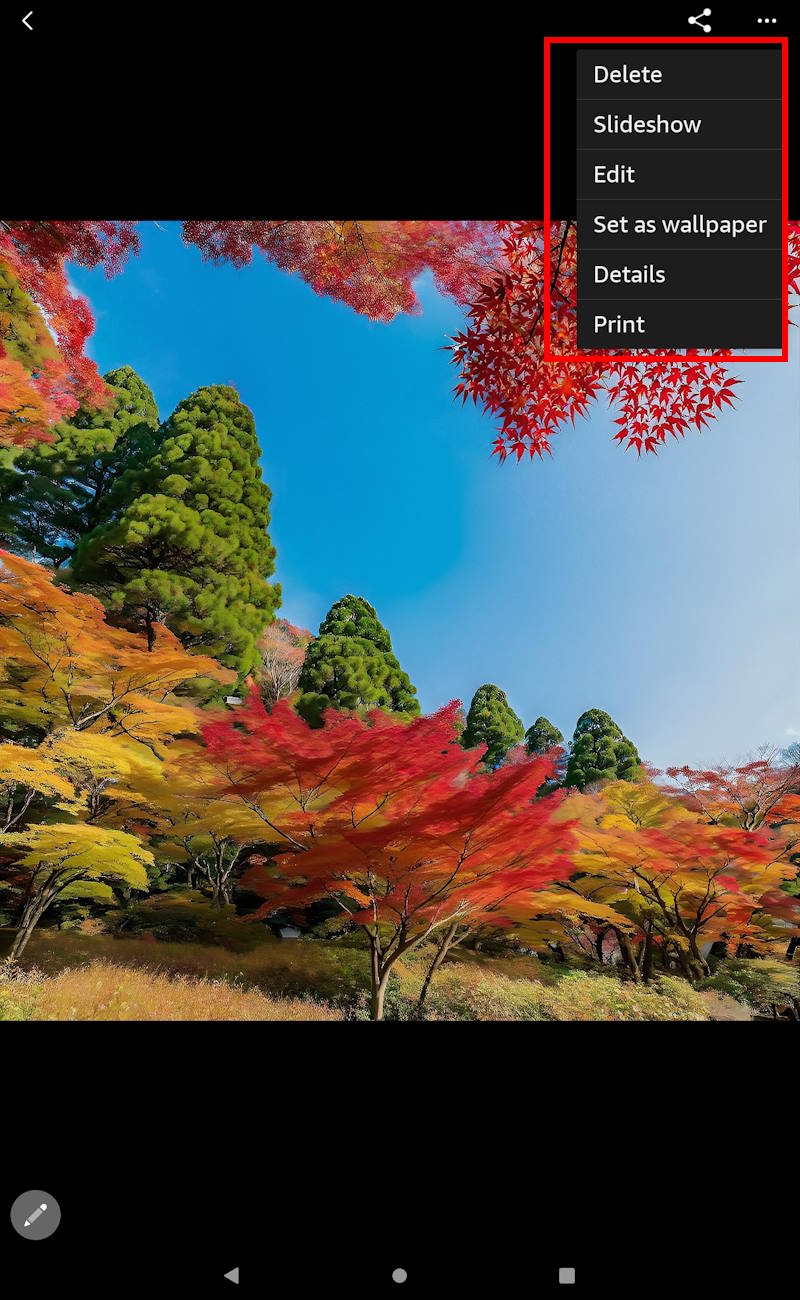
In the default Gallery app, after opening an image, next to the shareing button, you can find the context menu (3 dots), marked as A in the screenshot below.
A floating pencil icon (marked as B in the screenshot below) allows you to access the editing tools without going through the context menu.
After tapping the context menu button, you can find the following features:
As mentioned, you can access the edit features quickly through the floating pencil icon.
Just remember the images generated with the Wallpaper Creator, once saved, are just standard images. You can do whatever you want, like other photos.
Because the wallpaper generation is done with the Amazon servers, it costs Amazon money. Therefore, Amazon currently imposes some usage limitations for Wallpaper Creator.
Currently, you are given a quota of 10 generations each month. The quota is reset automatically each calendar month. So, the unused quota will NOT be rolled over to thenext month.
There are no subscription options currently. So, if you need to generate more images, you have to use other AI service providers.
The resolution itself is sufficient for all Fire tablets because the maximum screen resolution of all Fire tablets is 1200*2000 (Fire Max 11).
But if you want to crop the image, sometimes you may prefer more pixels.
Again, Amazon does not offer any paid add-ons or subscriptions to bypass this limitation.
Amazon offers the Wallpaper Creator only on the recent Fire tablets released in 2023 and 2024, including:
This limitation is not due to hardware or software limitations of older Fire tablets because most of the work was done in the cloud, not locally.
As mentioned, the following Fire tablet models support Wallpaper Creator:
We will update this list whenever Amazon rolls out this feature to other devices.
If you have any questions about generative AI features (Wallpaper Creator, Webpage Summaries, and Writing Assist) on Fire tablets, please let us know in the comment box below.
The community will help you.
Detailed information on how to use the Google Play Store on Fire tablets can be found here.
Need advice on choosing a Fire tablet? Check the Fire Tablet Buyer's Guide now.
You may check other Fire tablet how-to guides and tutorials on the Fire tablet how-to guides page.
You may also reach us via our Facebook page or the contact us form.
This post was last modified on January 6, 2025 1:31 am
Amazon Fire tablets remain the most affordable route to a premium entertainment experience. While 2025… Read More
Writing Assist is the most practical tool among the three generative AI features currently available… Read More
Among the three generative AI features available for Fire tablets, the Webpage Summaries feature stands… Read More
Fire HD 8 2024 (12th Gen) is an upgraded model (not a new model or… Read More
Amazon Fire tablet (Fire 7, Fire HD 8, Fire HD 10, and Fire Max 11)… Read More
Amazon Fire Max 11 is the first "premium" model of the Fire tablet product family… Read More