Fire Max 11 is the first Amazon tablet with active stylus pen support (and fingerprint support). And Amazon released the official accessory for it: Amazon Stylus Pen for Fire Max 11.
This Amazon Fire tablet how-to guide explains the difference between an active stylus pen and a capacitive stylus, the key features and functions of the Amazon Stylus Pen for Fire Max 11, how to use it in different apps, how to customize the settings for it, and answers to questions you may have on using the Amazon Stylus Pen for Fire Max 11 on Fire Max 11.
Because Fire Max 11 supports an active stylus (USI 2.0) and Amazon Stylus Pen for Fire Max 11 is essentially a USI 2.0 active pen, it is necessary to explain the difference between active and capacitive styluses first.
Update: Fire HD 10 2023 (13th Gen) became the second Fire tablet with active stylus support. You can use Amazon Stylus Pen for Fire Max 11 on Fire HD 10 2023 (13th Gen).
Active stylus pen vs. capacitive stylus
For tablets, currently, there are two types of stylus in the market:
- Capacitive.
- Active. There are different types of active pens. Fire Max 11 only supports USI 2.0 active pen. For example, you can NOT use the S Pen (a Wacom Electromagnetic Resonance type active Pen) on Fire Max 11. Of course, Apple Pencil does not work either.
We do not include the old PDA-era resistive stylus because it has been almost out of the tablet market.
The difference between active and capacitive styluses can be highlighted from these 5 aspects.
1. Compatibility with touchscreens
Generally speaking, the capacitive stylus is compatible with all touchscreens found in all tablets (including Android tablets and iPads) in the market today. If you can use your finger on the screen, then a capacitive stylus should work.
So, you can definitely use a capacitive stylus on Fire Max 11 and other tablets with active pen support.
However, an active pen only works with “matching” touch screens. And this “match” is further complicated by different vendors. For example, S Pen only works on Samsung Galaxy devices.
The cause of this incompatibility comes from:
- Different active stylus types. For example, Wacom EMR (S Pen), Wacom Active Electrostatic (AES), and Apple Active Projected Capacitive (APC, as Apple Pencil) require different digitizers under the screen to interact with the companion active pens.
- Proprietary implementation. Even the same type of active stylus pen sometimes are not compatible with different vendors.
Universal Stylus Initiative (USI) is trying to solve the compatibility issue so that you can use a single active stylus on all devices. Currently, it is mainly supported by most Chromebook manufacturers.
Fire Max 11 supports USI 2.0; therefore, you can use any standard USI 2.0 active pens on it. Amazon Stylus Pen for Fire Max 11 is a USI 2.0 active pen made for (not by) Amazon.
2. Power source
A capacitive stylus does not require a power source and works based on the electrical charge of the user's finger or conductive material.
An active stylus pen is a digital pen and requires a power source, typically a battery, to function. Amazon Stylus Pen for Fire Max 11 is powered by one AAAA battery.
Wacom EMR-type active pen (e.g., S Pen) does require a battery in the pen. Such an active pen is powered by the magnetic field (through induction) of the active digitizer behind the screen.
3. Pressure sensitivity
All active stylus pens in the market offer at least 1024 levels of pressure sensitivity.
Of course, a capacitive stylus does not support pressure sensitivity at all.
4. Palm rejection
Another major difference between active and capacitive styluses is palm rejection (detection).
When using a capacitive stylus, the screen cannot differ input between your hands and the stylus. So, if your palm touches the screen, it will also be registered.
But when using an active pen, the screen can differ and separate the input of the pen and your hands. On most devices, by default, once the input of the S Pen is detected, the input from your palm will be rejected automatically.
Most active styluses have at least one function button. The function of this button can be customized. For example, you can use the button to turn the pen tip into an eraser.
A capacitive stylus seldom has a button.

- Compatible with Amazon Fire Max 11 (2023 Release) & Amazon Fire HD 10, (13th Gen, 2023 release) Tablets
- Perfect for drawing, sketching, coloring, taking notes, and marking up PDFs.
- No pairing involved, simply insert the provided battery and start using the stylus with your tablet.
- Conveniently attaches magnetically to the side of your tablet.
- USI 2.0 certified stylus. Compatible with USI 2.0 supported devices.

Key features and facts of the Amazon Stylus Pen for Fire Max 11
The stylus pen provides a unique way to interact with Fire Max 11. It is especially useful if you use the tablet for note-taking, sketching, digital art, and graphic design.
As mentioned earlier, you can use any USI 2.0 stylus pen on Fire Max 11. Amazon Stylus Pen for Fire Max 11 is just a convenient (and wallet-friendly) option.
The key features and facts of the Amazon Stylus Pen for Fire Max 11 include the following.
1. Amazon Stylus Pen for Fire Max 11 is not made by Amazon.
The stylus is made “for” Amazon, not “by” Amazon.
It was made by Maxeye, one of the major OEM active pen suppliers. The model number of the Amazon Stylus Pen for Fire Max 11 is ME-USI306, certified by USI.
2. No special apps for Amazon Stylus Pen for Fire Max 11
Surprisingly, Amazon did not ship any apps that fully utilize the stylus. None of the Amazon apps updated for it. Even for split-screen multitasking, Amazon does not add special features to the pen.
So, your experience with this active stylus pen highly depends on the app you are using.
3. USI 2.0 certified
Because Amazon Stylus Pen for Fire Max 11 is USI 2.0 certified, you can use it on other devices that support USI 2.0. Some middle to high-end Chromebooks with a touchscreen supports USI 2.0.
Also, if you own a USI 2.0 active pen, you probably do not need to buy an Amazon Stylus Pen for Fire Max 11. You can use the existing one on Fire Max 11.
4. Magnetic attach
The stylus pen features a magnetic attach function, allowing it to securely attach to the side of the Fire Max 11 tablet, making it easily accessible and ensuring you don't misplace it.
The stylus pen includes a function button, whose function depends on the app you are using.
For example, in the writing mode, you can hold the button to turn the nib into an eraser.
6. Powered by one no-rechargeable AAAA battery
Amazon Stylus Pen for Fire Max 11 is powered by one AAAA battery (included). It is not rechargeable.
Amazon claims a long battery life of 6 months. But this highly depends on your usage.
7. 4096 levels of pressure sensitivity
This pressure sensitivity is sufficient for almost all sketching and graphic design jobs.
The stylus automatically sleeps and wakes up. There is no on/off button for it.
The only button is a function button. Of course, if you press the button, the pen wakes up immediately.
How to use Amazon Stylus Pen for Fire Max 11?
As mentioned, although the stylus function is integrated into Fire OS 8, there are no “flagship” apps to test the active pen.
So, the available pen-related functions and features depend on the app you are using.
Items in the box
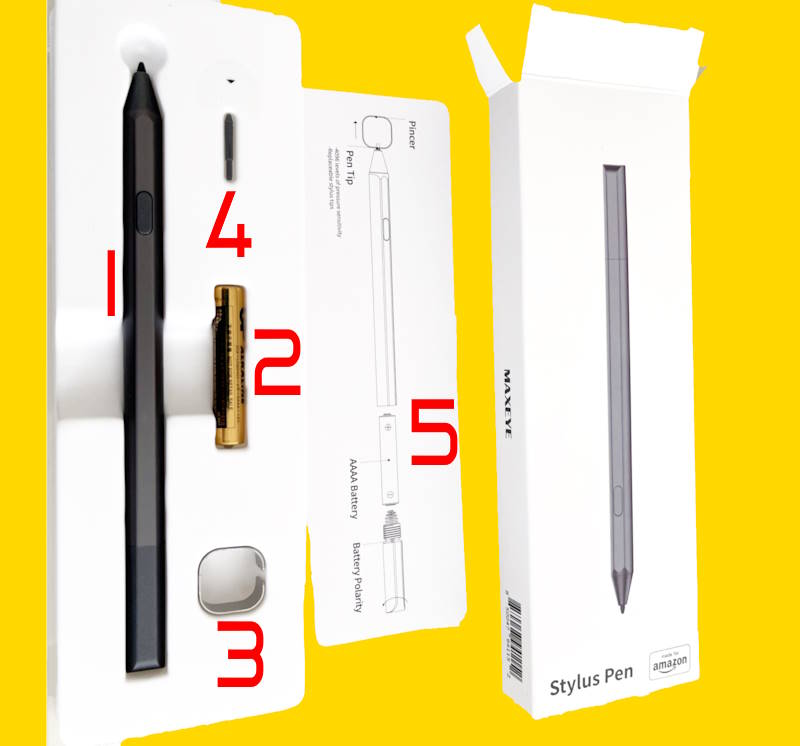
As shown in the picture below, there are 5 items in the box of Amazon Stylus Pen for Fire Max 11:
- The stylus (battery not installed).
- One AAAA-size Battery (AAAA).
- A pincer.
- A spare nib.
- Instruction leaflet.
The pincer is for you to replace the nib when the pre-installed one is worn out.
When you receive the box, the battery is not installed. You need to install it by yourself (read on). The battery size is standard AAAA. You can get one from most stores easily.
Do not throw away the box. The spare nib is useful if you use the stylus often. The pincer will make the replacement job very easy.
How to place and replace the battery to Amazon Stylus Pen for Fire Max 11?
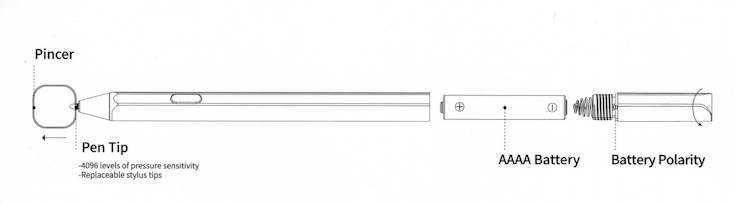
As shown in the instructions, you need to unscrew the top part and then insert the battery into the bottom tube.
The positive terminal (with the + sign) of the battery should go into the tube first, as shown in the picture below.
When replacing the battery, you need to shake it gently to let the old battery move out. There is no tools to pull out the old battery. Gravity with a gentle shake will do the job.
As mentioned, you can only insert a AAAA-size battery into the tube. If you are not sure, ask the shop owner for a 4A battery (which is smaller than the more common AAA battery).
How to change the nip for Amazon Stylus Pen for Fire Max 11?
In the box, there is a spare nib (which is identical to the pre-installed one). You need to replace it only when the nib is worn out.
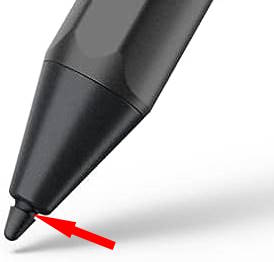
To replace the nib, you should pull out the nib from the pen with the pincer provided in the box.
As shown in the picture below, you should clamp the pincer tool on the groove of the nib. Otherwise, it is very hard to pull out of the nib.
Because Amazon did not assign special features for the function button in Fire OS 8, the function associated with the function button depends on the implementation of third-party apps.
When you are in writing mode, the function button can activate the eraser. In this case, you can hold the function button and erase the text where the nib passes.
How to switch to handwriting mode when using the virtual keyboard?
The handwriting mode only Amazon Stylus Pen for Fire Max 11 works differently for different types of apps. Yes, it is a bit frustrating.
1. Pen-aware apps (note-taking apps, e.g., OneNote)
Such apps can detect the pen once it is close to the screen. In this case, it will automatically switch to pen model (handwriting) mode.
And the writing model should work with any keyboards, including an external physical keyboard.
Please note you can easily sideload the Google Play store into Fire Max 11. So, you can try various note-taking apps with pen support.
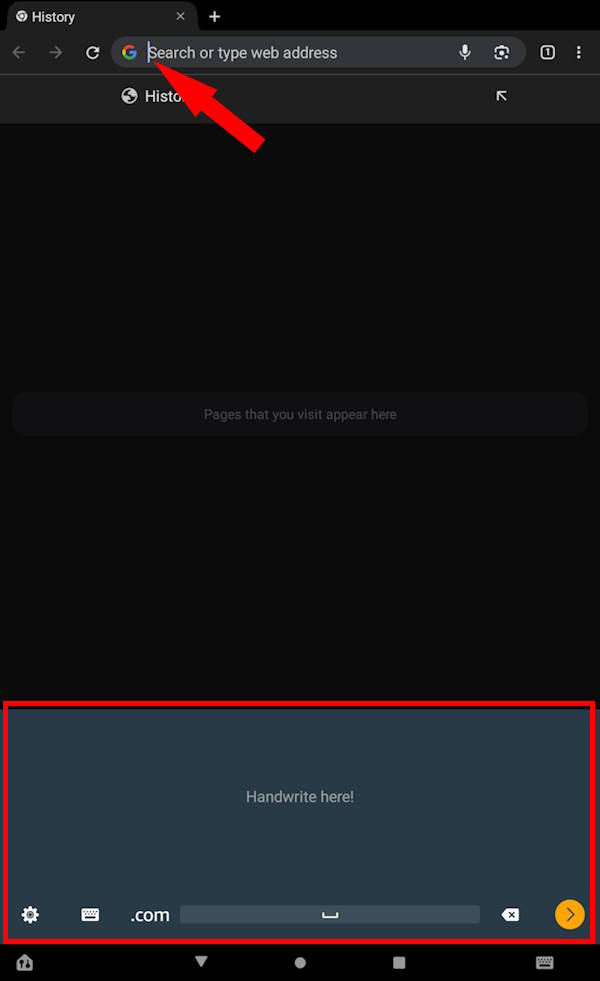
2. Text input box (e.g., address bar in Silk browser)
You can tap the text input box with the pen. The default virtual keyboard will show up.
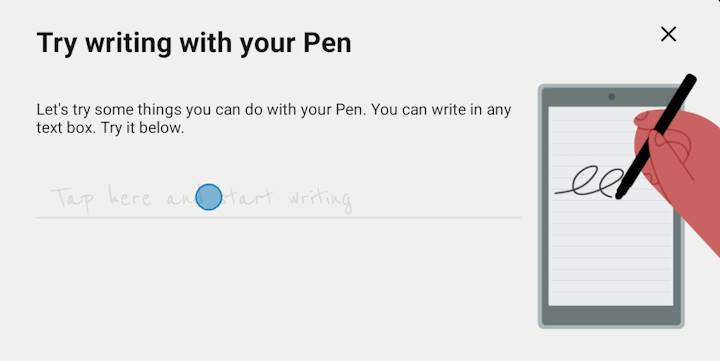
If your default virtual keyboard is the default Fire keyboard, then it should automatically switch to handwriting mode, as shown in the screenshot below.
However, if your default keyboard is any third-party keyboard (e.g., Google Gboard), only the keyboard will show up. These keyboards do not support handwriting mode. You need to switch to the default Fire keyboard to use the pen.
For browser apps, if you launch them with the pen, then they will automatically open the handwriting mode for you to input without tapping the address bar.
3. Text editor apps (e.g., Microsoft Word, Google Docs)
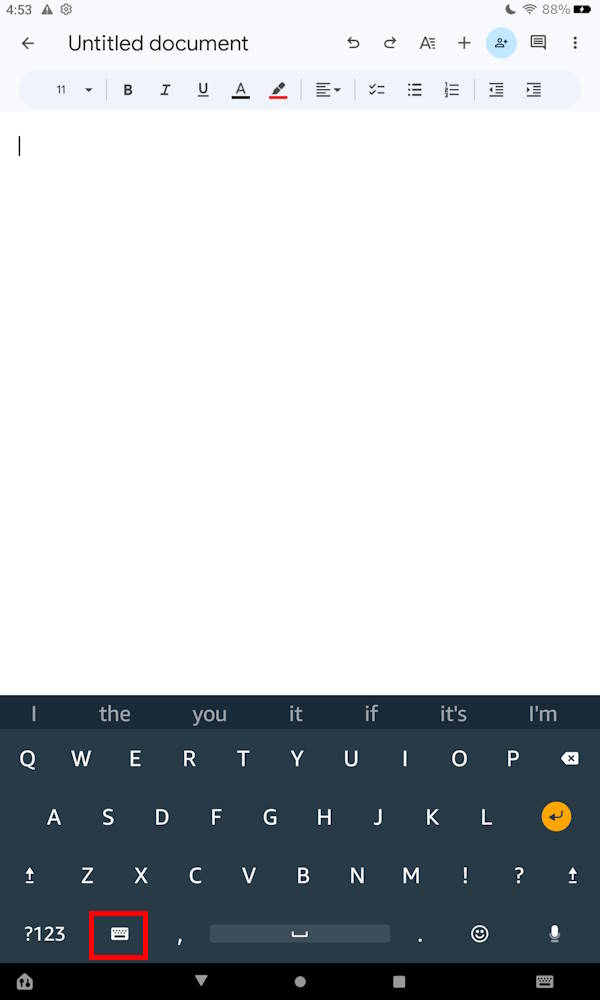
Such apps expect you to type from the keyboard. So, even if you tap the input area with the Amazon Stylus Pen for Fire Max 11, the standard keyboard shows up, as shown below.
In this case, you need to switch to the writing mode manually.
Tap the keyboard icon in the keyboard (not the one in the navigation bar), as shown below.
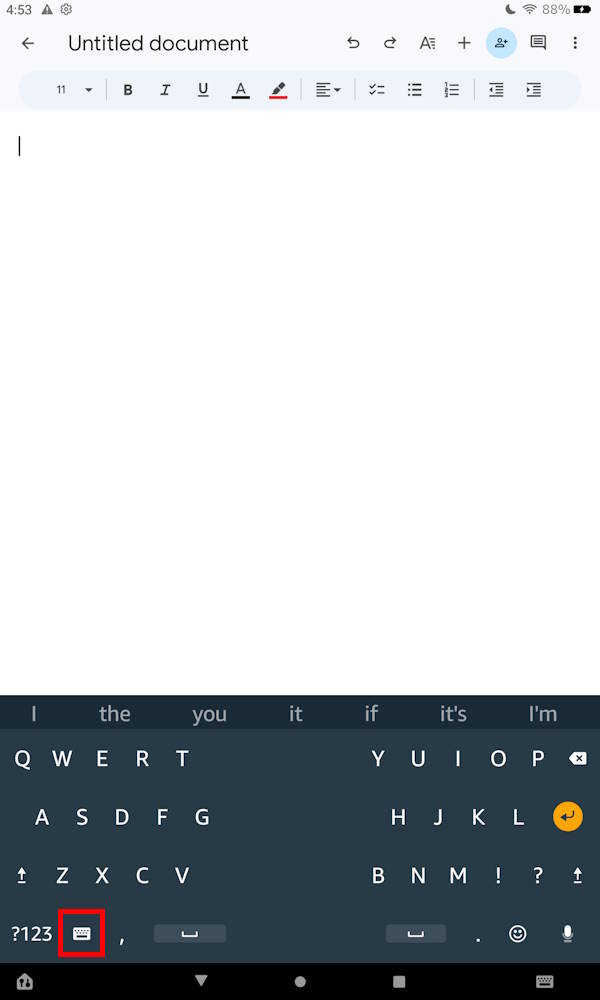
After tapping the keyboard icon, the keyboard now changes to the split keyboard, as shown above.
Tap the keyboard icon again, as shown above, to switch to the handwriting mode.
Now, the virtual keyboard should switch to handwriting mode, as shown below.
You can write in the specified area. What you write will be recognized and converted to text automatically.
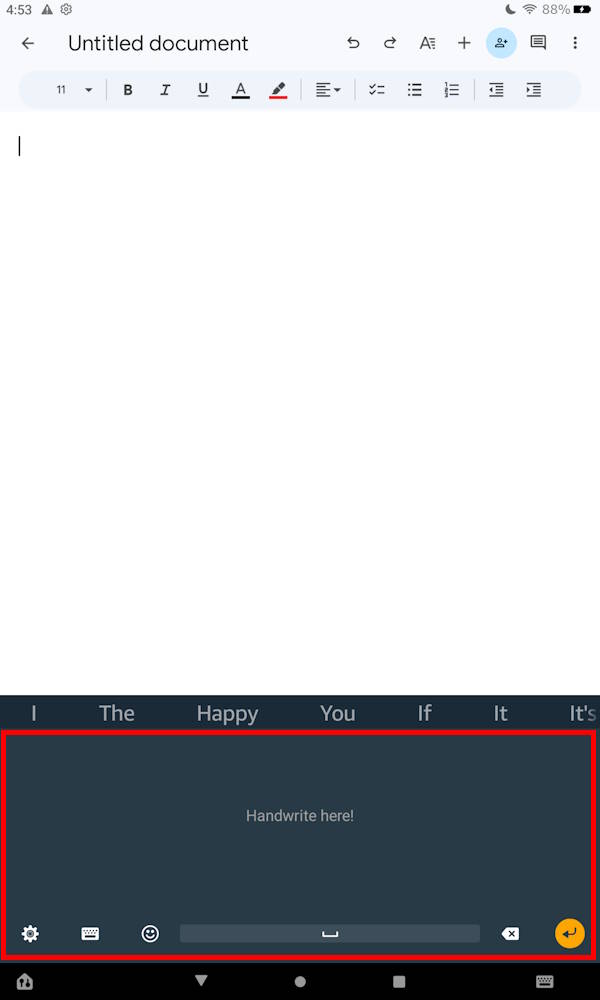
For such apps, if you launch the app with the pen, it may switch to the handwriting mode automatically when the keyboard shows. However, this behavior is not always consistent, based on our test in Google Docs and Microsoft Word. It seems there are some bugs related to the pen in Fire OS 8
How to switch to handwriting mode when using a physical keyboard?
You can similarly use the handwriting mode when using an external physical keyboard, e.g., the official keyboard for Fire Max 11.
If you set the default virtual keyboard as Fire keyboard, then the handwriting mode works similarly as with the virtual keyboard.
How to customize the Amazon Stylus Pen for Fire Max 11?
You can customize the Amazon Stylus Pen for Fire Max 11 to make it work better for you.
To customize the settings for the active pen, you need to open Settings from the Home screen or Quick Settings.
On the Settings page, tap Fire Tablet Accessories, as shown in the screenshot below.
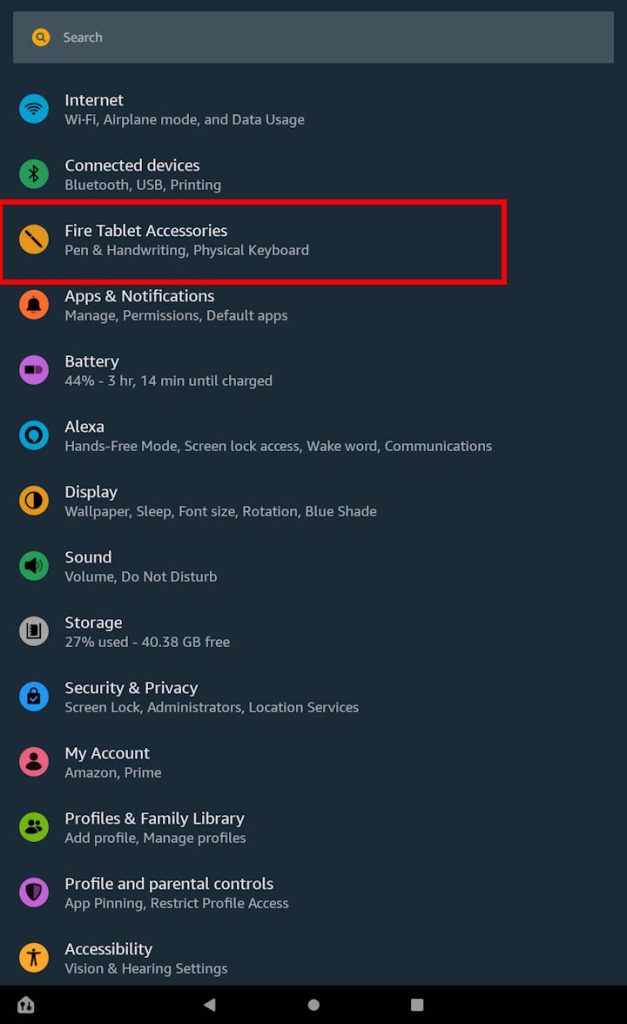
In the Fire Tablet Accessories page, you can customize :
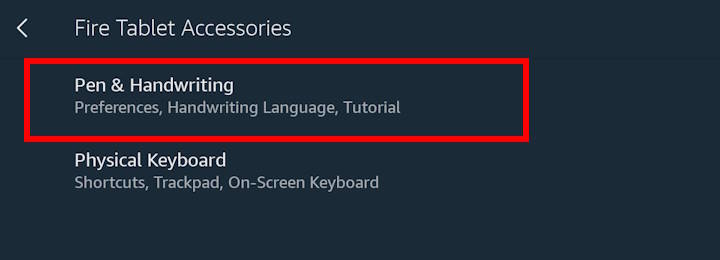
- Pen & handwriting (the active pen)
- Physical keyboard.
Tap Pen & Handwriting, as shown below, to customize the settings for the stylus pen for Fire Max 11.
Fire Max 11 Keyboard case guide can be found here.
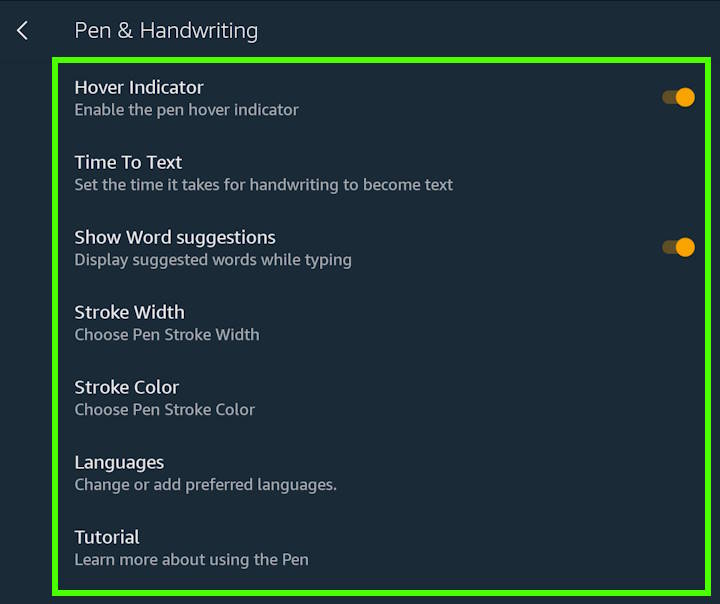
On the Pen and Handwriting page, as shown below, you can customize the stylus pen:
- Hover indicator.
- Time to text.
- Show word suggestions.
- Stroke width.
- Stroke color.
- Languages.
- Tutorial.
Let's go through them one by one.
Hover indicator
When the Amazon Stylus Pen for Fire Max 11 closes to the screen, the tablet can detect it automatically. By default, a hover indicator shows on the screen.
If it bothers you, you can turn off the hover indicator with the switch.
Time to text
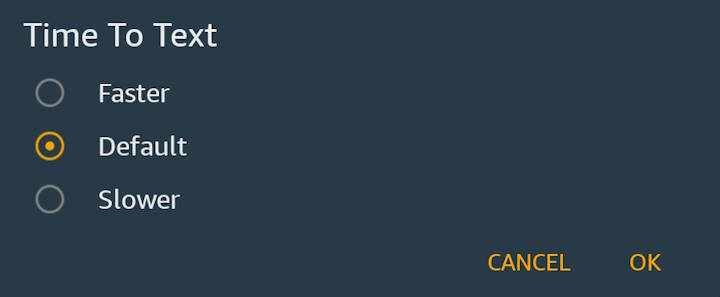
When you write with the pen, the handwriting-to-text conversion should be slightly delayed to get better recognition.
If the default does not work well for you, you can make it faster or slower, as shown in the screenshot below.
Show word suggestions
The default Fire keyboard can predicate what you are trying to type. So, it gives you suggestions for the next word. If it is exactly what you plan to type, you can choose the word instead of typing.
This feature is also available for handwriting. The suggested words are shown for your consideration.
Of course, you can ignore the suggested words. This option lets you turn off the suggestion totally for the handwriting mode.
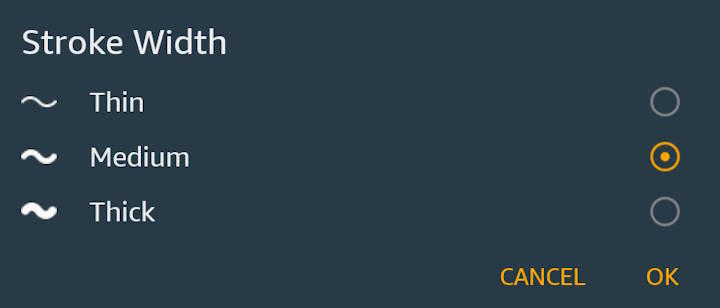
Stroke width
You can choose the pen stroke width as:
- Thin.
- Medium (default)
- Thick.
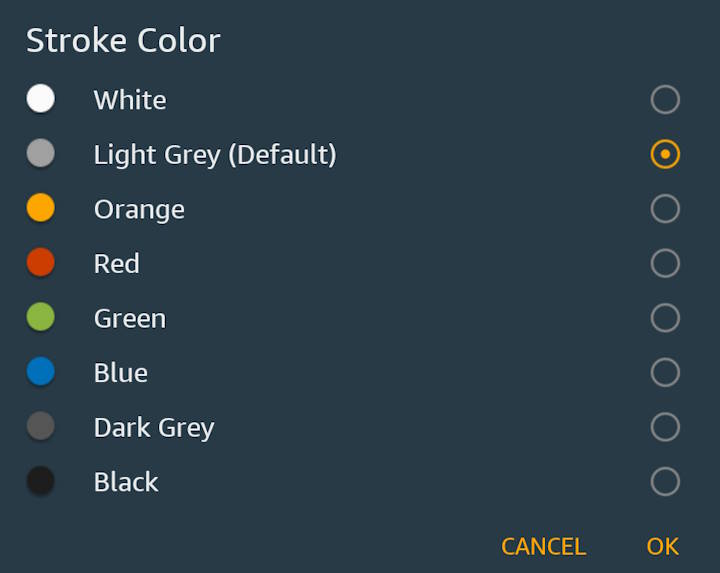
Stroke color
You can set the color for the pen stroke in the handwriting mode.
This does not affect the stroke color in your note-taking apps or doodling or sketching apps. It is for the handwriting window only.
Languages
You can also add more supported languages so that you can write in other languages.
However, you must switch the language for the keyboard first. The Fire keyboard does not support multiple languages in one layout. Each language has its own keyboard.
Tutorial
Amazon added a short tutorial showing you how to use the pen, how to select text, and how to make corrections.
A concise review of Amazon Stylus Pen for Fire Max 11
First, if you need to do some sketches or graphic designs on the tablet, then Amazon Stylus Pen for Fire Max 11 is essential.
If you need to take some notes, then using the Amazon Stylus Pen for Fire Max 11 is no no-brainer.
If you mainly use the tablet for reading books or watching videos, then do not waste the $35.
If you use the tablet for writing, then the official keyboard is more important than this pen.
Overall, Amazon Stylus Pen for Fire Max 11 is the best value-for-money USI 2.0 pen. The precision and responsiveness are acceptable. You need to pay more for a USI 2.0 pen with comparable quality.
Fire OS is the biggest issue for the pen. It is not optimized for the pen at all. Even Amazon apps are not optimized for the pen.
No products found.
FAQs on Amazon Stylus Pen for Fire Max 11
Q1: Can I use Amazon Stylus Pen for Fire Max 11 on other Fire tablets?
Q2. Can I use Amazon Stylus Pen for Fire Max 11 on other devices?
Q3. Do you recommend any cheaper USI 2.0 pens for the Fire Max 11?
Q4: How long does the battery last?
Q5: Do I need to pair the Amazon Stylus Pen for Fire Max 11 to the tablet?
Q6: What are the recommended free note-taking apps that support the active pen on Fire Max 11?
Do you have any questions about Amazon Stylus Pen for Fire Max 11?
If you have any questions about the Amazon Stylus Pen for Fire Max 11 or need help using the stylus pen on Fire Max 11, please let us know in the comment box below. The limitations and missing features of Amazon Fire Max are explained here.
The community will help you.
Detailed information on how to use the Google Play Store on Fire tablets can be found here.
Need advice on choosing a Fire tablet? Check the Fire Tablet Buyer's Guide now.
You may check other Fire tablet how-to guides and tutorials on the Fire tablet how-to guides page.
You may also reach us via our Facebook page or the contact us form.



Leave a Reply