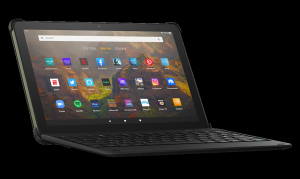
 With the release of the 11th Gen of Amazon Fire HD 10 (and Fire HD 10 Plus), Amazon introduced the official wireless keyboard for Amazon Fire HD 10 2021 (and Fire HD 10 Plus). The wireless keyboard cover is also part of the productivity bundle for Fire HD 10 2021.
This Fire tablet how-to guide explains the advantages (and disadvantages) of the official wireless keyboard for Amazon Fire HD 10 2021 (and Fire HD 10 Plus), how to attach and remove the wireless keyboard cover from Fire HD 10 2021, how to pair the wireless keyboard with Fire HD 10 2021, and how to use the official wireless keyboard on Fire HD 10 2021 and Fire HD Plus.
Fire HD 10 2023 (13th Gen) also has a similar official keyboard cover, which works identically to the one for Fire HD 10 2021. However, due to the differences in dimensions, you cannot fit the keyboard case for Fire HD 10 2021 with Fire HD 10 2023. And vice versa. So, this guide also works for the corresponding keyboard for Fire HD 10 2023 (13th Gen). There is no trackpad on the keyboard for Fire HD 10 2021 and Fire HD 10 2023. Only Fire Max 11 keyboard case has a trackpad.
What is the official wireless keyboard for Amazon Fire HD 10 2021 (and Fire HD 10 Plus)?
The official wireless keyboard cover for Amazon Fire HD 2021 is actually not an Amazon product. It is made for Amazon by Fintie, which is an Ohio-based accessories maker.
Of course, just like the Fire tablet, the keyboard cover is manufactured in China.
The wireless keyboard covers consisted of a wireless keyboard and a back cover. When folded, the keyboard acts as the front cover to protect the screen.
When opened, you can have a laptop-like setup. But you can tilt the screen only up to 110-120 degrees. So, the range of the viewing angle is limited with most laptops.
These two pieces are connected magnetically. The magnetic force is quite strong. But it is still easy to detach the back cover from the keyboard.
How to attach and remove the official wireless keyboard for Amazon Fire HD 10 2021 (and Fire HD 10 Plus)?
Normally, you first insert the tablet into the back cover. You need to align the camera cutout with the hole on the back cover.
Next, align the 4 holes (as illustrated below) on the back cover with the Bluetooth keyboard. The magnetic force will connect the two pieces automatically.
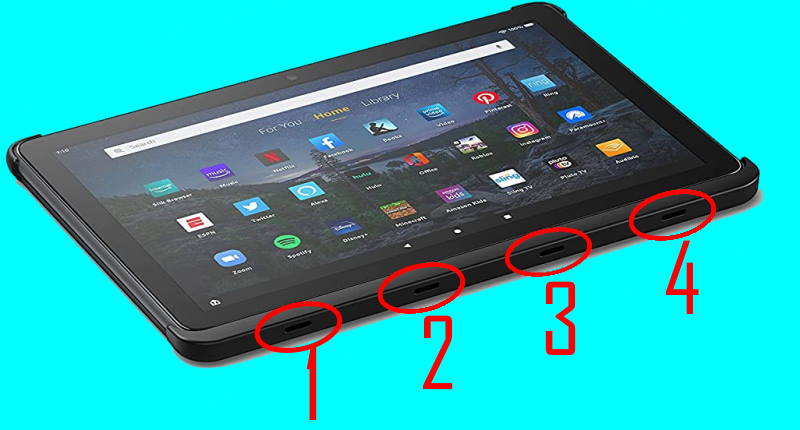
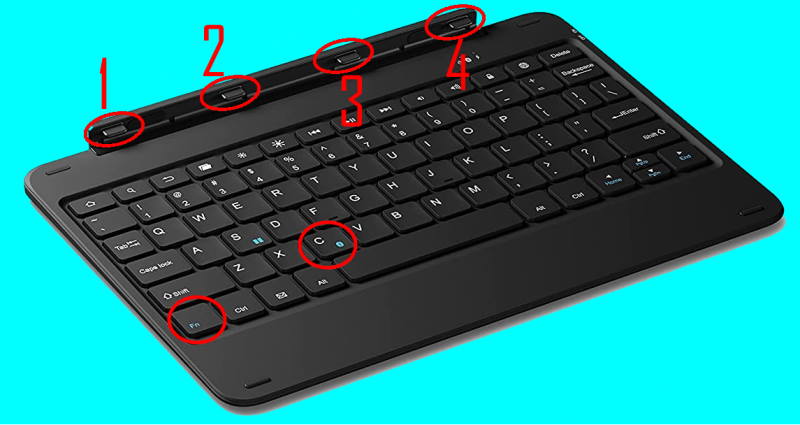
Now, you can try to adjust the viewing angle and use it as a small laptop.
If you want, you can detach the keyboard at any time and use the back cover only. You may pair the keyboard with other devices as well.
To remove Fire HD 10 from the cover, you can start from the top right corner. Use a bit of force to push the cover back a bit, then take out the tablet.
How to pair the official wireless keyboard for Amazon Fire HD 10 2021 (and Fire HD 10 Plus) with the tablet?
You may follow these steps to pair the official wireless keyboard cover with Fire HD 10.
Step 1: Turn on the Bluetooth keyboard.
There is a power button on the right side of the keyboard. You need to flip it upwards to the ON position to turn on the Bluetooth keyboard.
Step 2: Pair the Bluetooth keyboard with FireHD 10 2021
It is not necessary to manually turn on Bluetooth on the tablet if it is turned off. When you ask the tablet to pair to a new device, it will turn it on automatically.
To pair a new device to Fire HD 10 2021 (or other Fire HD tablets), go to Settings —Connected devices.
As shown in the screenshot below, tap Pair new device to start the pairing process.
You can also access the same settings using the quick settings button.
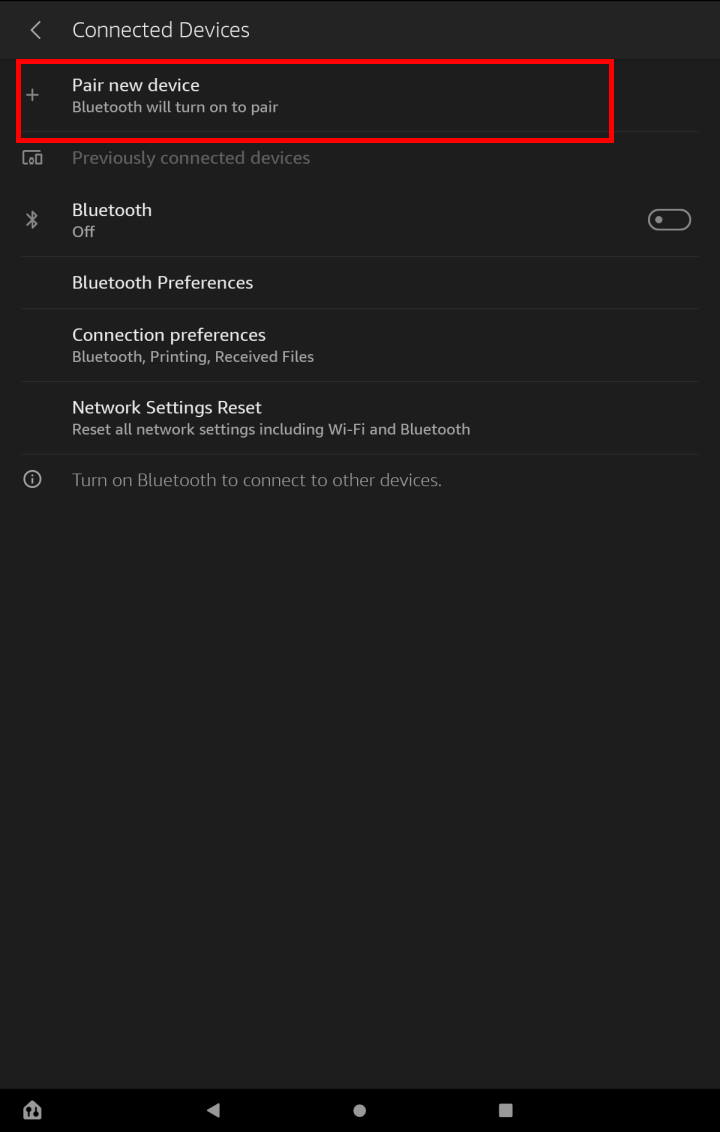
As mentioned, if Bluetooth is turned off, this will turn on Bluetooth automatically.
Now, the tablet starts to scan nearby Bluetooth devices. It may take up to 30-60 seconds for the tablet to find the Bluetooth keyboard.
For example, as shown in the screenshot below, the Fire tablet finds 4 Bluetooth devices nearby.
To pair Fire HD 10 2021 with the official wireless keyboard, tap Fintie Keyboard, as shown in the screenshot below.
As mentioned, the official wireless keyboard for Amazon Fire HD 10 2021 (and Fire HD 10 Plus) is a “made for Amazon” product manufactured and branded by third parties. Amazon endorses the product and authorizes these vendors to market them as official accessories.
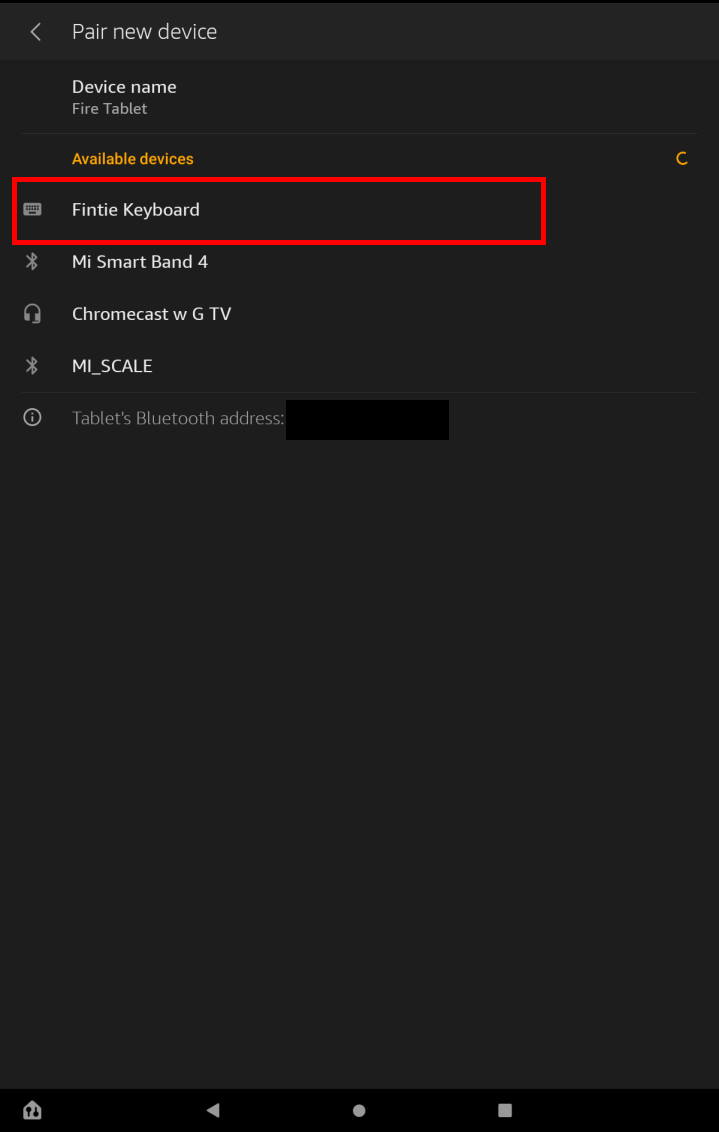
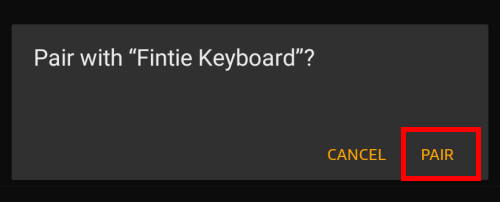
After tapping the Fintie Keyboard, the tablet will ask you to confirm that you really intend to pair this accessory with the tablet.
As shown below, Fire HD 10 2021 will ask you to confirm it. Tap Pair to immediately pair the official wireless keyboard for Amazon Fire HD 10 2021 (and Fire HD 10 Plus) to the tablet.
Step 3: Confirm that the official wireless keyboard for Amazon Fire HD 10 2021 (and Fire HD 10 Plus) is paired with the tablet.
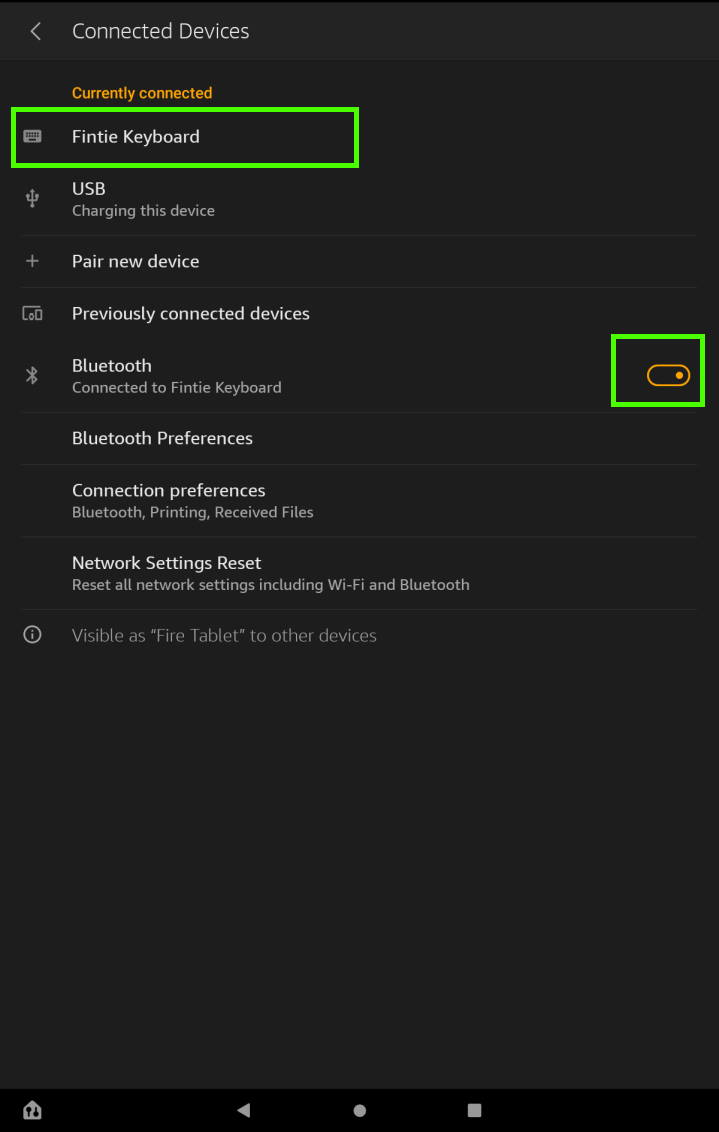
Once the keyboard is paired with Fire HD 10 2021, you can find the keyboard among the connected devices, as shown below.
Please note that you need to make sure the Bluetooth is on to use the keyboard.
If you turn off Bluetooth, the keyboard will not work. Of course, other Bluetooth accessories will not work either.
Normally, it is unnecessary to turn off Bluetooth to save battery. The additional power consumption of Bluetooth is very marginal if you do not actively use the accessories.
Step 4: Configure and use the official wireless keyboard for Amazon Fire HD 10 2021 (and Fire HD 10 Plus)
By default, once the Bluetooth keyboard is paired with the tablet, you can use it immediately.
When you need to type anything, the software (on-screen) keyboard will not appear on the screen by default. You can just type with the hardware keyboard now.
However, if you want to customize the Bluetooth keyboard, you can tweak some settings for the physical keyboard.
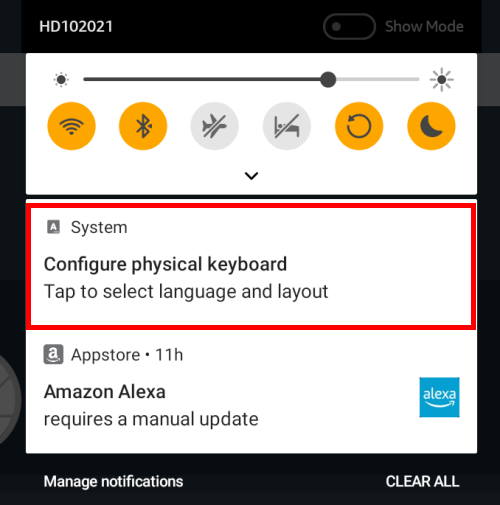
Once the Bluetooth keyboard is paired, you should see a notification asking you to configure the physical keyboard, as shown below.
You can tap the notification to tweak some settings (read on). You can do it later at any time.
Anyway, you can start to use the keyboard right now. The configuration is optional.
How to use the official wireless keyboard for Amazon Fire HD 10 2021 (and Fire HD 10 Plus)?
Instead of offering typing as a standard Bluetooth keyboard, the official wireless keyboard for Amazon Fire HD 10 2021 (and Fire HD 10 Plus) also offers a few additional features that you may need.
Press the space bar to wake up the screen.
If the keyboard is closed, you can open the case to wake up the screen directly.
If the screen was turned off when the case is in the opening position, you could press the space bar once or twice to wake up the screen without pressing the power button on the tablet.
Press the space bar to enter PIN/password to unlock the tablet.
When the tablet screen is locked, you can press the space bar to type a PIN or password to unlock the tablet.
So, you do not need to swipe up on the lock screen to type. This is especially useful if your tablet is the version with lock screen ads. It is not uncommon that you may tap the ad anciently while you just want to unlock the tablet.
Use the 15 special keys and shortcuts on the official wireless keyboard for Amazon Fire HD 10 2021 (and Fire HD 10 Plus)
Please refer to this guide on using the special keys and shortcuts for the official wireless keyboard for Amazon Fire HD 10 2021 (and Fire HD 10 Plus).
How to configure and customize the official wireless keyboard for Amazon Fire HD 10 2021 (and Fire HD 10 Plus)?
As mentioned, once the keyboard is paired with the tablet, you can use it straight away. No special settings are needed.
However, if you want, you may customize it a bit, especially customize the default apps for a few keys and some shortcuts.
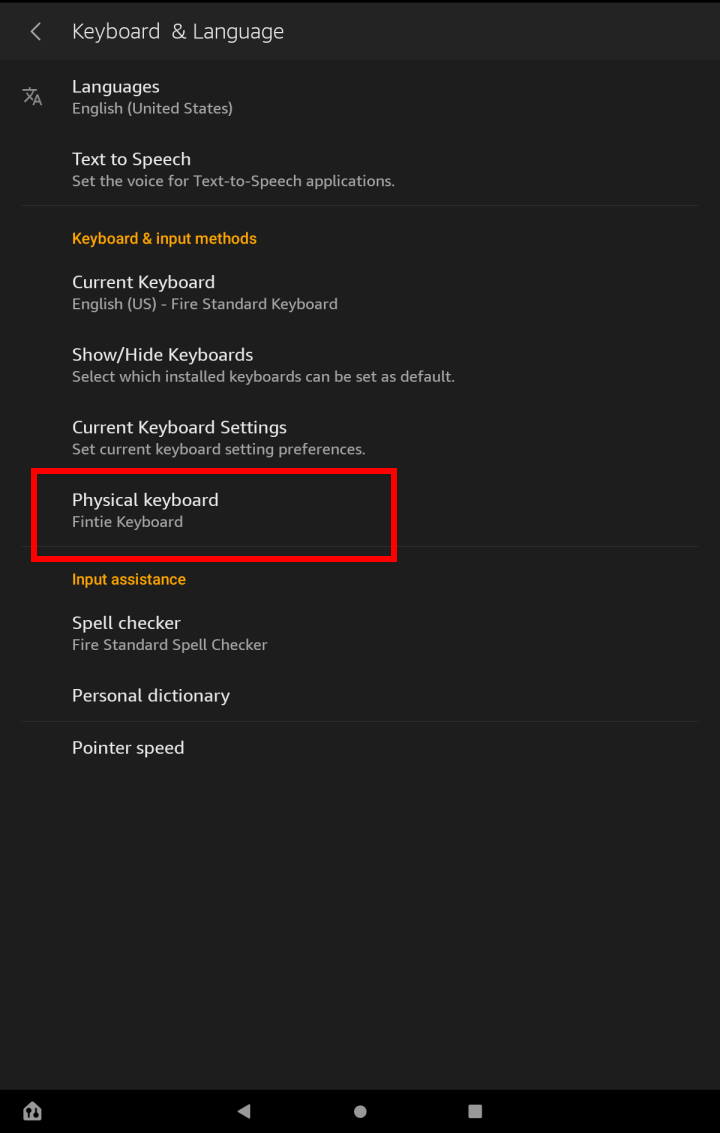
You can access the keyboard settings from the notifications panel when the keyboard is paired with the tablet the first time or from Settings —Device options –-Keyboard & Language.
You can find the Physical keyboard entry on the Keyboard & Language settings page, as shown in the screenshot below. The Fintie keyboard should be displayed if the keyboard is paired to the tablet properly.
Tap the Physical keyboard to configure and customize the official wireless keyboard for Amazon Fire HD 10 2021 (and Fire HD 10 Plus) keyboard.
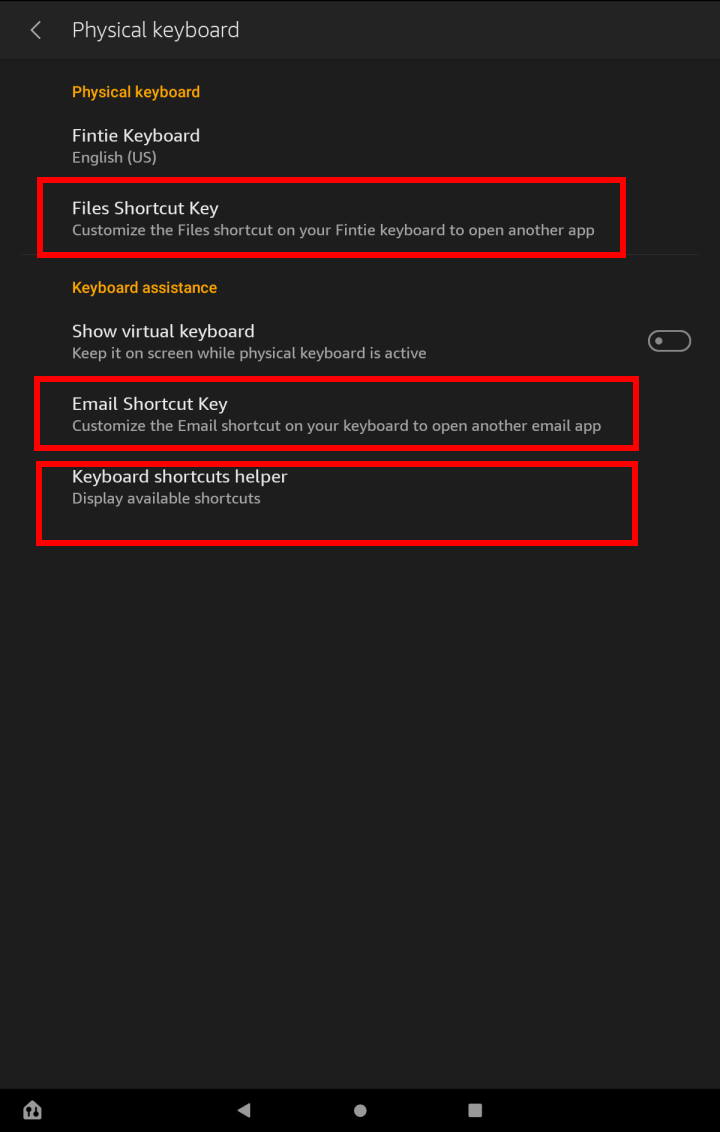
As shown in the screenshot below, you can customize this official (Fintie) Bluetooth keyboard:
- Customize the app for the Files key. You can use the key for any apps installed on the tablet, including apps installed from Google Play Store.
- Customize the app for the Email key. You can specify an email app if you install any email apps on the tablet, for example, Outlook.
- Enable a virtual (soft) keyboard even when this Bluetooth is connected. By default, it is disabled so that you can have a large, usable screen.
- List all shortcuts for this official wireless keyboard for Amazon Fire HD 10 2021 (and Fire HD 10 Plus)
For many Fire HD 10 2021 owners, customizing the Files key and checking the available shortcuts are very useful.
FAQs on the official wireless keyboard for Amazon Fire HD 10 2021 (and Fire HD 10 Plus)
Q1. Can I use other wireless keyboards for Amazon Fire HD 10 2021 (and Fire HD 10 Plus)?
A1. Yes, you can use other Bluetooth keyboards with Fire HD 10 2021 and Fire HD 10 Plus.
To pair Fire HD 10 with other Bluetooth keyboards, you can follow similar procedures.
But if the keyboard was paired with other devices before, then you need to let the Bluetooth keyboard enter the pairing mode. Some keyboards may ask you to hold the power button to enter the pairing mode.
Q2. Should I get the official wireless keyboard through the productivity bundle?
A2. It depends on whether you need to use the one-year Office 365 subscription.
If you are currently on the monthly plan or planning to subscribe to it, the productivity bundle offers a considerable discount over buying them individually.
Of course, if you don't need a new Microsoft 365 subscription, it doesn't make sense to get the bundle. You can just buy the keyboard cover.
The Fire Tablet Buyers Guide 2023 explains the issue in detail.
Q3. Should I turn off the wireless keyboard when not using it?
A3. Normally, it's unnecessary to turn off the official keyboard for Fire HD 10 2021 and Fire HD 10 Plus. It will enter the sleep state when you close the cover or if you do not use the keyboard for 30 minutes.
So, the keyboard will not cause any noticeable battery drain on the tablet.
Q4. How to wake up the Bluetooth keyboard?
A4. If the Bluetooth keyboard is in sleep mode, you can press any key to wake it up. It will take about 2 seconds for the keyboard to reconnect to the tablet.
Q5. What is the meaning of the special keys on the official wireless keyboard for Amazon Fire HD 10 2021 (and Fire HD 10 Plus)?
A5. There are 15 special keys. The meaning of these special keys is explained on this page.
Q6. Can I use shortcuts on the official wireless keyboard for Amazon Fire HD 10 2021 (and Fire HD 10 Plus)?
A6. Yes, you can use 11 pre-defined shortcuts. You may customize some as well. Please check this guide on how to use shortcuts and special keys on the official wireless keyboard for Amazon Fire HD 10 2021 (and Fire HD 10 Plus).
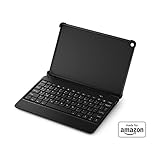
- Design: Instantly transforms from a wireless keyboard, into a sleek cover. This Bluetooth Keyboard Case features durable protection, adjustable viewing angles and attaches magnetically.
- Keyboard: Keyboard designed for a comfortable typing experience.
- Protection: Upper protective cover is made of polycarbonate material coated with durable PU leather, which allows full access to all ports, sensors, speakers, microphone and cameras.
- Productivity: Suitable for Home, Office or School use. Perfect for typing emails, note taking, document writing and web browsing.
- Adjusts Instantly: Seamlessly detach the keyboard or adjust your viewing angle to customize your viewing experience when watching videos, viewing photos, typing and more.
Do you have any questions about using the official wireless keyboard for Amazon Fire HD 10 2021 (and Fire HD 10 Plus)?
Please let us know in the comment box below if you have any questions about the official wireless keyboard for Amazon Fire HD 10 2021 (and Fire HD 10 Plus).
Detailed information on how to use the Google Play Store on Fire tablets can be found here.
Need advice on choosing a Fire tablet? Check the Fire Tablet Buyer's Guide now.
You may check other Fire tablet how-to guides and tutorials on the Fire tablet how-to guides page.
You may also reach us via our Facebook page or the contact us form.



I want to turn off these shortcuts so my son can just type. How do I do this. I can open the settings but it won’t let me change anything
These shortcuts are built-in. You cannot disable them.
Anyway, why do you want to disable them? They are just for some quick actions. When typing in documents, the app (for example Google Docs or Microsoft Word) have their own shortcuts as well. These shortcuts, if used properly, can greatly improve productivity so that the user can spend more time on the actual tasks (e.g., writing).
Our Facebook page || Fire tablet guide || Galaxy S6 Guides || Galaxy S7 Guides || Android Guides || Galaxy S8 Guides || Galaxy S9 Guides || Google Home Guides || Headphone Guides || Galaxy Note Guides || Moto G Guides || Chromecast Guides || Galaxy S10 Guides || Galaxy S20 Guides || Samsung Galaxy S21 Guides || Samsung Galaxy S23 Guides || Samsung Galaxy S23 Guides || Samsung Galaxy S24 Guides || Samsung Galaxy S25 GuidesWhat I’m not clear on is whether you can use the keyboard as a cover when carrying it around, such as going to Starbucks. Would you need BOTH a cover AND the bluetooth keyboard?
You do NOT need a cover if you get this keyboard. The keyboard can be used as a full cover (back and front/screen) or just as a back cover (if you detach the keyboard from the back part).
Our Facebook page || Fire tablet guide || Galaxy S6 Guides || Galaxy S7 Guides || Android Guides || Galaxy S8 Guides || Galaxy S9 Guides || Google Home Guides || Headphone Guides || Galaxy Note Guides || Moto G Guides || Chromecast Guides || Galaxy S10 Guides || Galaxy S20 Guides || Samsung Galaxy S21 Guides || Samsung Galaxy S23 Guides || Samsung Galaxy S23 Guides || Samsung Galaxy S24 Guides || Samsung Galaxy S25 Guidescan i use korean language on fintie wireless keyboard for fire hd 10?
Not sure. But it seems the Chinese input works. But when I change the language to Korean, it is in English.
Anyway, the Fire tablet keyboard (virtual keyboard) is not friendly to other languages. It is hard to use and not consistent. The Bluetooth keyboard follows the virtual keyboard input language settings. But it may not work with some languages.
Our Facebook page || Fire tablet guide || Galaxy S6 Guides || Galaxy S7 Guides || Android Guides || Galaxy S8 Guides || Galaxy S9 Guides || Google Home Guides || Headphone Guides || Galaxy Note Guides || Moto G Guides || Chromecast Guides || Galaxy S10 Guides || Galaxy S20 Guides || Samsung Galaxy S21 Guides || Samsung Galaxy S23 Guides || Samsung Galaxy S23 Guides || Samsung Galaxy S24 Guides || Samsung Galaxy S25 Guides