• Skip to primary navigation
  • Skip to main content
  • Skip to primary sidebar
  • Skip to footer

Guides for Fire Tablet

  • Home
    • About
    • Privacy
    • Contact
  • How-to
    • How to use Writing Assist on Fire Tablet?
    • How to use Wallpaper Creator on your Fire tablet?
    • How to Use Webpage Summaries on Your Fire Tablet?
    • Amazon Fire Max 11: A Closer Look at the Top 10 New Features
      • Limitations and Missing Features of Amazon Fire Max 11
      • Amazon Fire Max 11 Keyboard Case: Everything You Need to Know
      • How to use the fingerprint ID on Fire Max 11?
      • The Definite Guide on Amazon Stylus Pen for Fire Max 11
    • How to use Quick Settings on Fire tablets?
    • How to take a screenshot on a Fire tablet without using any apps like a pro?
    • Everything about Fire OS 8
      • How to Use Dark Theme on Fire Tablets with Fire OS 8?
    • How to install Google Play Store on Amazon Fire Tablet: Fire 6, Fire 7, Fire HD 8, Fire HD 10, and Fire Max 11?
    • How to Use Split Screen on Fire HD 10 (2019,2021,2023), Fire HD 10 Plus, Fire HD 8 (2020, 2022), Fire HD 8 Plus (2022, 2022), and Fire Max 11?
    • How to use the official wireless keyboard for Amazon Fire HD 10 2021 (and Fire HD 10 Plus)?
      • How to use the 15 special keys and 11 keyboard shortcuts on the official wireless keyboard for Amazon Fire HD 10 2021 (and Fire HD 10 Plus)?
    • The ultimate guide of USB-C fast charging on Fire HD 10 2019, Fire HD 8 2020, and later devcies
    • How to use the micro SD card on the Fire tablet?
    • How to sideload Android apps in Kindle Fire, Kindle Fire HD and Kindle Fire HDX?
    • How to enable and access developer options on Amazon Fire tablet, and how to hide developer options again?
    • How to setup a Google account on Amazon Fire tablet?
  • Buyer’s Guide
    • Fire Tablet Buyer’s Guide 2025
      • Fire Tablet Buyer’s Guide 2024
      • Fire Tablet Buyer’s Guide 2023
      • Fire Tablet Buyer’s Guide 2022
    • What’s new in Fire HD 8 2024 (12th Gen)?
    • Fire HD 10 2023 vs. Fire HD 10 2021: What’s New in Fire HD 10 2023 (13th Gen)?
    • Amazon Fire Max 11: A Closer Look at the Top 10 New Features
      • Limitations and Missing Features of Amazon Fire Max 11
    • What’s new in Fire HD 8 2022 (12th Gen) vs Fire HD 8 2022 (10th Gen)?
    • Fire 7 2022 vs Fire 7 2019: top 10 new features and improvements
    • Fire HD 10 Plus vs. Fire HD 10 2021 vs. Fire HD 10 2019
    • Fire HD 8 Plus (2020) vs Fire HD 8 2020 (10th Gen) vs Fire HD 8 2018 (8th Gen)
    • Fire HD 10 2019 (9th Gen): everything you need to know
    • Top 10 things you should know about new Kindle Fire HDX 7 and HDX 8.9

keyboard case

How to use Writing Assist on Fire Tablet?

Last updated on: January 5, 2025, first published on: January 2, 2025 1 Comment

How to use Writing Assist on Fire Tablet?

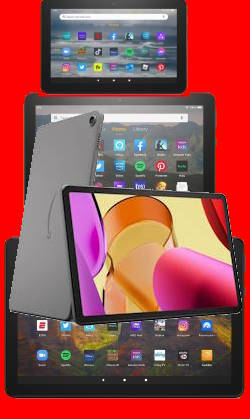
Writing Assist is the most practical tool among the three generative AI features currently available on Fire tablets.

This Fire tablet how-to guide explains what Writing Assist is, the available features of Writing Assist, and how to access and use these features to help your writing. The guide also explains how to use Writing Assist with a Bluetooth keyboard and the limitations of this AI tool.

You may check the other two AI features on Fire tablet in these two guides: Webpage Summaries and Wallpaper Creator.

What is the Writing Assist on Fire Tablet?

Amazon announced three generative AI features when Fire HD 8 2024 was released: Writing Assist, Webpage Summaries, and Wallpaper Creator.

Writing Assist on Fire tablet is simply an AI-powered writing tool. It uses generative AI to help you improve your writing and offers various suggestions, including grammar, spelling, style, and even the tone of your writing. You can even get suggestions for making your writing tone more casual or professional. The feature is similar to Samsung's Writing Assistant (powered by Grammarly) but not comparable to Galaxy AI's Writing Assist, which offers many advanced features like Composer and auto-reply.

Writing Assist is integrated into the Fire tablet's keyboard in Fire OS 8. So, it works across all apps that require text input and you can access it whenever you use the keyboard.

You can even use it when you use a Bluetooth keyboard with your Fire tablet (read on).

List of Fire tablet models with Writing Assist

Currently, Writing Assist is available on Fire tablets with Fire OS 8 (excluding Fire 7 2022).

Here is the list of suppirted Fire tablets:

  • Fire HD 8 2024 (12th Gen).
… Read the rest

Filed Under: How-to guides, Kindle Fire Update Tagged With: AI, Bluetooth keyboard, Fire 7 2022, Fire HD 10 2023, Fire HD 8 12th Gen, Fire HD 8 2024, Fire Max 11, Fire OS 8, generative AI, keyboard, keyboard case, quick settings, screenshot, settings, wallpaper creator, webpage summaries, writing assist

Fire Tablet Buyer’s Guide 2024

Last updated on: November 21, 2025, first published on: July 16, 2024 Leave a Comment

Fire Tablet Buyer's Guide 2023

Amazon Fire tablet (Fire 7, Fire HD 8, Fire HD 10, and Fire Max 11) is the most affordable Android tablet on the planet. Fire Tablet Buyer's Guide 2024 will help you decide:

  • Is a Fire tablet right for me?
  • Which Fire tablet is for me?
  • How to get the best deal on a Fire tablet?

In this Fire Tablet Buyer's Guide 2024, I will first explain the difference between the Fire tablet and the Android tablet, when you may consider buying a Fire tablet, and when you should not consider the Fire tablet at all. The current (2024) available models of Amazon Fire tablets are compared to explain the differences among these available models in 2024. You can then decide whether to get the 7″ Fire 7 or 8″ and 10″ HD or 11″ Fire max tablet based on your budget usage, portability, and special needs.

The Fire Tablet Buyer's Guide 2024 also provides comprehensive details regarding the additional features and upgrades available in the Plus version for Fire HD 8 and Fire HD 10. The guide also offers a detailed overview of the Kids edition, enabling users to make informed decisions about its suitability for their needs.

This Fire Tablet Buyer's Guide 2024 finally explains why you should not buy a Fire tablet of the old generation and why you should avoid the refurbished Fire tablet.

This Fire Tablet Buyer's Guide 2024 is an updated version of Fire Tablet Buyer's Guide 2023 with the new Fire HD 8 2024, and new generative AI features: webpage summaries, wallpaper creator, and writing assist.

Update (latest): Fire Tablet Buyer's Guide 2025.

Difference between the Fire tablet and the Android tablet

Amazon Fire tablet is not exactly an Android tablet, although it is often quoted as the most affordable Android tablet.… Read the rest

Filed Under: Buyer Guide, How-to guides, Kindle Fire Guide, Kindle Fire Review Tagged With: AI, Amazon Kids, battery, Bluetooth, Bluetooth keyboard, Bluetooth LE, buyer's guide, camera, fast charging, Fire 7, Fire 7 2022, Fire 7 Kids, Fire HD 10, Fire HD 10 2023, Fire HD 10 Kids, Fire HD 10 Kids Pro, Fire HD 10 Plus, Fire HD 8 2024, Fire HD 8 Kids Pro, Fire HD 8 Plus, Fire Max 11, Fire OS 7, Fire OS 8, Fire Tablet buyer's guide 2024, Fire tablet buyer's guide 2023, generative AI, Google, Google account, google play, Google Play Store, headphone jack, keyboard, keyboard case, kids+, micro SD card, productivity bundle, SD card, stylus, USB-C, USI 2.0, wallpaper, wallpaper creator, webpage summaries, WiFi 5, WiFi 6, wireless charging, writing assist

Limitations and Missing Features of Amazon Fire Max 11

Last updated on: January 6, 2025, first published on: November 3, 2023 2 Comments

Limitations and Missing Features of Amazon Fire Max 11

Amazon Fire Max 11 is the first “premium” model of the Fire tablet product family after Amazon discontinued the Kindle Fire HDX 7 and HDX 8.9 in 2015. Although it only costs less than $230 (usually on sale for as low as $150), it has some interesting features, such as fingerprint ID, active pen support, and an official keyboard case, as explained in this post. However, at the same time, there are some limitations and missing features of Amazon Fire Max 11.

This Fire tablet guide explains the top 7 limitations and missing features of Amazon Fire Max 11, including no DisplayPort Alt Mode, no wireless charging, no fast charging, no headphone jack, lack of Google Play store support, limited multitasking capabilities, and outdated Android version.

Now, let's go through these seven limitations and missing features of Amazon Fire Max 11 one by one.

1. No USB-C Alt Mode support

USB-C Alt Mode allows USB-C ports to transfer data (e.g., video) via multiple interfaces, including the DisplayPort video interface. So, with USB-C Alt Mode support, you can instantly connect your tablet to a monitor or projector with a USB-C to HDMI cable to share the screen or work on the large screen.

Unfortunately, Amazon Fire Max 11 does NOT support USB-C Alt Mode. This means you cannot easily hook the tablet to a big screen.

This is one of the most disappointing missing features of Amazon Fire Max 11 if you need to share the screen or want to work on a big screen with the tablet.

Please note Amazon Fire Max 11 (and Fire HD 10 2023) does support screen mirroring through Miracast, which is only available on some TVs.… Read the rest

Filed Under: Buyer Guide, Kindle Fire Review, Kindle Fire Update Tagged With: active pen, AirPods, Android 10, Android 11, Echo Buds, fast charging, fingerprint ID, fingerprint reader, Fire HD 10 2019, Fire HD 10 2023, Fire HD 10 Plus, Fire HD 8 2022, Fire HD 8 2024, Fire HD 8 Plus, Fire Max 11, Fire OS 8, Galaxy buds, Google account, Google Play Store, HDMI, headphone jack, keyboard case, Miracast, multiwindow, screen mirroring, sideload, split screen, stylus, USB C Alt Mode, USB Power Delivery, USB-C, wireless charging

Amazon Fire Max 11 Keyboard Case: Everything You Need to Know

Last updated on: January 6, 2025, first published on: October 9, 2023 9 Comments

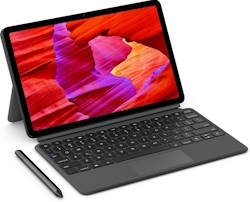
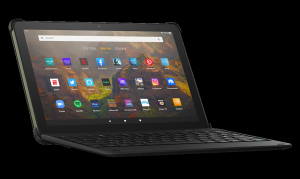
Amazon Fire Max 11 Keyboard Case

Amazon Fire Max 11 keyboard case is the first keyboard case with the Amazon brand on it. The unique design and special keyboard features make the accessory very impressive, although it is not cheap at $89.99.

This Fire tablet guide explains everything you need to know about the Amazon Fire Max 11 keyboard case to help you decide whether it is for you or not. The guide also shows you how to use and customize Amazon Fire Max 11 keyboard case and its unique features.

The Amazon Fire Max 11 keyboard case is for Fire Max 11 only. Although the keyboard piece is removable, you cannot use the keyboard on any other devices because it is NOT a Bluetooth keyboard.

Update: In October 2024, Amazon added three generative AI features, Webpage Summaries, Wallpaper Creator, and Writing Assist, to Fire Max 11 in the Fire OS 8.3.3 update. You can use Writing Assist with Fire Max 11 Keyboard Case.

Unique features of Amazon Fire Max 11 keyboard case

Amazon Fire Max 11 is the first “premium” Fire tablet from Amazon after discontinuing the Fire HDX series long ago, although there are some missing features of the Fire Max 11.

So, Amazon packed some unique features and upgrades into Fire Max 11: both the tablet itself and the accessories. For example, the active pen was introduced. And the USI 2.0 pen can now also be used in the recently released Fire HD 10 2023 (13th Gen). The Amazon Fire Max 11 keyboard case is the first keyboard case made “by” Amazon.

The first “official” keyboard case for Fire tablet is the official keyboard case for Fire HD 10 2021 (11th Gen).… Read the rest

Filed Under: How-to guides, Kindle Fire Guide Tagged With: accessories, active pen, AI, Bluetooth keyboard, Fire HD 10 2021, Fire HD 10 2023, Fire Max 11, Fire OS 8, generative AI, Google Play Store, keyboard, keyboard case, kickstand, shortcut, sideload, special keys, stylus, trackpad, trackpad gesture, wallpaper creator, webpage summaries, writing assist

How to use the fingerprint ID on Fire Max 11?

Last updated on: November 3, 2023, first published on: September 6, 2023 2 Comments

fingerprint ID on Fire Max 1

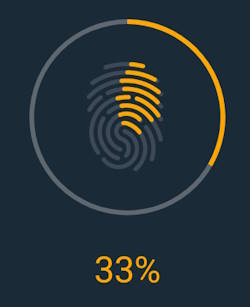
Fire Max 11 is the first Amazon tablet with a fingerprint reader (embedded in the power button). You use the corresponding fingerprint ID on Fire Max 11 to unlock the tablet quickly. Some apps may also opt to use it in the future.

This Fire tablet how-to guide explains what the fingerprint ID on Fire Max 11 is, its limitations, how to register your fingerprints for the fingerprint ID on Fire Max 11, and how to use it on Fire Max 11.

Fire Max 11 is also the first Fire tablet with active pen support. Please check this guide for using the active stylus on Fire Max 11 and this guide for using the Fire Max 11 keyboard case. The limitations and missing features of Amazon Fire Max 11 are discussed here.

What is fingerprint ID on Fire Max 11?

To save costs, Amazon did not add a fingerprint reader on all previous Fire tablets. Fire Max 11 is the first Fire tablet that comes with it, and Amazon simply named it Fingerprint ID in Fire OS 8.

The fingerprint reader (sensor) on Fire Max 11 is embedded into the power button. This means you can use the fingerprint ID on Fire Max 11 by simply putting your finger on the power button.

The capacitive fingerprint sensor is actually way better (user-friendly and faster) than the fancy under-display fingerprint reader found in many “flagship” devices like Galaxy S23 or Google Pixel 7 Pro. Very likely, it is also cheaper.

Theoretically, you can use fingerprint ID on Fire Max 11 to:

  1. Unlock the tablet.
  2. Authenticate yourself in apps that support fingerprint ID on Fire Max 11.

For the latter, it seems there are no apps supporting the fingerprint ID on Fire Max 11.… Read the rest

Filed Under: How-to guides Tagged With: active pen, fingerprint ID, fingerprint reader, Fire Max 11, Fire OS 8, Home screen, keyboard case, lock screen, lock screen ads, passcode, Power button, quick setting button, quick settings, settings, stylus

How to use Quick Settings on Fire tablets?

Last updated on: October 6, 2024, first published on: October 25, 2022 Leave a Comment

use Quick Settings on Fire tablets

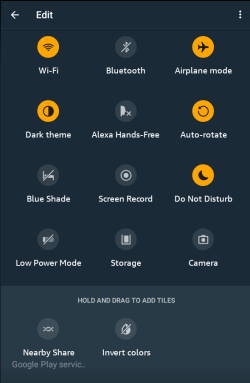
Quick Settings on Fire tablets lets you enable or disable some features instantly without going through the Settings app.

This Fire tablet how-to guide explains what the Quick Settings on Fire tablets is, how to access the Quick Settings panel on a Fire tablet, the differences in Quick Settings among Fire OS 5, Fire OS 7, and Fire OS 8, and how to use and customize the Quick Setting buttons.

Although the illustration and screenshots are based on Fire OS 8, this guide applies to most Fire tablets, including Fire 7 (12th Gen), Fire HD 8 and Fire HD 8+ (12th Gen), Fire HD 8 2024 (12th Gen)Fire HD 10 2023 (13th Gen), and Fire Max 11(13th Gen).

What is Quick Settings on Fire tablets?

Quick Settings on Fire tablets is simply a special panel that lets you turn on/off some frequently used features without fiddling around the Settings.

For example, if you want to turn on (or off) Bluetooth on a Fire tablet without Quick Settings, you need 5 steps.

  1. Navigate to the Home screen (you may have to leave the app you are using).
  2. Locate the Settings app.
  3. Open the Settings app.
  4. Tap Connected devices.
  5. Tap Bluetooth

With Quick Settings on Fire tablets, it will take you two steps to turn on/off Bluetooth:

  1. Without leaving the app you are using, swipe down from the top of the screen with two fingers.
  2. Tap the Bluetooth button.

So, it is a matter of “efficiency” if you can use Quick Settings on Fire tablets. The Quick Settings is even available when you are on the lock screen.

Like all other Android devices (although Amazon tried hard to hide “Android” in Fire tablets), all Fire tablets offer the Quick Settings feature.… Read the rest

Filed Under: How-to guides, Kindle Fire Guide Tagged With: Bluetooth, Bluetooth keyboard, brightness control, dark theme, Fire HD 10 2023, Fire HD 8 2024, Fire Max 11, Fire OS 5, Fire OS 6, Fire OS 7, Fire OS 8, keyboard case, lock screen, notification panel, quick setting button, quick settings, screen recorder, settings, trackpad, trackpad gesture

How to use the official wireless keyboard for Amazon Fire HD 10 2021 (and Fire HD 10 Plus)?

Last updated on: October 9, 2023, first published on: July 25, 2021 6 Comments

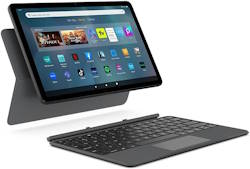
use the official wireless keyboard for Amazon Fire HD 10 2021 (and Fire HD 10 Plus)With the release of the 11th Gen of Amazon Fire HD 10 (and Fire HD 10 Plus), Amazon introduced the official wireless keyboard for Amazon Fire HD 10 2021 (and Fire HD 10 Plus).  The wireless keyboard cover is also part of the productivity bundle for Fire HD 10 2021.

This Fire tablet how-to guide explains the advantages (and disadvantages) of the official wireless keyboard for Amazon Fire HD 10 2021 (and Fire HD 10 Plus), how to attach and remove the wireless keyboard cover from Fire HD 10 2021, how to pair the wireless keyboard with Fire HD 10 2021, and how to use the official wireless keyboard on Fire HD 10 2021 and Fire HD Plus.

Fire HD 10 2023 (13th Gen) also has a similar official keyboard cover, which works identically to the one for Fire HD 10 2021. However, due to the differences in dimensions, you cannot fit the keyboard case for Fire HD 10 2021 with Fire HD 10 2023. And vice versa. So, this guide also works for the corresponding keyboard for Fire HD 10 2023 (13th Gen). There is no trackpad on the keyboard for Fire HD 10 2021 and Fire HD 10 2023. Only Fire Max 11 keyboard case has a trackpad.

What is the official wireless keyboard for Amazon Fire HD 10 2021 (and Fire HD 10 Plus)?

The official wireless keyboard cover for Amazon Fire HD 2021 is actually not an Amazon product. It is made for Amazon by Fintie, which is an Ohio-based accessories maker.

Of course, just like the Fire tablet, the keyboard cover is manufactured in China.

The wireless keyboard covers consisted of a wireless keyboard and a back cover.… Read the rest

Filed Under: Buyer Guide, How-to guides, Kindle Fire Guide, Kindle Fire Review, Kindle Fire Update Tagged With: Bluetooth keyboard, Bluetooth LE, case, cover, Fire HD 10, Fire HD 10 2021, Fire HD 10 2023, Fire HD 10 Plus, Fire Max 11, Fire OS 7, Fire tablet buyer's guide 2022, Google account, Google Play Store, keyboard, keyboard case, lock screen, productivity bundle, quick setting button, quick settings, shortcut, split screen, trackpad, trackpad gesture, unlock Fire HD 10

Primary Sidebar

Stop Telling Boring One-Liners. Start Telling Unforgettable Stories

All Over The Map: Funny Stories for Every Place You Go—From 36,000 Feet to the Bedroom
$4.99
Buy on Amazon

Kindle Fire for Kid Guide (free newsletter)

RSS Galaxy S25 Guides

  • All New Features of One UI 8 (Android 16) Update for Galaxy S25, S24, S23, and S22
  • One UI 8 Update Highlights for Galaxy S25, S24, S23, and S22
  • How to manage camera modes on Galaxy S25 (and Galaxy S24, S23, S22, and S21 with One UI 7 update)?
  • How to Use Galaxy S25 Camera App?
  • A Definite Guide to Galaxy S25 Flipsuit Case
  • How to Access and Customize Now Brief on Galaxy S25?
  • Meaning of Galaxy S25 Status Icons and Notification Icons
  • Layout of Galaxy S25, S25+, and S25 Ultra
  • New Galaxy AI features in Galaxy S25, S25+, and S25 Ultra
  • Top 10 new features of Galaxy S25, S25+, and S25 Ultra

RSS Galaxy S24 Guides

  • The definitive guide to One UI 7 (Android 15) update for Galaxy S24, S23, S22, and S21
  • The Definitive Guide to Galaxy AI on Galaxy S24, S23, S22, Fold 6, Fold 5, Flip 6, and Flip 5
  • Use the Light Performance Profile to Extend Battery Life and Reduce Heat on Galaxy S24, S23, S22, and S21 (all Samsung Galaxy Phones with Android 14/One UI 6.0)
  • How to adjust lock screen timeout on Galaxy S24, S23, S22, and other Galaxy devices?
  • How to use Circle to Search on Galaxy S24?
  • Meaning of Galaxy S24 status icons and notification icons on Galaxy S24, S24+, and S24 Ultra

RSS Galaxy S23 Guides

  • Explanation of all One UI 6.1 features for Galaxy S23, S23+, S23 Ultra, and other Galaxy devices
  • How to use One-Tap Editing in the Android 14 (One UI 6) update?
  • How to enable and use Auto Scan to scan documents automatically on Galaxy S23, S22, and S21?
  • New camera features in One UI 6 (Android 14) update for Galaxy S23, S22, and S21

RSS Galaxy S22 Guides

  • A Complete Guide for Android 14 (One UI 6) Update on Samsung Galaxy Devices
  • How to touch and hold to customize Lock Screen on Galaxy S22, S21, and S20 with the Android 13 update?
  • How to use Maintenance Mode on Galaxy S23, S22, S21, and S20 with Android 13 (One UI 5)?
  • How to extract text from photos and images on Galaxy S22, S21, and S20?

RSS Galaxy S21 Guides

  • Top 12 new features in Android 12 update for Galaxy S21, S20 and S10
  • Android 12 update vs One UI 4.0 vs One UI 4.1: update Galaxy S21, S20 and S10 to Android 12
  • How to set and resize photo size on Samsung Galaxy S21, S20, S10, and S9 without using any third-party apps?
  • How to Customize Galaxy S21 Home Screen?

RSS Headphone & Earbuds

  • Bose Ultra Open Earbuds vs. Shokz OpenFit 2+: The Battle of the Beams
  • Understand The Physics of Open-Ear Directional Audio
  • Bone Conduction Headphones Buyer’s Guide: 2026 Edition
  • Bone Conduction Audio Technology: A Technical Breakdown
  • Science And Architecture of Bluetooth Auracast
  • Bluetooth LE Audio and the LC3 Codec: A Technical Deep Dive
  • The Physics and Engineering of Super Wide Band (SWB) Voice
  • True Wireless Stereo (TWS) Explained

RSS Moto G phone

  • Stylus features on Moto G Stylus (all models)
  • What’s new in Moto G 2024? Moto G 5G 2024 vs Moto G Power 2024 vs Moto G Play 2024
  • Understand Moto G Model Names
  • Thank You
  • Moto G8 vs Moto G8 Power vs Moto G8 Power Lite vs Moto G Power vs Moto G Stylus vs Moto G Pro vs Moto G fast: What are the differences?

RSS Galaxy S20 Guides

  • The End of the Road: No Android 14 Update for the Galaxy S20
  • How to Use Enhanced Processing on Galaxy S20 with Android 11 update?

RSS Moto E Guides

  • How to use SIM cards on Moto E6, E6 Plus, E6 Play, and E6s 2020?
  • How to remove Moto E6 back cover (including Moto E6, Moto E6 Plus, Moto E6 Play)?
  • How to use alarm and customize alarm tones on Moto E, Moto G and Moto X?

RSS Galaxy S4 Guide

  • Samsung Galaxy S4 Manual for Verizon
  • Galaxy S4 User Manual and Handbook in English
  • Samsung Galaxy S4 User Manual and Handbook in Italian (Italiano)

RSS Chromecast Guide

  • How to enable developer options in Chromecast with Google TV and Google TV Streamer?
  • Meaning of LED light on voice remote for Chromecast with Google TV and Google TV Streamer
  • What’s new in Chromecast 2018 (3rd gen of Chromecast)?
  • How to use VLC media player on PC to stream music and video to Chromecast and Chromecast Audio?

RSS Drive in Singapore

  • Singapore ERP (Electronic Road Pricing): 6 Facts You Need to Know
  • Car Insurance in Singapore Explained
  • Top 5 rules of driving in Singapore safely and legally during COVID-19 Circuit Breaker period
  • Understand COE Price by 10 Simple Questions
  • How to convert a foreign driving license to a Singapore driving license?

Footer

RSS Google Home Guides

  • How to Use Quick Gestures on Nest Hub 2nd Gen and Nest Hub Max?
  • Understand the layout of Nest Hub (including Nest Hub 2nd Gen, Google Home Hub)
  • How to control Nest Audio?
  • Nest Audio Guides
  • Layout of Google Nest Mini (Google Home Mini 2nd Gen)
  • How to connect Google Home to a Bluetooth speaker?
  • Meaning of Google Home Mini LED lights and Google Home Max LED lights
  • Google Home Mini Guides
  • Google Home Mini layout and buttons
  • Google Home layout and buttons

RSS Chinese Classical Music

  • How to Cast Chinese Music Radio to Chromecast or Google Home?
  • 十面埋伏 (Ambushed,Pipa,琵琶曲,Shi Mian Mai Fu)
  • Meet in Yurt(敖包相会, Ao Bao Xiang Hui,Folk song,民歌)
  • Purple Bamboo Melody(紫竹调, Zi Zhu Diao,Yangqin,扬琴)
  • Solitary Orchid (幽兰, You Lan, Guqin, 古琴)

RSS Galaxy S5 Guiide

  • How to enter Galaxy S5 recovery mode?
  • How to set Galaxy S5 photo size and video size?
  • How to use Galaxy S5 camera voice control?

© 2012–2026 · · Kindle Fire for Kid:How-to Guide of Kindle Fire, Kindle Fire HD, Kindle Fire HDX, Fire HD, Fire 7, Fire HD 8, Fire HD 10, and Fire Max 11 .· Hosted by PTRHosting .
· Powered by Genesis framework for WordPress

Disclaimer: Amazon, Kindle, Kindle Fire, Kindle Fire HDX, Fire HD, Fire HD 6 Fire 7, Fire HD 8, Fire HD 10, and Fire Max 11 are trademarks of Amazon Inc. This website is NOT affiliated with Amazon Inc in any way. All the information provided on this website is provided on an "as is" and "as available" basis and you agree that you use such information entirely at your own risk.

Add Kindle Fire For Kid to your Homescreen!

Add
We use cookies to ensure that we give you the best experience on our website. If you continue to use this site we will assume that you are happy with it.Ok
pixel