• Skip to primary navigation
  • Skip to main content
  • Skip to primary sidebar
  • Skip to footer

Guides for Fire Tablet

  • Home
    • About
    • Privacy
    • Contact
  • How-to
    • How to use Writing Assist on Fire Tablet?
    • How to use Wallpaper Creator on your Fire tablet?
    • How to Use Webpage Summaries on Your Fire Tablet?
    • Amazon Fire Max 11: A Closer Look at the Top 10 New Features
      • Limitations and Missing Features of Amazon Fire Max 11
      • Amazon Fire Max 11 Keyboard Case: Everything You Need to Know
      • How to use the fingerprint ID on Fire Max 11?
      • The Definite Guide on Amazon Stylus Pen for Fire Max 11
    • How to use Quick Settings on Fire tablets?
    • How to take a screenshot on a Fire tablet without using any apps like a pro?
    • Everything about Fire OS 8
      • How to Use Dark Theme on Fire Tablets with Fire OS 8?
    • How to install Google Play Store on Amazon Fire Tablet: Fire 6, Fire 7, Fire HD 8, Fire HD 10, and Fire Max 11?
    • How to Use Split Screen on Fire HD 10 (2019,2021,2023), Fire HD 10 Plus, Fire HD 8 (2020, 2022), Fire HD 8 Plus (2022, 2022), and Fire Max 11?
    • How to use the official wireless keyboard for Amazon Fire HD 10 2021 (and Fire HD 10 Plus)?
      • How to use the 15 special keys and 11 keyboard shortcuts on the official wireless keyboard for Amazon Fire HD 10 2021 (and Fire HD 10 Plus)?
    • The ultimate guide of USB-C fast charging on Fire HD 10 2019, Fire HD 8 2020, and later devcies
    • How to use the micro SD card on the Fire tablet?
    • How to sideload Android apps in Kindle Fire, Kindle Fire HD and Kindle Fire HDX?
    • How to enable and access developer options on Amazon Fire tablet, and how to hide developer options again?
    • How to setup a Google account on Amazon Fire tablet?
  • Buyer’s Guide
    • Fire Tablet Buyer’s Guide 2025
      • Fire Tablet Buyer’s Guide 2024
      • Fire Tablet Buyer’s Guide 2023
      • Fire Tablet Buyer’s Guide 2022
    • What’s new in Fire HD 8 2024 (12th Gen)?
    • Fire HD 10 2023 vs. Fire HD 10 2021: What’s New in Fire HD 10 2023 (13th Gen)?
    • Amazon Fire Max 11: A Closer Look at the Top 10 New Features
      • Limitations and Missing Features of Amazon Fire Max 11
    • What’s new in Fire HD 8 2022 (12th Gen) vs Fire HD 8 2022 (10th Gen)?
    • Fire 7 2022 vs Fire 7 2019: top 10 new features and improvements
    • Fire HD 10 Plus vs. Fire HD 10 2021 vs. Fire HD 10 2019
    • Fire HD 8 Plus (2020) vs Fire HD 8 2020 (10th Gen) vs Fire HD 8 2018 (8th Gen)
    • Fire HD 10 2019 (9th Gen): everything you need to know
    • Top 10 things you should know about new Kindle Fire HDX 7 and HDX 8.9

screen recorder

How to use Quick Settings on Fire tablets?

Last updated on: October 6, 2024, first published on: October 25, 2022 Leave a Comment

use Quick Settings on Fire tablets

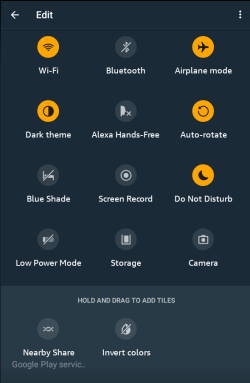
Quick Settings on Fire tablets lets you enable or disable some features instantly without going through the Settings app.

This Fire tablet how-to guide explains what the Quick Settings on Fire tablets is, how to access the Quick Settings panel on a Fire tablet, the differences in Quick Settings among Fire OS 5, Fire OS 7, and Fire OS 8, and how to use and customize the Quick Setting buttons.

Although the illustration and screenshots are based on Fire OS 8, this guide applies to most Fire tablets, including Fire 7 (12th Gen), Fire HD 8 and Fire HD 8+ (12th Gen), Fire HD 8 2024 (12th Gen)Fire HD 10 2023 (13th Gen), and Fire Max 11(13th Gen).

What is Quick Settings on Fire tablets?

Quick Settings on Fire tablets is simply a special panel that lets you turn on/off some frequently used features without fiddling around the Settings.

For example, if you want to turn on (or off) Bluetooth on a Fire tablet without Quick Settings, you need 5 steps.

  1. Navigate to the Home screen (you may have to leave the app you are using).
  2. Locate the Settings app.
  3. Open the Settings app.
  4. Tap Connected devices.
  5. Tap Bluetooth

With Quick Settings on Fire tablets, it will take you two steps to turn on/off Bluetooth:

  1. Without leaving the app you are using, swipe down from the top of the screen with two fingers.
  2. Tap the Bluetooth button.

So, it is a matter of “efficiency” if you can use Quick Settings on Fire tablets. The Quick Settings is even available when you are on the lock screen.

Like all other Android devices (although Amazon tried hard to hide “Android” in Fire tablets), all Fire tablets offer the Quick Settings feature.… Read the rest

Filed Under: How-to guides, Kindle Fire Guide Tagged With: Bluetooth, Bluetooth keyboard, brightness control, dark theme, Fire HD 10 2023, Fire HD 8 2024, Fire Max 11, Fire OS 5, Fire OS 6, Fire OS 7, Fire OS 8, keyboard case, lock screen, notification panel, quick setting button, quick settings, screen recorder, settings, trackpad, trackpad gesture

How to take a screenshot on a Fire tablet without using any apps like a pro?

Last updated on: November 3, 2023, first published on: October 15, 2022 Leave a Comment

How to take a screenshot on a Fire tablet without using any apps like a pro

You can use two different methods to take a screenshot on a Fire tablet without using any apps.

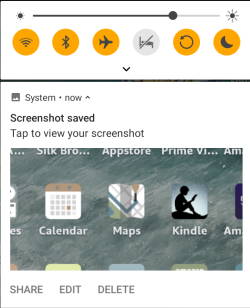
This Fire tablet how-to guide explains the two methods to easily take screenshots on a Fire tablet: the power button + Volume down key method on all Fire tablets and using the power-off menu in Fire OS 7 and Fire OS 8. The guide also shows you how to edit and share screenshots on Fire tablets.

The results are identical. The two methods will take the same screenshots.

This guide covers all generations of Fire 7, Fire HD 8, Fire HD 10, Fire Max 11, Kindle Fire, Kindle Fire HDX 7, and Kindle Fire HDX 8.9.

Why do you need to take screenshots on a Fire tablet?

Occasionally, you may need to share what's shown on the screen with others or keep a record for yourself.

Sometimes, you may want to show the game progress or show others how to use some apps (or ask for help).

Or you find some interesting illustrations/info in a magazine or a book and want to check them later.

In all these cases, you may need to take screenshots on a Fire tablet. Taking photos for a screen with another device is always a challenge. Screenshots make it easy.

There are at least two methods to take a screenshot on a Fire tablet without using any apps. We now go through them one by one.

Method 1: Use the Power button + Volume down button to take a screenshot on a Fire tablet

Like on any Android phone or tablet, you can simultaneously press and hold the power button and the Volume down button to take a screenshot on a Fire tablet, as shown in the picture below.… Read the rest

Filed Under: How-to guides, Kindle Fire Guide Tagged With: Amazon Photos, camera, Files app, Fire 7 2022, Fire HD 8 2022, Fire OS 7, Fire OS 8, game, Power button, power-off menu, screen recorder, screenshot, take screenshots, volume adjustment, volume button

Everything about Fire OS 8

Last updated on: January 6, 2025, first published on: October 9, 2022 Leave a Comment

Everything about Fire OS 8

Fire OS 8 is the latest (2022) Operating System (OS) for Fire tablets. It was announced on May 18, 2022.

This Fire tablet how-to guide explains everything you need to know about Fire OS 8: relation to Android versions, new features (and how to use them), supported devices, and about sideloading Google Play Store.

This guide applies to all models (standard, Kids, Kids Pro, Plus) of Fire 7 2022 (12th Gen), Fire HD 8 2022 (12th Gen), Fire HD 8 2024 (12th Gen), Fire HD 10 2023 (13th Gen), and Fire Max 11 (2023, 13th Gen).

Relation to Android versions

Fire OS is essentially a fork of the Android Open Source Project (AOSP). And each version of Fire OS has parity with a specific version of Android. So, you can run most Android apps on Fire tablets even if they are not available in the Amazon App Store.

Of course, Amazon removed almost all Google services, including Google Play Store, and replaced them with their own offering. Therefore, technically speaking, Google services are NOT supported on Fire tablets. Even worse, Amazon tightened the controls of the Fire OS. It is easy to make Google Play Store and other Google services work on Fire OS 8 (read on).

Unlike previous versions of Fire OS, Fire OS 8 is based on two versions of Android: Android 10 and Android 11. It is unclear why Amazon did not move the whole code base to Android 11. FYI, Fire OS 7 is based on Android 9 (Android Pie).

As the current Android version is Andriod 13, apps that require Android 12 or higher generally cannot run on Fire OS 8. You must be aware of this limitation when sideloading Android apps to Fire tablets.… Read the rest

Filed Under: How-to guides, Kindle Fire Guide, Kindle Fire Update Tagged With: active pen, AI, Android 10, camera, chrome for android, dark mode, fingerprint ID, Fire 7 2022, Fire 7 Kids, Fire HD 10 2023, Fire HD 8 2022, Fire HD 8 Kids, Fire HD 8 Kids Pro, Fire Max 11, Fire OS 5, Fire OS 6, Fire OS 7, Fire OS 8, Fire tablet buyer's guide 2022, generative AI, Google play services, Google Play Store, permission, quick setting button, quick settings, screen recorder, USI 2.0, wallpaper creator, webpage summaries, writing assist

What’s new in Fire HD 8 2022 (12th Gen) vs Fire HD 8 2020 (10th Gen)?

Last updated on: January 6, 2025, first published on: October 9, 2022 4 Comments

What's new in Fire HD 8 2022 (12th Gen) vs Fire HD 8 2022 (10th Gen)?

Amazon announced the Fire HD 8 2022, which is the 12th Gen of the Fire Tablet, on September 21, 2022. You can get your hands on it from October 19.

Fire HD 8 2022 (12th Gen) shares a similar size and design, almost identical display, similar micro SD card support, and identical RAM, compared to the previous generation of Fire HD 8 (Fire HD 2020/10th Gen).

So, what is new in Fire HD 8 2022 (12th Gen) vs Fire HD 8 2020 (10th Gen)?

This Fire tablet buying guide explains the six changes or improvements in the Fire HD 8 2022 (12th Gen) vs Fire HD 8 2020 (10th Gen), including Fire OS 8, a Hexa-core processor, 13-hour battery life, swapped locations for the power and volume buttons, 5MP rear camera for the Plus model, and $10 price hike.

Update: the upgrade model, Fire HD 8 2024 (12th Gen), is now replacing Fire HD 8 2022. However, there is no Plus version in the 2024 release.

1. Fire OS 8

Fire HD 8 2022 (12th Gen) is the second Fire tablet with the latest Fire OS: Fire OS 8.

As explained in this post, Fire 7 2022 (12th Gen) is the first Fire tablet shipped with Fire OS 8.

You can use all new features and improvements in Fire OS 8 with the new Fire HD 8 2022 (12th Gen), e.g.,

  • Improved security and privacy options.
  • Native screen recorder.
  • System-wide dark theme. You may check this guide on how to use and schedule the Dark Theme.
  • High-efficiency image file (HIEF) support.
  • Restricted background activities

Please note Fire OS 8 does work with the Google Play store.… Read the rest

Filed Under: Buyer Guide, How-to guides, Kindle Fire Guide, Kindle Fire Review, Kindle Fire Update Tagged With: AI, camera, dark theme, fast charging, FIRE HD 8, Fire HD 8 12th Gen, Fire HD 8 2020, Fire HD 8 2022, Fire HD 8 2024, Fire HD 8 Kids, Fire HD 8 Kids Pro, Fire HD 8 Plus, Fire HD Plus 2022, Fire Max 11, Fire OS 8, Fire tablet buyer's guide 2022, generative AI, Google Play Store, Power button, power-off menu, screen recorder, screenshot, SD card, take screenshots, USB Power Delivery, USB-C, volume button, wallpaper creator, webpage summaries, wireless charging, writing assist

Primary Sidebar

Stop Telling Boring One-Liners. Start Telling Unforgettable Stories

All Over The Map: Funny Stories for Every Place You Go—From 36,000 Feet to the Bedroom
$4.99
Buy on Amazon

Kindle Fire for Kid Guide (free newsletter)

RSS Galaxy S25 Guides

  • All New Features of One UI 8 (Android 16) Update for Galaxy S25, S24, S23, and S22
  • One UI 8 Update Highlights for Galaxy S25, S24, S23, and S22
  • How to manage camera modes on Galaxy S25 (and Galaxy S24, S23, S22, and S21 with One UI 7 update)?
  • How to Use Galaxy S25 Camera App?
  • A Definite Guide to Galaxy S25 Flipsuit Case
  • How to Access and Customize Now Brief on Galaxy S25?
  • Meaning of Galaxy S25 Status Icons and Notification Icons
  • Layout of Galaxy S25, S25+, and S25 Ultra
  • New Galaxy AI features in Galaxy S25, S25+, and S25 Ultra
  • Top 10 new features of Galaxy S25, S25+, and S25 Ultra

RSS Galaxy S24 Guides

  • The definitive guide to One UI 7 (Android 15) update for Galaxy S24, S23, S22, and S21
  • The Definitive Guide to Galaxy AI on Galaxy S24, S23, S22, Fold 6, Fold 5, Flip 6, and Flip 5
  • Use the Light Performance Profile to Extend Battery Life and Reduce Heat on Galaxy S24, S23, S22, and S21 (all Samsung Galaxy Phones with Android 14/One UI 6.0)
  • How to adjust lock screen timeout on Galaxy S24, S23, S22, and other Galaxy devices?
  • How to use Circle to Search on Galaxy S24?
  • Meaning of Galaxy S24 status icons and notification icons on Galaxy S24, S24+, and S24 Ultra

RSS Galaxy S23 Guides

  • Explanation of all One UI 6.1 features for Galaxy S23, S23+, S23 Ultra, and other Galaxy devices
  • How to use One-Tap Editing in the Android 14 (One UI 6) update?
  • How to enable and use Auto Scan to scan documents automatically on Galaxy S23, S22, and S21?
  • New camera features in One UI 6 (Android 14) update for Galaxy S23, S22, and S21

RSS Galaxy S22 Guides

  • A Complete Guide for Android 14 (One UI 6) Update on Samsung Galaxy Devices
  • How to touch and hold to customize Lock Screen on Galaxy S22, S21, and S20 with the Android 13 update?
  • How to use Maintenance Mode on Galaxy S23, S22, S21, and S20 with Android 13 (One UI 5)?
  • How to extract text from photos and images on Galaxy S22, S21, and S20?

RSS Galaxy S21 Guides

  • Top 12 new features in Android 12 update for Galaxy S21, S20 and S10
  • Android 12 update vs One UI 4.0 vs One UI 4.1: update Galaxy S21, S20 and S10 to Android 12
  • How to set and resize photo size on Samsung Galaxy S21, S20, S10, and S9 without using any third-party apps?
  • How to Customize Galaxy S21 Home Screen?

RSS Headphone & Earbuds

  • Bose Ultra Open Earbuds vs. Shokz OpenFit 2+: The Battle of the Beams
  • Understand The Physics of Open-Ear Directional Audio
  • Bone Conduction Headphones Buyer’s Guide: 2026 Edition
  • Bone Conduction Audio Technology: A Technical Breakdown
  • Science And Architecture of Bluetooth Auracast
  • Bluetooth LE Audio and the LC3 Codec: A Technical Deep Dive
  • The Physics and Engineering of Super Wide Band (SWB) Voice
  • True Wireless Stereo (TWS) Explained

RSS Moto G phone

  • Stylus features on Moto G Stylus (all models)
  • What’s new in Moto G 2024? Moto G 5G 2024 vs Moto G Power 2024 vs Moto G Play 2024
  • Understand Moto G Model Names
  • Thank You
  • Moto G8 vs Moto G8 Power vs Moto G8 Power Lite vs Moto G Power vs Moto G Stylus vs Moto G Pro vs Moto G fast: What are the differences?

RSS Galaxy S20 Guides

  • The End of the Road: No Android 14 Update for the Galaxy S20
  • How to Use Enhanced Processing on Galaxy S20 with Android 11 update?

RSS Moto E Guides

  • How to use Moto E6 camera?
  • How to remove Moto E6 back cover (including Moto E6, Moto E6 Plus, Moto E6 Play)?
  • How to move apps to SD card in Moto E?

RSS Galaxy S4 Guide

  • Samsung Galaxy S4 Manual for Verizon
  • Galaxy S4 User Manual and Handbook in English
  • Samsung Galaxy S4 User Manual and Handbook in Italian (Italiano)

RSS Chromecast Guide

  • How to enable developer options in Chromecast with Google TV and Google TV Streamer?
  • Meaning of LED light on voice remote for Chromecast with Google TV and Google TV Streamer
  • What’s new in Chromecast 2018 (3rd gen of Chromecast)?
  • How to use VLC media player on PC to stream music and video to Chromecast and Chromecast Audio?

RSS Drive in Singapore

  • Singapore ERP (Electronic Road Pricing): 6 Facts You Need to Know
  • Car Insurance in Singapore Explained
  • Top 5 rules of driving in Singapore safely and legally during COVID-19 Circuit Breaker period
  • Understand COE Price by 10 Simple Questions
  • How to convert a foreign driving license to a Singapore driving license?

Footer

RSS Google Home Guides

  • How to Use Quick Gestures on Nest Hub 2nd Gen and Nest Hub Max?
  • Understand the layout of Nest Hub (including Nest Hub 2nd Gen, Google Home Hub)
  • How to control Nest Audio?
  • Nest Audio Guides
  • Layout of Google Nest Mini (Google Home Mini 2nd Gen)
  • How to connect Google Home to a Bluetooth speaker?
  • Meaning of Google Home Mini LED lights and Google Home Max LED lights
  • Google Home Mini Guides
  • Google Home Mini layout and buttons
  • Google Home layout and buttons

RSS Chinese Classical Music

  • How to Cast Chinese Music Radio to Chromecast or Google Home?
  • 十面埋伏 (Ambushed,Pipa,琵琶曲,Shi Mian Mai Fu)
  • Meet in Yurt(敖包相会, Ao Bao Xiang Hui,Folk song,民歌)
  • Purple Bamboo Melody(紫竹调, Zi Zhu Diao,Yangqin,扬琴)
  • Solitary Orchid (幽兰, You Lan, Guqin, 古琴)

RSS Galaxy S5 Guiide

  • How to enter Galaxy S5 recovery mode?
  • How to set Galaxy S5 photo size and video size?
  • How to use Galaxy S5 camera voice control?

© 2012–2026 · · Kindle Fire for Kid:How-to Guide of Kindle Fire, Kindle Fire HD, Kindle Fire HDX, Fire HD, Fire 7, Fire HD 8, Fire HD 10, and Fire Max 11 .· Hosted by PTRHosting .
· Powered by Genesis framework for WordPress

Disclaimer: Amazon, Kindle, Kindle Fire, Kindle Fire HDX, Fire HD, Fire HD 6 Fire 7, Fire HD 8, Fire HD 10, and Fire Max 11 are trademarks of Amazon Inc. This website is NOT affiliated with Amazon Inc in any way. All the information provided on this website is provided on an "as is" and "as available" basis and you agree that you use such information entirely at your own risk.

Add Kindle Fire For Kid to your Homescreen!

Add
We use cookies to ensure that we give you the best experience on our website. If you continue to use this site we will assume that you are happy with it.Ok
pixel