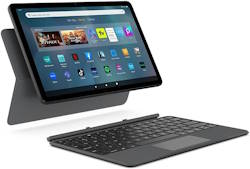
Amazon Fire Max 11 keyboard case is the first keyboard case with the Amazon brand on it. The unique design and special keyboard features make the accessory very impressive, although it is not cheap at $89.99.
This Fire tablet guide explains everything you need to know about the Amazon Fire Max 11 keyboard case to help you decide whether it is for you or not. The guide also shows you how to use and customize Amazon Fire Max 11 keyboard case and its unique features.
The Amazon Fire Max 11 keyboard case is for Fire Max 11 only. Although the keyboard piece is removable, you cannot use the keyboard on any other devices because it is NOT a Bluetooth keyboard.
Update: In October 2024, Amazon added three generative AI features, Webpage Summaries, Wallpaper Creator, and Writing Assist, to Fire Max 11 in the Fire OS 8.3.3 update. You can use Writing Assist with Fire Max 11 Keyboard Case.
Unique features of Amazon Fire Max 11 keyboard case
Amazon Fire Max 11 is the first “premium” Fire tablet from Amazon after discontinuing the Fire HDX series long ago, although there are some missing features of the Fire Max 11.
So, Amazon packed some unique features and upgrades into Fire Max 11: both the tablet itself and the accessories. For example, the active pen was introduced. And the USI 2.0 pen can now also be used in the recently released Fire HD 10 2023 (13th Gen). The Amazon Fire Max 11 keyboard case is the first keyboard case made “by” Amazon.
The first “official” keyboard case for Fire tablet is the official keyboard case for Fire HD 10 2021 (11th Gen). But it was made “for” Amazon by Fintie. This means Amazon's involvement in the keyboard case's design is minimal. Actually, it is a generic Fintie design for various devices with 15 special keys for Fire tablets.
In contrast, the Amazon Fire Max 11 keyboard case is made “by” Amazon. This means the Amazon Fire tablet team designed the keyboard case. This makes it possible to integrate some special features with the tablet seamlessly. Here are 4 of the unique features of the Amazon Fire Max 11 keyboard case.
No Bluetooth, no paring, directly connected to the tablet
The keyboard connects to the tablet through the magnetic Pogo pins connector. The benefits include:
- Zero setup. No Bluetooth setup. No pairing. It works instantly, just like your wired keyboard.
- No charging or changing battery. The keyboard powers itself from the tablet. You do not need to check the battery levels of the keyboard. Because there is no Bluetooth, the battery consumption is very marginal.
- No lagging. Because the keyboard transmits keystrokes to the tablet through a direct connection, you will not experience lagging, which is an inherent problem for many Bluetooth keyboards.
Of course, there is one disadvantage of using the Pogo pins connector. The keyboard can only be used for this specific model of tablet. Unlike Bluetooth keyboard, you can pair it with any other device.
Trackpad with gesture support
Surprisingly, Amazon managed to integrate a decent trackpad into the keyboard. We usually see the trackpad on the keyboard for devices with a 13″ or larger screen.
Once you get used to the trackpad, it could be more useful and faster than an additional mouse for most tasks on a tablet.
Some frequently used gestures are supported. For example, you can use the pinch-to-zoom gesture, two-finger scrolling gesture, and task-switching gesture on Fire Max 11 easily.
15 shortcut keys with 2 customizable shortcuts
Similar to the official wireless keyboard for Amazon Fire HD 10 2021 (11th Gen), there are 15 shortcut keys on the Amazon Fire Max 11 keyboard case. Two of them (Files and Emails) are customizable.
2-piece detachable back cover with integrated stand
The 2-piece design makes it very easy to remove the keyboard from the back cover when you do need the keyboard.
The back piece is attached to the tablet through magnetic without using any bulky plastic shells. You can flip the bottom part of the back cover to make it an integrated stand. The viewing angle is adjusted by how much “flipping” you applied. Like other this type of back covers, the stand works well on your desk, not on your lap, when you slouch on the sofa.
The stand works only in the landscape orientation.
The Components of the Amazon Fire Max 11 keyboard case
As mentioned earlier, the Amazon Fire Max 11 keyboard case adopted a 2-piece design. So, you can detach these two pieces:
- Keyboard (front piece)
- Back cover (rear piece).
The front piece
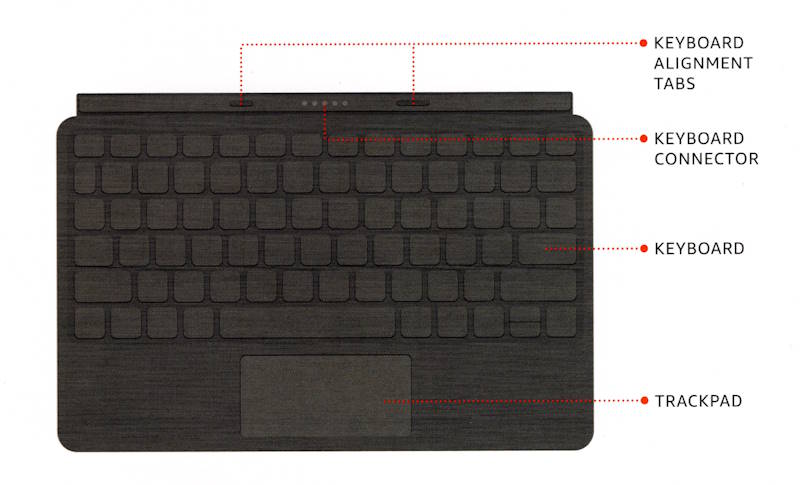
As shown in the illustration below, the front piece (which covers the screen) is the keyboard.
The following items can be found:
- Two keyboard alignment tabs.
- Five Pogo connectors to connect the tablet with the keyboard.
- A keyboard with some special keys.
- A trackpad.
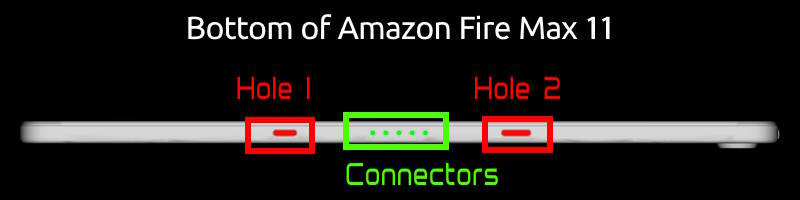
The two alignment tabs should be inserted into two holes at the bottom of the Fire Max 11 tablet, as shown in the illustration below. Once the two tabs are positioned properly, the Pogo connectors will connect to the metal part (connectors) automatically.
Back Cover
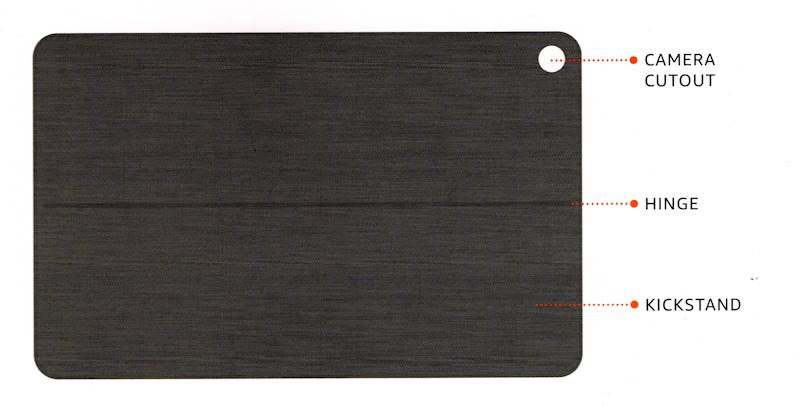
The back cover consists of:
- Camera cutout.
- Hinge.
- Kickstand
The camera cutout can be used to help you position the back cover properly.
The hinge divides this piece into two sections. The top part (with the camera cutout) is always attached to the tablet by magnetic. The kickstand part can be flipped along the hinge freely within a certain range to create different viewing angles. When the kickstand is close to the tablet, the hinge will force it to attach to the tablet.
Because the hinge is fixed, you cannot use the kickstand feature in the portrait orientation.
How to attach the Amazon Fire Max 11 keyboard case to the tablet?
Thanks to the magnetic force, It is extremely easy to attach the Amazon Fire Max 11 keyboard case to the tablet by the following 3 steps.
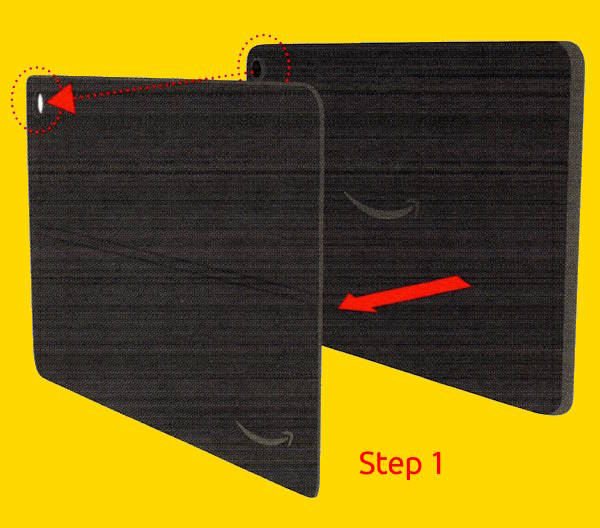
Step 1: Attach the back cover to the tablet
You just need to align the camera cutout with the rear camera on the tablet, the back cover should be attached to the tablet immediately.
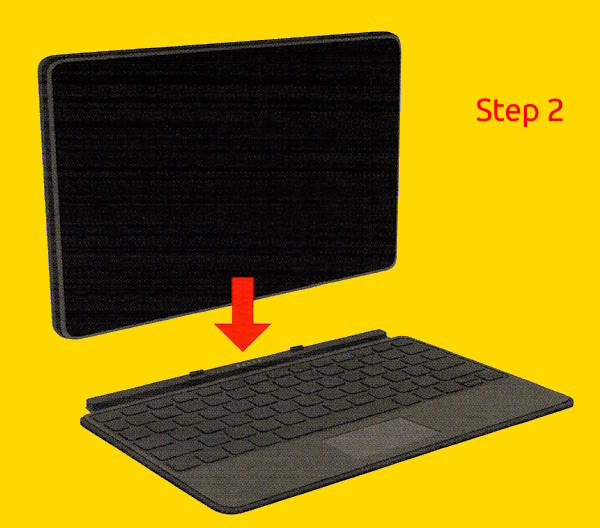
Step 2: Attach the keyboard to the tablet
To attach the keyboard to the tablet, you just need to pay attention to the location of the tab and hole. The magnetic force will do the rest.
It is not necessary to preciously point the tab to the hole. The directional magnetic force will help you position it properly.
Step 3: Adjust viewing angles
Now, you can adjust the viewing angle for the tablet.
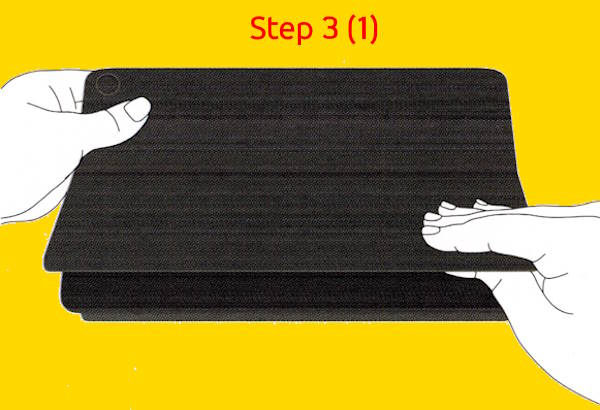
As shown in the illustration below, you can put one hand on the top part, then use the other hand to flip the kickstand.
Remember if the kickstand is too close to the tablet, the hinge will move it back to the tablet automatically. So, you need to flip it to the position so that it will not move back to the tablet.
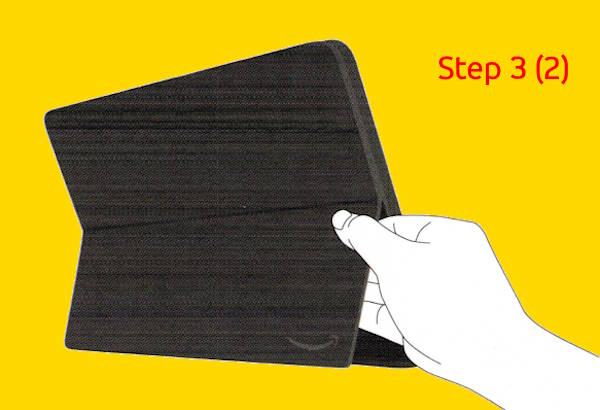
Once the kickstand is enabled, you can use one hand to adjust the viewing angle, as shown below.
You need to pay attention to the limit of the hinge. The kickstand can move up to perpendicular to the back of the tablet. This means the maximum viewing angle is about 135 degrees.
The keyboard layout of Amazon Fire Max 11 keyboard case
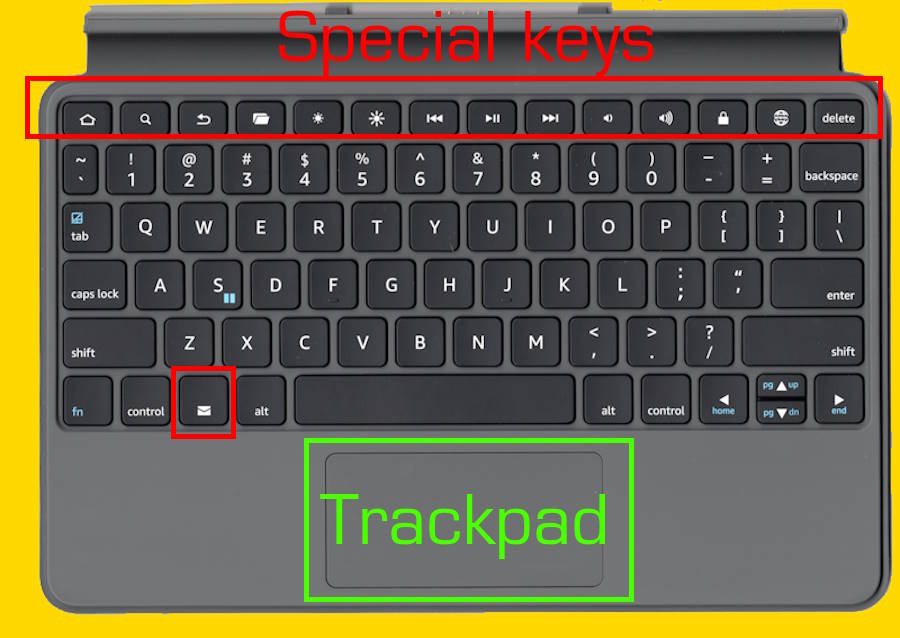
The keyboard layout is shown in the picture below.
There are a total of 15 special shortcut keys. 14 of them are located in the top row. The Email shortcut key is located in the last row between the Control key and the Alt key.
The special keys are identical to those on the official Bluetooth keyboard for Fire HD 10 2021 (11th Gen). Please check this guide on the meaning and usage of the 15 special keys on the Amazon Fire Max 11 keyboard case.
The trackpad is located at the bottom.


How to configure and customize the Amazon Fire Max 11 keyboard case?
By default, the Amazon Fire Max 11 keyboard case works out of the box. You can use it immediately once you connect it to the tablet.
However, sometimes, you may want to customize or tweak the keyboard. You can do this in the Fire Max 11 Settings.
As shown in the screenshot below, you can find a dedicated entry of Fire Tablet Accessories for you to configure and customize the “official” accessories, including the Amazon Fire Max 11 keyboard case and Amazon stylus pen for Fire Max 11.
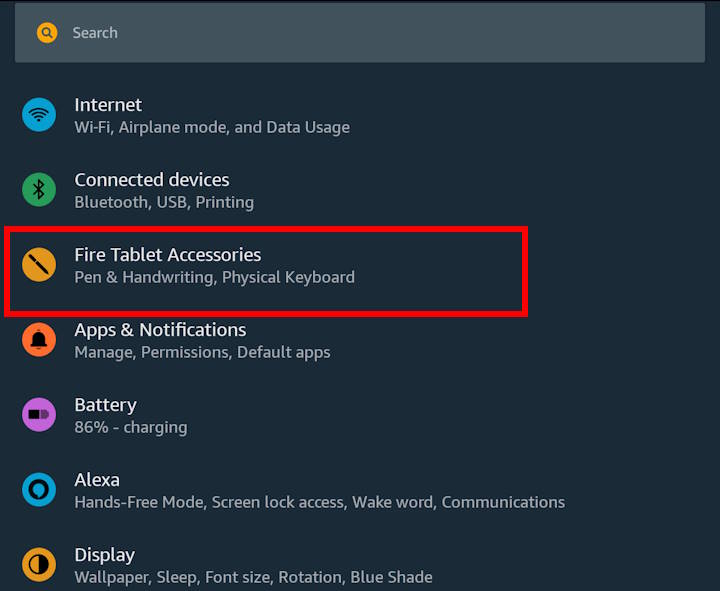
Tap Fire Tablet Accessories on the Settings page to access the accessories settings page, as shown below.
Only the official accessories, including Made for Amazon or Made by Amazon, are listed here. Third-party accessories do not have a dedicated entry for them on the Settings page. Some third-party accessories have their own apps for you to manage and customize them. Some may appear as a connected Bluetooth device, and you can manage them there.
For Fire Max 11, currently, there are only two official accessories:
- Stylus pen.
- Keyboard case.
For the Fire Max 11 keyboard case, the back cover has no software-related features. So, you can see the Physical Keyboard entry.
Please note if you detach the keyboard from the tablet, the Physical Keyboard entry will not show up.
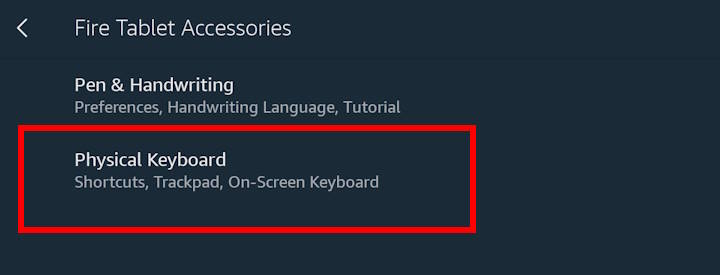
Tap Physical Keyboard to configure and customize the Amazon Fire Max 11 keyboard case.
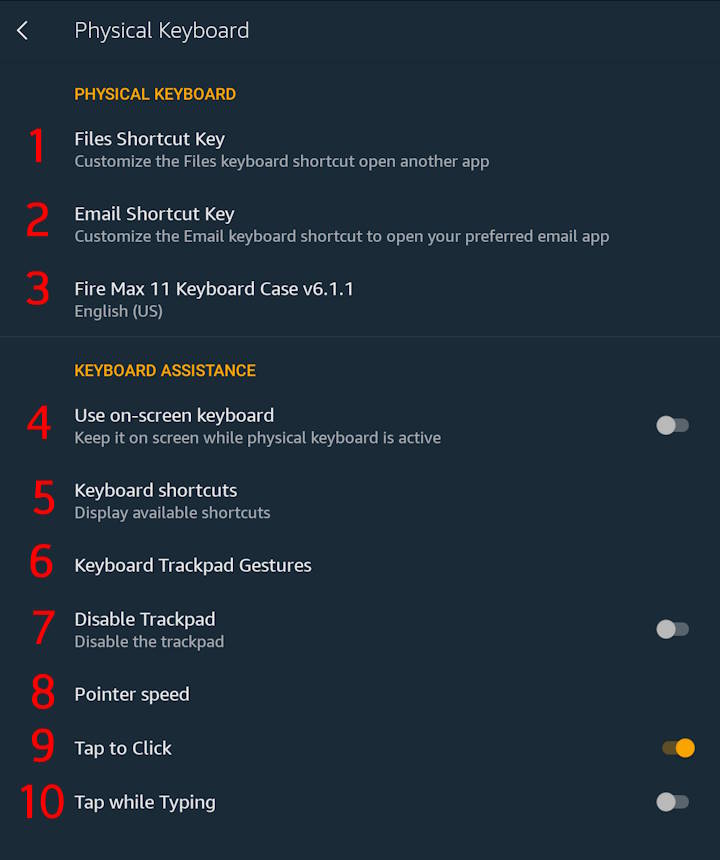
As shown in the screenshot below, you can customize the following 10 features of the keyboard:
- Files Shortcut Key.
- Email Shortcut Key.
- Fire Max 11 Keyboard Case (keyboard layout).
- Use on-screen keyboard.
- Keyboard shortcuts.
- Keyboard Trackpad Gestures.
- Disable trackpad.
- Pointer speed.
- Tap to click.
- Tap while Typing.
We now go through them one by one.
1. Files Shortcut Key
On the top row of the keyboard, as shown earlier, there is a Files button (Files Shortcut Key). By default, if you press this key, the Files app (from Amazon) opens.
However, you can customize this key to any apps installed on the tablet. It is not limited by file manager apps.
Normally, you customize this key to one of the frequently used apps. It can considerably save you time.
Email Shortcut Key
By default, the Email Shortcut Key lets you open the built-in Email app.
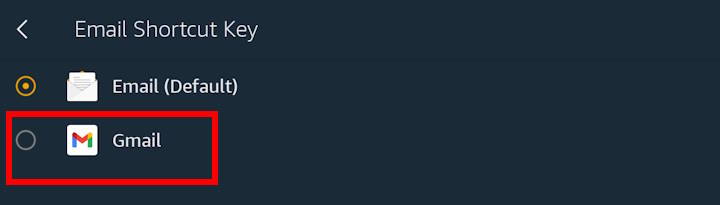
However, you can customize it to other email apps installed on the tablet.
For example, as shown in the screenshot below, you can change it to GMail after you sideload the app to Fire Max 11.
Please note this key can only be assigned to an Email app, not other types of app.
Fire Max 11 Keyboard Case (keyboard layout)
Multi-language input is usually painful on Fire tablets. The problem is even worse with an external physical keyboard.
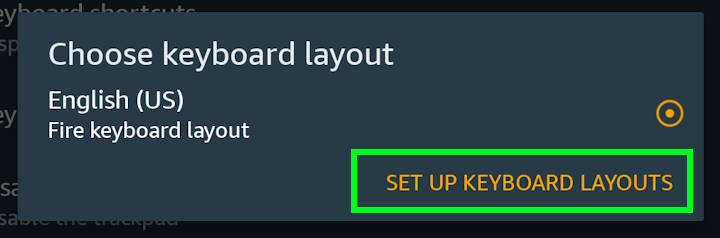
Anyway, if your main language is not English, you can change the keyboard layout to your language by tapping Set up keyboard layouts, as shown in the screenshot below.
Use on-screen keyboard
By default, when the Fire Max 11 Keyboard Case or a third-party physical keyboard is connected to the Fire Max 11, the on-screen virtual keyboard will not show up.
You can overwrite this by making the on-screen keyboard always available when input is required.
This is especially useful for users who need to input text with mixed languages. In this case, you can use the on-screen keyboard to make language switching slightly easier. If you have an active stylus for Fire Max 11, you can use handwriting to text (which recognizes more than one language neurotically) to complement the physical keyboard.
Keyboard shortcuts
In addition to the 15 special keys (shortcut keys), the Fire Max 11 Keyboard case also supports other shortcuts.
The keyboard shortcuts are organized in three categories:
- System.
- Shortcut keys.
- Word processing.
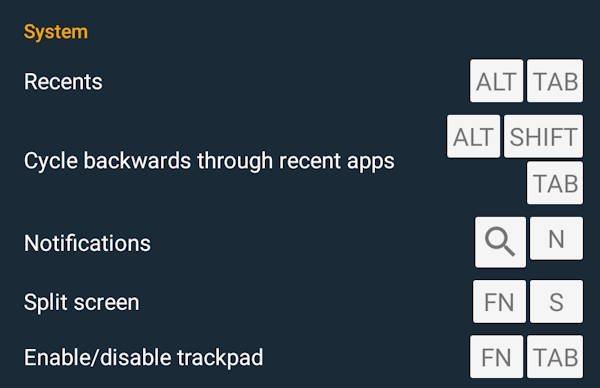
Under the system category, as shown in the screenshot below, there are 5 shortcuts for:
- Recents (Alt + Tab)
- Cycle backwards through recent apps (Alt + Shift+ Tab)
- Notifications (Search + N)
- Split screen (Fn + S)
- Enable/disable trackpad (Fn + Tab).
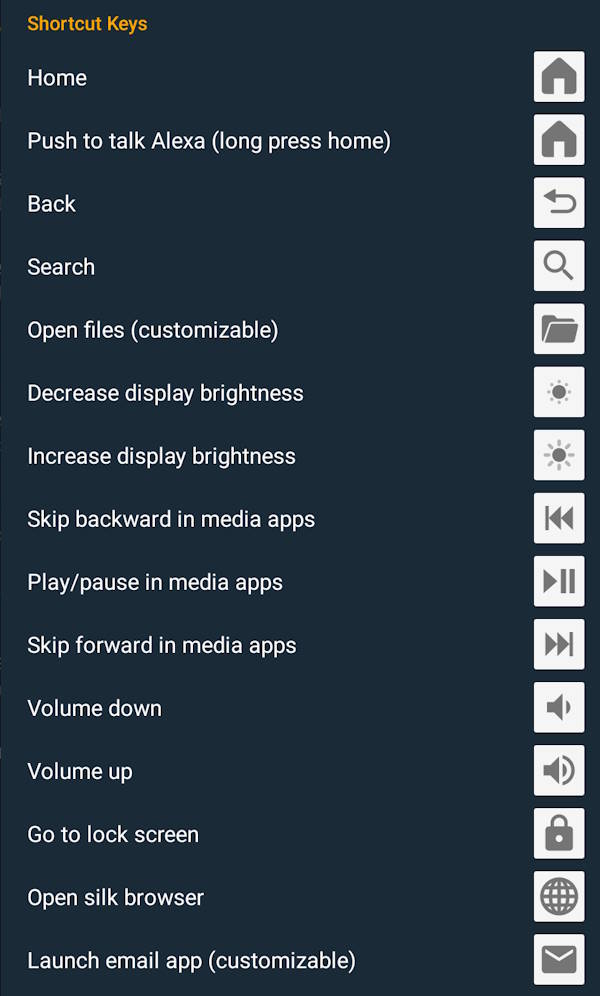
Under shortcut keys, as shown in the screenshot below, there are 15 special keys for Home, Push to talk to Alexa, Back, Search, Open Files, Decrease display brightness, Increase display brightness, Skip backward in media apps, Play/pause in media app, Volume down, Volume up, Go to Lock screen, Open Silk browser, Launch Email app.
Among these 15 shortcut keys (special keys), as mentioned earlier, only two of them (Email and Files) can be customized. The Silk browser key cannot be customized to Chrome or other browsers.
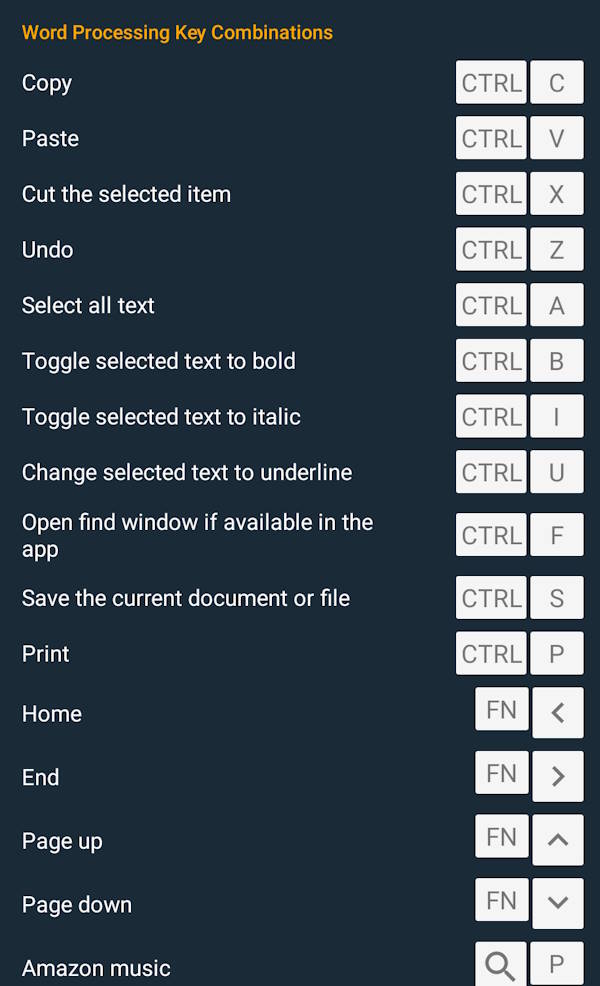
Under the Word Processing group, as shown in the screenshot below, the Fire Max 11 Keyboard case supports the following 16 shortcuts:
- Copy (Control + C)
- Paste (Control + V)
- Cut the selection (Control + C)
- Undo (Control + Z)
- Select all text (Control + A)
- Toggle selected text to bold (Control + B)
- Toggle selected text to italic (Control + I)
- Change selected text to underline (Control + U)
- Open the find/search window if available in the app (Control + F)
- Save the current document or file (Control + S)
- Print (Control + P)
- Home (Fn + ◀)
- End (Fn + ▶)
- Page up (Fn + ▲)
- Page down (Fn +▼)
- Amazon ( Search + P)
Keyboard Trackpad Gestures
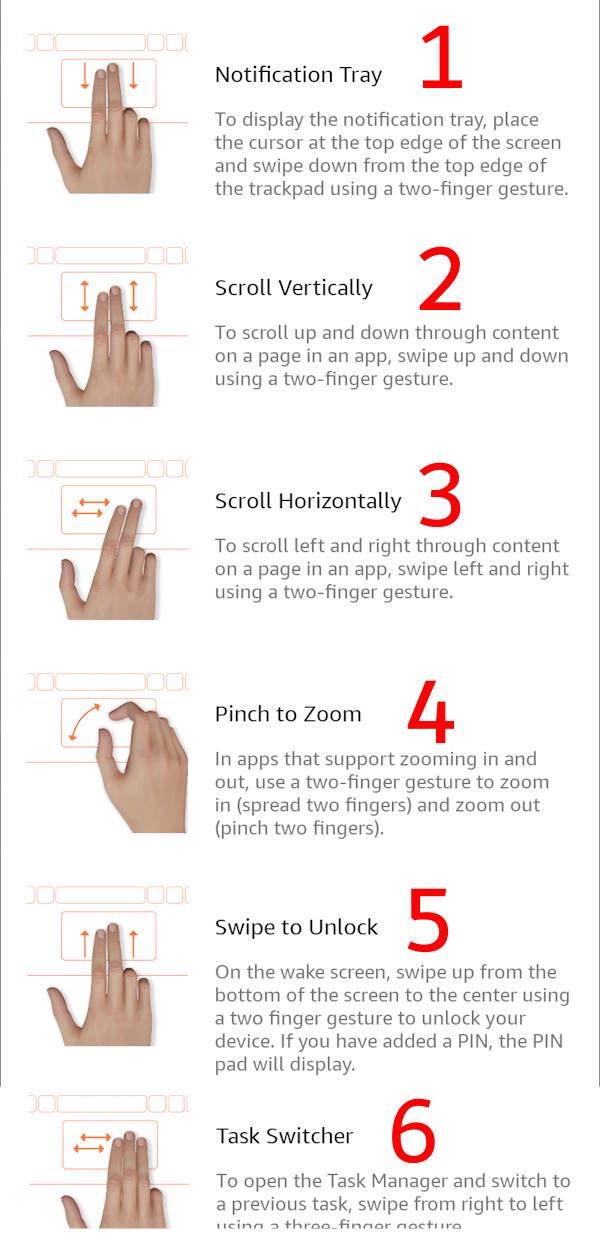
In addition to navigation round with the trackpad, Amazon Fire Max 11 keyboard case supports the following 6 trackpad gestures:
- Notification tray. Swipe down with two fingers from the top edge of the trackpad to open the notification tray when the cursor is not inside any app. This is also the quick way to access Quick Settings on the Fire tablet.
- Scroll vertically. Swipe up or down with two fingers on the trackpad to scroll vertically when the cursor is inside the app.
- Scroll horizontally. Swipe left or right with two fingers on the trackpad to scroll horizontally when the cursor is inside the app.
- Pinch to zoom. The gesture works only if the app supports zoom-in and zoom-out.
- Swipe to unlock. Swipe upwards with two fingers from the bottom edge of the trackpad to wake up and unlock the tablet. You still need to use the fingerprint ID or PIN/password to unlock.
- Task switcher. Swipe left or right with 3 fingers to switch to the previous or next app, according to the sequence in the Recents screen.
Disable trackpad
If you want, you can disable the trackpad here.
You can also disable or enable the trackpad with the Fn + Tab shortcut on the keyboard.
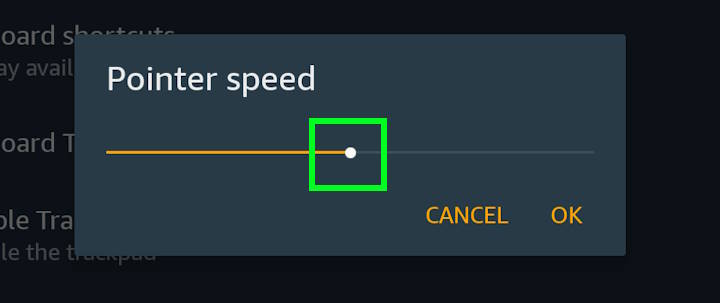
Pointer speed
You can use the slider, as shown below, to adjust the speed of the pointer to meet your needs.
Tap to click
Tap to click allows you to register a click by tapping on the trackpad. The click gesture needs a bit more force to register. So, enabling the Tap to click can reduce the fatigue of your fingers.
Tap while Typing
Tap while typing allows you to use the trackpad when typing.

- COMFORT AND CONVENIENCE – Exclusively compatible with Fire Max 11, Keyboard Case delivers a lightweight and comfortable typing experience. With a spacious key layout, 15 shortcut keys, and 2 customizable shortcuts, typing is faster and easier.
- TRACKPAD BUILT IN – Integrated trackpad with adjustable pointer speed and trackpad disable/enable feature (Fn+Tab) provides responsive performance for navigation of documents, webpages, and email.
- ZERO SETUP – Keyboard installs in seconds via magnetic attach. Lightweight and portable keyboard cover is perfect while on-the-go and automatically wakes screen when opened.
- NEVER REQUIRES CHARGING – Pogo pin connection powers keyboard from Fire Max 11, eliminating need to charge keyboard independently.
- TRACKPAD GESTURES – Trackpad gestures like pinch to zoom, two finger scrolling, and task switching make navigating apps and documents quick and easy.

What are the shortcomings of the Amazon Fire Max 11 keyboard case?
Although the Amazon Fire Max 11 keyboard case offers many unique features and may improve your productivity and experience, there are a few shortcomings of the case, including:
- The keyboard can only attach to Fire Max 11. You cannot use it on any other devices.
- There is no shell to protect the frame.
- The kickstand can be used only in the landscape orientation.
- The viewing angle range offered by the kickstand is not so large.
- It is not cheap ($90).
Do you have any questions about the Amazon Fire Max 11 keyboard case?
Please let us know in the comment box below if you have any questions about or need help with the Amazon Fire Max 11 keyboard case.
Detailed information on how to use the Google Play Store on Fire tablets can be found here.
Need advice on choosing a Fire tablet? Check the Fire Tablet Buyer's Guide now.
You may check other Fire tablet how-to guides and tutorials on the Fire tablet how-to guides page.
You may also reach us via our Facebook page or the contact us form.



The virtual keyboard has a microphone icon for speech to text input. There is not one on the physical keyboard. Is there a work around to bind a key for speech to text input when using the physical keyboard?
As I know, there is no way to launch the voice typing without loading the virtual keyboard.
You can show the virtual keyboard temporally by tapping the keybaord icon in the navigation bar. Then access the voice typing. You need to manually turn off show virtual keyboard if you do not want to see it again.
Our Facebook page || Fire tablet guide || Galaxy S6 Guides || Galaxy S7 Guides || Android Guides || Galaxy S8 Guides || Galaxy S9 Guides || Google Home Guides || Headphone Guides || Galaxy Note Guides || Moto G Guides || Chromecast Guides || Galaxy S10 Guides || Galaxy S20 Guides || Samsung Galaxy S21 Guides || Samsung Galaxy S23 Guides || Samsung Galaxy S23 Guides || Samsung Galaxy S24 Guides || Samsung Galaxy S25 GuidesGreat article, thanks. Do you know of any way to type a special character on this keyboard? I write in German for a course and need to use Umlauts but I cant find a way
There are a few solutions depending on your situation. For example:
1. Add German keyboard layout for the keyboard in Settings — Fire tablet accessories–Physical keyboard –Fire Max 11 Keyboard Case — Set up keyboard layout, enable German. You can then switch between the default US English layout and the German keyboard layout on the fly .
2. Copy-paste if you only need it occasionally. You can save special charters (Unicode) in your notebook. Then, copy and paste when needed. You may also install the Unicode Pad app from the Google Play Store to help you (you need to sideload the Play Store on the tablet).
Our Facebook page || Fire tablet guide || Galaxy S6 Guides || Galaxy S7 Guides || Android Guides || Galaxy S8 Guides || Galaxy S9 Guides || Google Home Guides || Headphone Guides || Galaxy Note Guides || Moto G Guides || Chromecast Guides || Galaxy S10 Guides || Galaxy S20 Guides || Samsung Galaxy S21 Guides || Samsung Galaxy S23 Guides || Samsung Galaxy S23 Guides || Samsung Galaxy S24 Guides || Samsung Galaxy S25 GuidesDo you know of a way to type a special character? I’m doing a German language course and need to be able to type an Umlaut
Hello,
First of all Thank you so much for this article and explaining everything in detail.
Unfortunately on my boyfriends new keyboard the keys ‘e’ and ‘n’ don’t work at all. Is there maybe a possibility to solve this problem? It seems a bit weird that it doesn’t work properly…
It sounds like keyboard layout mapping issue. You can try to:
1). Set the language to English (US)
2). In Settings — Fire tablet accessories — Physical keyboard — Fire Max 11 Keyboard case v6.x.y, then choose keyboard layout as English (US) Fire Keyboard layout.
Our Facebook page || Fire tablet guide || Galaxy S6 Guides || Galaxy S7 Guides || Android Guides || Galaxy S8 Guides || Galaxy S9 Guides || Google Home Guides || Headphone Guides || Galaxy Note Guides || Moto G Guides || Chromecast Guides || Galaxy S10 Guides || Galaxy S20 Guides || Samsung Galaxy S21 Guides || Samsung Galaxy S23 Guides || Samsung Galaxy S23 Guides || Samsung Galaxy S24 Guides || Samsung Galaxy S25 GuidesI use F2 function key in my work system to add notes in an account. Does this keyboard allow me to use the F2 key?
This keyboard does not have a row of F keys. The Fn key is for enabling/disabling the touchpad, entering the split-screen mode, page down/up.
Some other Bluetooth keyboards may have a row of Fn keys. But the function of the F keys depends on your app. Android OS itself does not define functions for such keys.
Our Facebook page || Fire tablet guide || Galaxy S6 Guides || Galaxy S7 Guides || Android Guides || Galaxy S8 Guides || Galaxy S9 Guides || Google Home Guides || Headphone Guides || Galaxy Note Guides || Moto G Guides || Chromecast Guides || Galaxy S10 Guides || Galaxy S20 Guides || Samsung Galaxy S21 Guides || Samsung Galaxy S23 Guides || Samsung Galaxy S23 Guides || Samsung Galaxy S24 Guides || Samsung Galaxy S25 Guides