
Writing Assist is the most practical tool among the three generative AI features currently available on Fire tablets.
This Fire tablet how-to guide explains what Writing Assist is, the available features of Writing Assist, and how to access and use these features to help your writing. The guide also explains how to use Writing Assist with a Bluetooth keyboard and the limitations of this AI tool.
You may check the other two AI features on Fire tablet in these two guides: Webpage Summaries and Wallpaper Creator.
What is the Writing Assist on Fire Tablet?
Amazon announced three generative AI features when Fire HD 8 2024 was released: Writing Assist, Webpage Summaries, and Wallpaper Creator.
Writing Assist on Fire tablet is simply an AI-powered writing tool. It uses generative AI to help you improve your writing and offers various suggestions, including grammar, spelling, style, and even the tone of your writing. You can even get suggestions for making your writing tone more casual or professional. The feature is similar to Samsung's Writing Assistant (powered by Grammarly) but not comparable to Galaxy AI's Writing Assist, which offers many advanced features like Composer and auto-reply.
Writing Assist is integrated into the Fire tablet's keyboard in Fire OS 8. So, it works across all apps that require text input and you can access it whenever you use the keyboard.
You can even use it when you use a Bluetooth keyboard with your Fire tablet (read on).
List of Fire tablet models with Writing Assist
Currently, Writing Assist is available on Fire tablets with Fire OS 8 (excluding Fire 7 2022).
Here is the list of suppirted Fire tablets:
- Fire HD 8 2024 (12th Gen).
- Fire HD 10 2023 (13th Gen).
- Fire Max 11 (2023).
- Fire HD 8 2022 (12th Gen).
Amazon will not be adding this AI feature to older models. Future models of the Fire tablet, except for the Fire 7, are likely to receive this feature. This list will be updated periodically.
The Fire 7 2022 (12th Gen) runs on Fire OS 8 and includes the Writing Assist option in the Keyboard settings. However, this feature is not accessible on Fire 7 2022, as Amazon has disabled it on this device. In fact, none of the three generative AI features are available on the Fire 7 2022.
What are the available features of Writing Assist on Fire tablet?
Currently, the Writing Assist offers the following 9 features:
- Proofread
- Rewrite.
- Elaborate
- Concise
- Key points.
- Emojify.
- Professional.
- Witty.
- Causual.
Proofread
The Proofread feature is your basic grammar and spell checker on steroids. It goes beyond simple error detection to identify potential issues with punctuation, sentence structure, and word choice, offering suggestions for improvement.
Standard grammar and spell checkers typically identify misspelled words and basic grammatical errors like subject-verb agreement or incorrect punctuation. They often offer simple suggestions for correction.
In contrast, Proofread includes more advanced error detection. It doesn't just catch simple errors but also identifies more complex issues like sentence structure problems, awkward phrasing, inconsistencies in style, and even potential plagiarism.
Proofread also understands the context of your writing and provides more relevant and nuanced suggestions. It's not just about correcting errors but also about improving clarity, conciseness, and style.
Based on the issues identified, Proofread can deliver more sophisticated suggestions. For example, instead of just offering a single correction, it might provide multiple options or explain why a particular change is recommended.
Rewrite
The Rewrite feature in Writing Assist for Fire tablet lets you rephrase sentences or paragraphs in different ways. It can help you find clearer, more concise wording, or adjust the tone of your writing. Its core functions include:
- Rephrase sentences and paragraphs. The Rewrite can rephrase sentences or entire paragraphs to explore alternative ways of expressing your ideas. It may also experiment with different word choices and sentence structures to find the most effective and engaging language.
- Enhance clarity and conciseness. It can identify and eliminate unnecessary words or phrases, making your writing more streamlined and readable. It also simplifies complex sentences and reorganizes ideas for greater clarity and impact.
- Adjust writing tone. The Rewrite will try to make the tone consistent, based on the original text. It may also adjust it automatically. Besides, you can manually choose Professional, Witty, and Causal tones (read on) and the Writing Assist will rewrite the content accordingly.
- Context-aware suggestions. The Rewrite analyzes the context of your writing to provide tailored suggestions that are relevant to your content. Due to the limitations of the cutoff date for the AI training data, it may not understand correctly the most recent topics.
Elaborate
If you have a short sentence or idea, the elaborate feature in the Writing Assist for Fire tablet can help you expand on it. It can add details, examples, or explanations to make your writing more comprehensive.
Elaborate essentially can transform a simple idea or an outline into a more comprehensive and engaging piece of writing, making it easier for your readers to understand and connect with your message.
You should always check the “expanded” contents because of the possible hallucinations of AI, especially when the context is not clear. Sometimes, you may design your original sentence as a prompt.


Concise
Concise is the opposite of “Elaborate” in the Writing Assis for Fire tablet. It helps you shorten your text by removing unnecessary words or phrases. It's great for tightening up your writing and making it more direct.
Please note Concise focuses on the writing (the text)instead of the summary (contents), and therefore, it is different from Key Points (read on).
Key points
Key points feature in the Writing Assist for Fire tablet can analyze a larger chunk of text and extract the most important information. It's useful for summarizing articles, emails, or notes.
Summarizing is one of the proven strengths of most LLMs. The AI model is very efficient in extracting key points and organizing them coherently. It can then help us improve our understanding of complex texts by breaking down information into digestible chunks and key points.
Emojify
Emojify in the Writing Assist adds relevant emojis to your text to express emotions or add visual flair. It's best used in informal contexts.
You can use Emojify:
- To enhance communication with the visual cues.
- To express emotions that may be difficult to convey through text alone.
- To add a touch of personality and creativity to your writing.
Professional (tone)
Writing Assist on Fire tablet offers three tones that can be manually specified: professional, witty, and casual. By default, the Writing Assist uses the “mixed” tone based on the context when you use the Rewrite feature.
The Professional tone helps you adjust the tone and style of your writing to make it suitable for professional settings. It might suggest more formal vocabulary, sentence structures, and an objective and impersonal tone.
Witty (tone)
The Witty tone infuses your writing with humor and cleverness, transforming it into an engaging and memorable experience for the reader.
The playful approach may incorporate puns that spark a smile, clever wordplay that invites laughter, or satire that brings social commentary to life with a twist. It can also use irony to highlight the unexpected, hyperbole to exaggerate for comedic effect and parody to mimic styles in a lighthearted manner. Each of these techniques adds a distinctive flair, ensuring the writing captivates the audience and lingers in their minds.
Casual (tone)
The Casual tone in the Writing Assist on Fire tablet makes your writing sound more relaxed and conversational. It might suggest using simpler vocabulary, contractions, and a less formal tone.
How to access the Writing Assist on Fire tablet?
As mentioned earlier, Writing Assist is integrated into the Fire keyboard. You should find the Writing Assist button on the top row of the keyboard, as shown in the screenshot below.
If your Fire tablet is supported (see the supported Fire tablet list above) and there is no Writing Assist button, you may try to update the system from Settings —Device options — System update — Check now. And make sure the Fire OS is newer than 8.3.3.
To access and use Writing Assist, you just highlight the text and tap the button.

As shown in the screenshot below, after tapping the Writing Assist button, you can find all of the 9 features.
You just need to tap the feature you want to use.

How to use Writing Assist on a Fire tablet with a Bluetooth keyboard?
After tapping the Writing Assist button, all text above the cursor will be selected automatically, by default. If you want to work on some paragraphs, you can manually select the text.
Once the text is highlighted (or manually selected by you), as shown below, you can tap the feature button you want to use.
For example, I want to proofread this paragraph, so I tap the Proofread button, as shown below.
Within a few seconds, a proofreaded version is provided.
Once you start to use one of the features in Writing Assist, the 9 buttons are now on the top row. You can swipe left or right to see all of them.

For example, if I want to try the Rewrite feature, I tap the Rewrite button.
The rewritten version of the paragraph is shown in a few seconds. It looks like the AI did a good job. Of course, it depends on the content and your luck.
After Writing Assist generates contents, you can find the three action buttons at the bottom:
- Regenerate. If you are not happy with the text, you can use this button to generate the content again. If you are not sure, you should copy the text first before tapping the Regenerate button because there is no guarantee that the new versions are better.
- Copy. You can use this button to copy the contents to the clipboard so that you can paste them anywhere you want.
- Replace text. Be careful with this button. After tapping this button, the generated text will replace the original text. So, you should read through the generated contents before using them to replace the original one.
Until now, Amazon has not clearly stated the number of generations you can ask for daily or monthly. Currently, it appears nobody reports they have hit the limit yet.

How to use Writing Assist with a Bluetooth keyboard on Fire tablet?
Some blog posts incorrectly claimed that the virtual keyboard must be used to access the Writing Assist. This is not true.
You can use the Writing Assist even if you are using a Bluetooth keyboard, for example, the Bluetooth keyboard for Fire HD 10 or the Keyboard case for Fire Max 11.
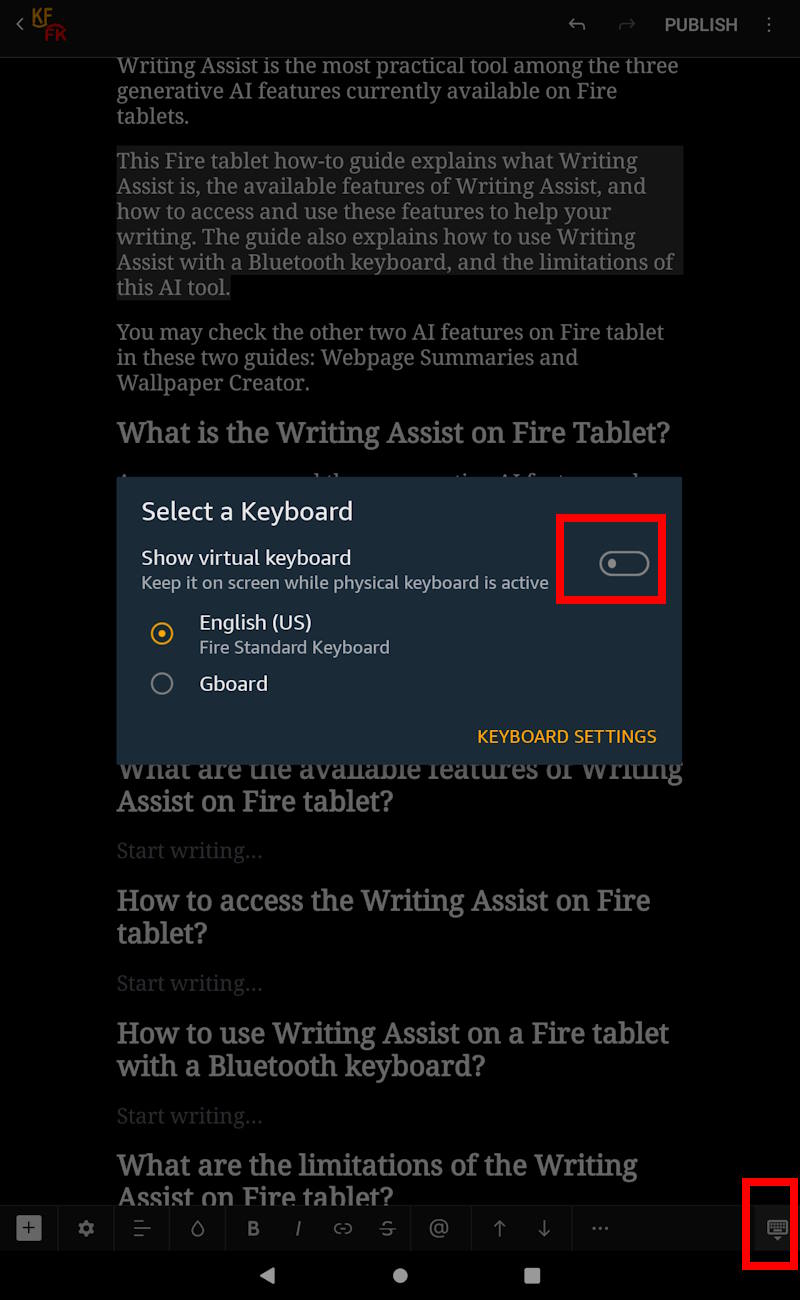
By default, when a Bluetooth keyboard is connected to a Fire tablet, the virtual keyboard will not show up. However, there is always a keyboard icon in the navigation bar whenever a keyboard (regardless of the keyboard type) is being used, as shown in the screenshot below.
Tap this keyboard icon would bring up the virtual keyboard options, as shown in the screenshot.
You can then enable “Show virtual keyboard” to bring up the Writing Assist.
Once Show virtual keyboard is enabled, you will see a minimal virtual keyboard with the Writing Assist button, as shown below.
You can now use the Writing Assist, just like using the virtual keyboard.
Actually, this is also the trick if you need to switch between different input languages because Bluetooth keyboard does not support input method switch.
Please note that the Show virtual keyboard setting is consistent. In other words, it will be active until you turn it off manually. You can also change this setting in the keyboard settings.

How to enable or disable Writing Assist on Fire tablet?
Writing Assist works out of the box. It was enabled by default when you got the update.
However, you can disable or enable Writing Assist in keyboard settings if you want.
In Settings — Device option — Keyboard & Language, you can tap Current Keyboard Settings.

Then in Fire Standard Keyboard Settings, you can find the option of “Show word suggestions and Writing Assist“.
By default, it is enabled. You can use the switch to enable or disable the Writing Assist button.
Please note Writing Assist works in the cloud, not on the device locally.

What are the limitations of the Writing Assist on Fire tablet?
Unlike Wallpaper Creator (which gives you 10 creations each month), Writing Assist apparently has no limits at this time. The current usage is probably quite low, and therefore, Amazon is not rushing to impose a hard limit. But if the usage picks up, Amazon may put some limits because the servers running the generative AI model cost money.
For the time being, the usage is not limited.

However, the tool has some limitations, such as being online only and the quality of the AI model.
Online only
Since all Fire tablets lack the power to run such AI models locally, all processing is done in the cloud. This leads to two primary issues:
- Privacy. The privacy policy associated with the use of Writing Assist is not explicitly defined. The protocols regarding the collection, utilization, and protection of user data remain unclear.
- Internet connection. You cannot use the feature if the Fire tablet is not connected.
The quality of the AI model
Writing Assist is provided as a complimentary feature for Fire tablet users, prompting Amazon to utilize smaller language models to minimize costs. The specific model employed for Writing Assist remains unspecified.
Based on the generated content, it is evident that the AI model utilized does not match the capabilities of OpenAI's GPT-3.5 or GPT-4, nor Google's Gemini 1.5. However, it appears to be comparable to Google's on-device Gemini Nano model, as shipped with the Galaxy S24 and Pixel 9.
Consequently, the quality of the output is satisfactory for daily usage, e.g., writing short articles and emails. Nevertheless, for professionals such as copywriters seeking higher-quality models, alternative options may be necessary.
Do you haev any questions about Writing Assist on Fire tablet?
Please let us know in the comment box below if you have any questions or encounter any problems with Writing Assist on Fire tablet.
Detailed information on how to use the Google Play Store on Fire tablets can be found here.
Need advice on choosing a Fire tablet? Check the Fire Tablet Buyer's Guide now.
You may check other Fire tablet how-to guides and tutorials on the Fire tablet how-to guides page.
You may also reach us via our Facebook page or the contact us form.



Writers Assist…… Worst damn thing these Kindle idiots ever did…. shoving AI on us without OUR consent or OPTION to disable/tank it…. This constitutes ‘forced censorship’ by altering in any way what one writes. This is a real good reason to quit Kindle…. which is a shame since it was a great tool before this BS.