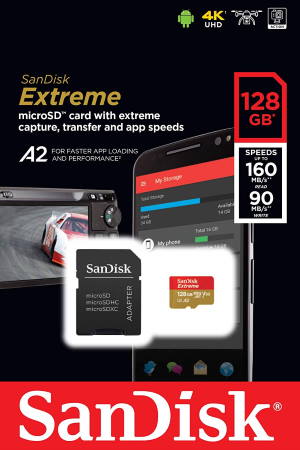
 With the release of Fire OS 6 on Fire HD 8 2018 (8th Gen) and Fire 7 2019 (9th Gen), Fire OS 7 on Fire HD 10 2019 (9th Gen), Fire HD 8 2020 (10th gen), Fire HD 8 Plus (2020), and Fire OS 8 on Fire 7 2022, Fire HD 8 2022 (12th Gen), and Fire HD 10 2023 (13th Gen), you have the new option of using the micro SD card as the tablet (internal) storage (adoptable storage) to expand the internal storage on these
 3 5 devices.
This Fire tablet how-to guide explains the new option and the pros and cons of using the micro SD card as adoptable storage on Fire HD 10 (9th Gen), Fire HD 8 (8th Gen), and Fire 7 (9th Gen). Fire HD 8 2020 (10th Gen), Fire HD 8 Plus 2020, Fire HD 10 2021 (11th Gen), and Fire HD 10 Plus. It also explains when you need to use the adoptable storage option.
The guide also shows you how to use the micro SD card as internal storage, and how to manage the SD card on Fire HD 10 (9th,11th Gen), Fire HD 8 (8th,10th, 12th Gen), Fire 7 (9th,12th Gen), and Fire Max 11 (13th Gen).
What is the new option of using the Micro SD card on the Fire tablet?
In addition to using the SD card as external storage, you can now use a micro SD card as internal storage (adoptable storage) on Fire HD 10 2019 (9th Gen), Fire HD 10 2021 (11th Gen), Fire HD 10 Plus, Fire 7 2019 (9th Gen), Fire HD 8 2018 (8th Gen), Fire HD 2020 (10th Gen), Fire HD 8 Plus (2020), Fire 7 2022 (12th Gen), and Fire Max 11 (13th Gen).
Since Android Marshmallow (Android 6.0), Google added adoptable storage for the micro SD in Android devices. As explained in this guide, adoptable storage allows you to use the micro SD card as internal storage. Once enabled, you can install most apps onto the micro SD card. So, the adoptable storage is extremely useful when the device has limited internal storage (e.g., less than 16GB for most users).
Because Fire OS 6 (as in Fire HD 8 2018 and Fire 7 2019) is based on Android Marshmallow, and Fire OS 7 (as in Fire HD 10 2019, Fire HD 8 2020, and Fire HD 8 Plus) is based on Android Pie (Android 9), adoptable storage was supported in these 3 5 Fire tablets.
Fire 7 2022 (12th gen), Fire HD 8 2022 (12th Gen), and Fire Max 11 (13th Gen) were all released with Fire OS 8, which is based on Android 11. The adoptable storage is also supported. We will update the supported device if Amazon updates some older devices to Fire OS 6, 7, and 8.
You may see the comparison of the current Fire tablet models here or in Fire Tablet Buyer Guide 2023.
Limitations of adoptable storage (using the micro SD card as internal storage)
You need to be aware of the limitations and restrictions when using the micro SD card as the internal storage:
- You should never remove the SD card unless the tablet is powered off.
- Most apps (installed by you) will not work after you eject or remove the SD card.
- The SD card can only be read by the host tablet. The data on the micro SD card are encrypted automatically. Other devices cannot read the data. It is both good (secures your data) and bad (not portable).
- You have to format the micro SD card if you want to use the same card on other devices.
- The system will automatically decide when and how to use the micro SD card. It is none of your business.
- The overall performance of some storage-intensive apps may be slightly degraded because a micro SD card is usually slower than the actual internal storage.
- The quality of the micro SD card matters. Due to the high usage, a low-quality micro SD card may be corrupted easily. The speed also matters.
You may check this guide on the details of using the micro SD card to expand internal storage.
When should you use the micro SD card as internal storage on the Fire tablet?
Normally, if your Fire tablet (Fire HD 10 2019/2021, Fire HD 8 2020/2022, Fire 7 2019/2022) has limited internal storage (normally less than 32GB), you may consider using the SD card as internal storage so that you can install more apps, including installing apps from Google Play store.
If your Fire tablet has 32GB internal storage, it will depend on your usage of the tablet. If you plan to install many apps and games, you probably should consider the adoptable storage option for the micro SD card.
Of course, if you have the 64GB version of Fire HD 10, Fire HD 8, or Fire HD 8 Plus, then very likely, you have sufficient internal storage, and you may choose to use the micro SD card as the portable storage. In a nutshell, it depends on the planned usage of the tablet.
When should you use the micro SD card as portable storage?
If you feel you have sufficient internal storage, it is NOT necessary to use the micro SD card to expand the internal storage.
Using the micro SD card as portable storage allows you to use the SD card flexibly. For most owners, 64GB of internal storage is sufficient. For some owners, 32GB is enough. Normally, the system will occupy about 4-6GB of storage at least. You need to have at least 2~3GB of free storage so that you can run apps smoothly.
Please note that Prime videos, Amazon Music, and Kindle can download content to the SD card when you use the SD card as portable storage.
Can you switch between portable storage and adoptable storage?
You have to format the micro SD card if you want to switch between portable storage and adoptable storage for the SD card on Fire tablets. This means you have to back up all of your data on the SD card before switching. Otherwise, you will lose all data on the SD card.
How to use the micro SD card as internal storage on Fire tablets?
By default, Fire HD 10 9th Gen (and other Fire tablets) use a micro SD card as portable storage. So if you want to use the micro SD card as portable storage, you don't need to do anything. Of course, if the SD card was not formatted in FAT32 or exFAT format, the Fire tablet will ask you to format it before using it. You can set the micro SD card as adoptable storage at any time.
- When you first insert the micro SD card.
- Switch from portable storage to adoptable storage.
Please note that switching between portable and adoptable storage needs to erase all of the data on the SD card. When you use the micro SD card on the tablet for the first time, you will see a notification in the notification panel. Tap the notification to guide you to set up the micro SD card. As shown below, you have 3 options:
- Use the micro SD card as tablet storage (adoptable storage).
- Portable storage.
- Set it up later.
If you plan to use the micro SD card to expand the tablet's internal storage, tap Tablet storage (marked as 1), as shown in the screenshot below. 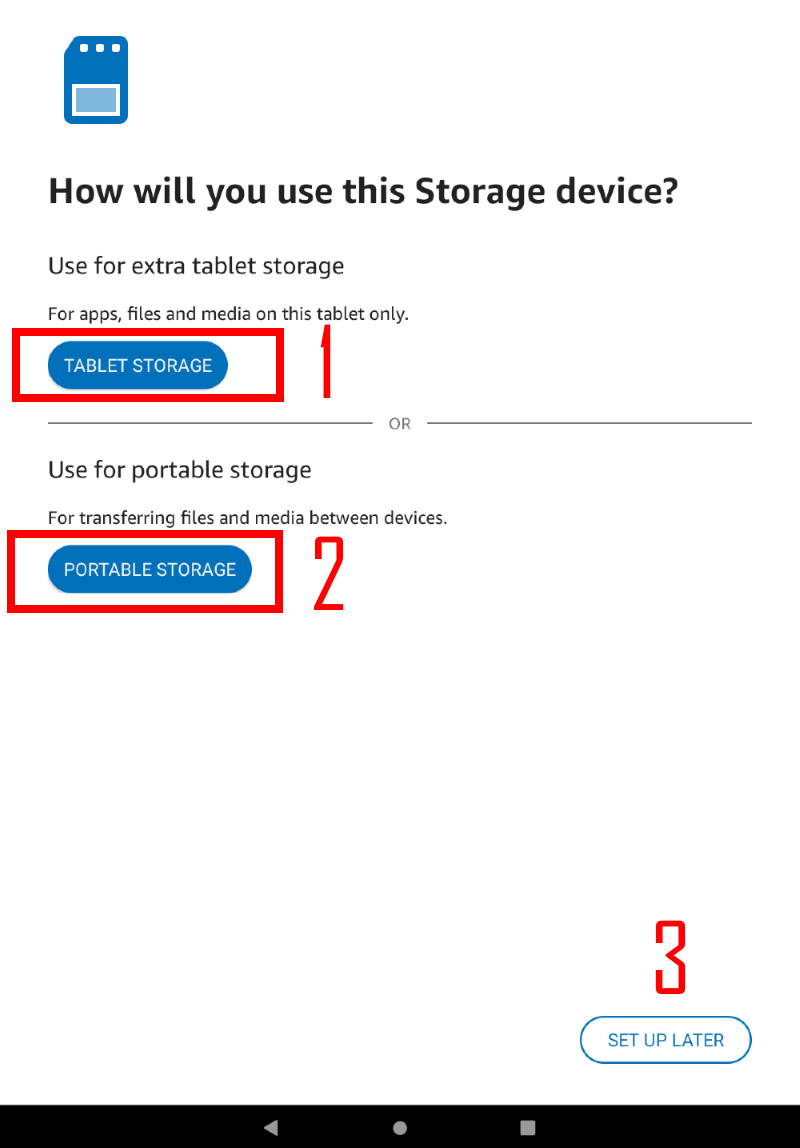
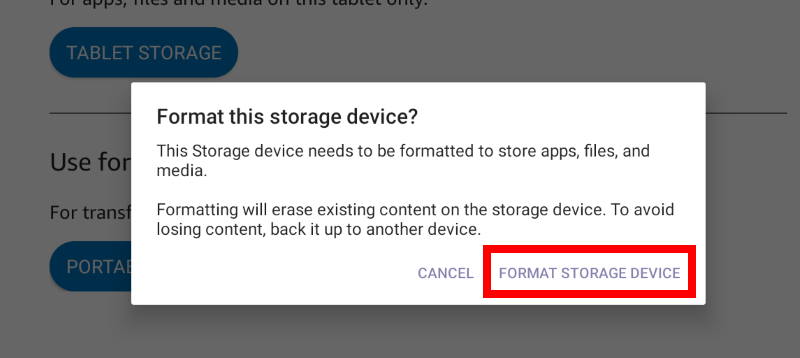
Once you choose to use the SD card as tablet storage, you MUST format the card. This means all data on the card will be erased. So, if there are any useful data on the micro SD card, you should back them up to a safe location first. When you are ready, tap Format storage device, as shown in the screenshot below.
The formatting process should be fast, normally within two minutes. You will see the progress, as shown below. You should just wait and NOT interfere with the formatting process. Do not use the tablet. Do not power off the tablet.
You can tap Done, as shown below, once the formatting is done.
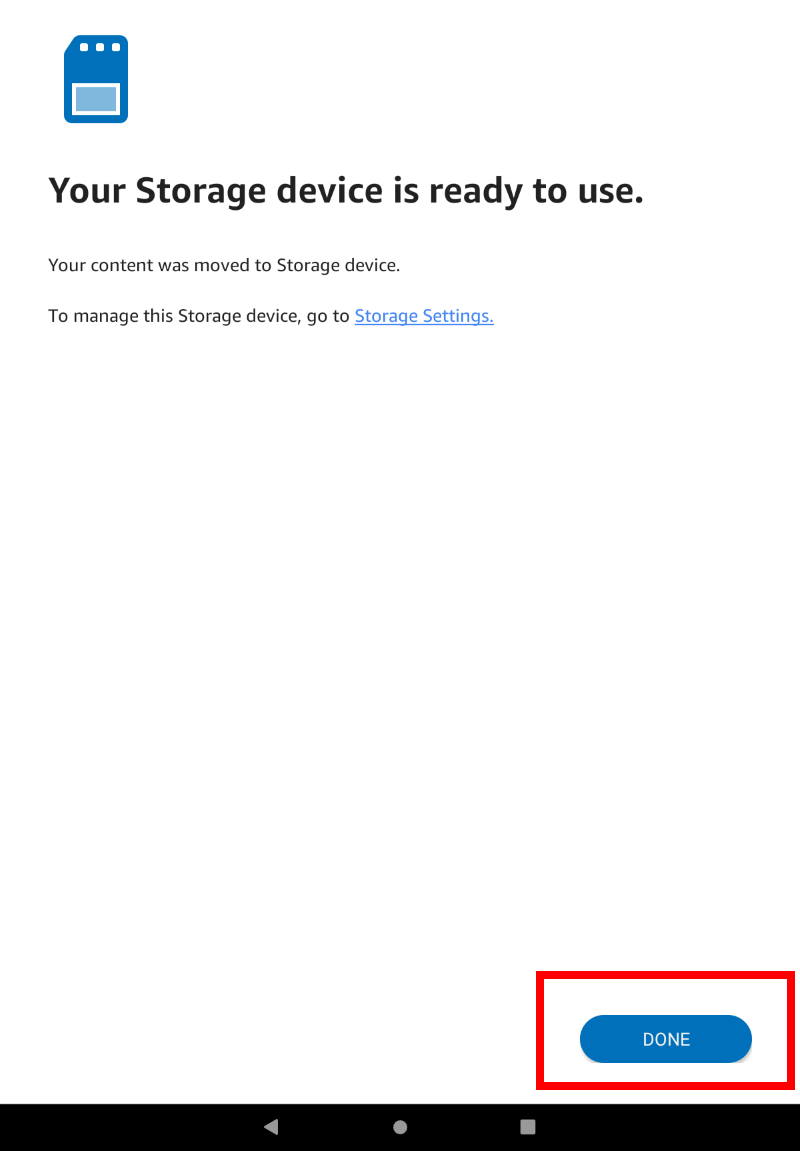
From now on, you can use the micro SD card as if it is internal storage. And you can install many more apps from the Google Play Store or Amazon Appstore without worrying about insufficient internal storage.
How to manage SD card storage on the Fire tablet?
You can manage the storage, including the micro SD card on Fire HD 10 2019, through Settings —Storage. As shown below, the storage settings have multiple entries. If you use the SD card as tablet storage (adoptable storage), you can:
- Check the internal storage usage (A).
- Move some files from the “true” internal storage to the SD card (B).
- Check SD card usage (C).
- Switch to portable storage (D).
Please note, although adoptable storage allows you to use the micro SD card as internal storage, the system does differ from the “true” internal storage and the “adopted” SD card. Some system essential files and data are always saved in the “true” internal storage.
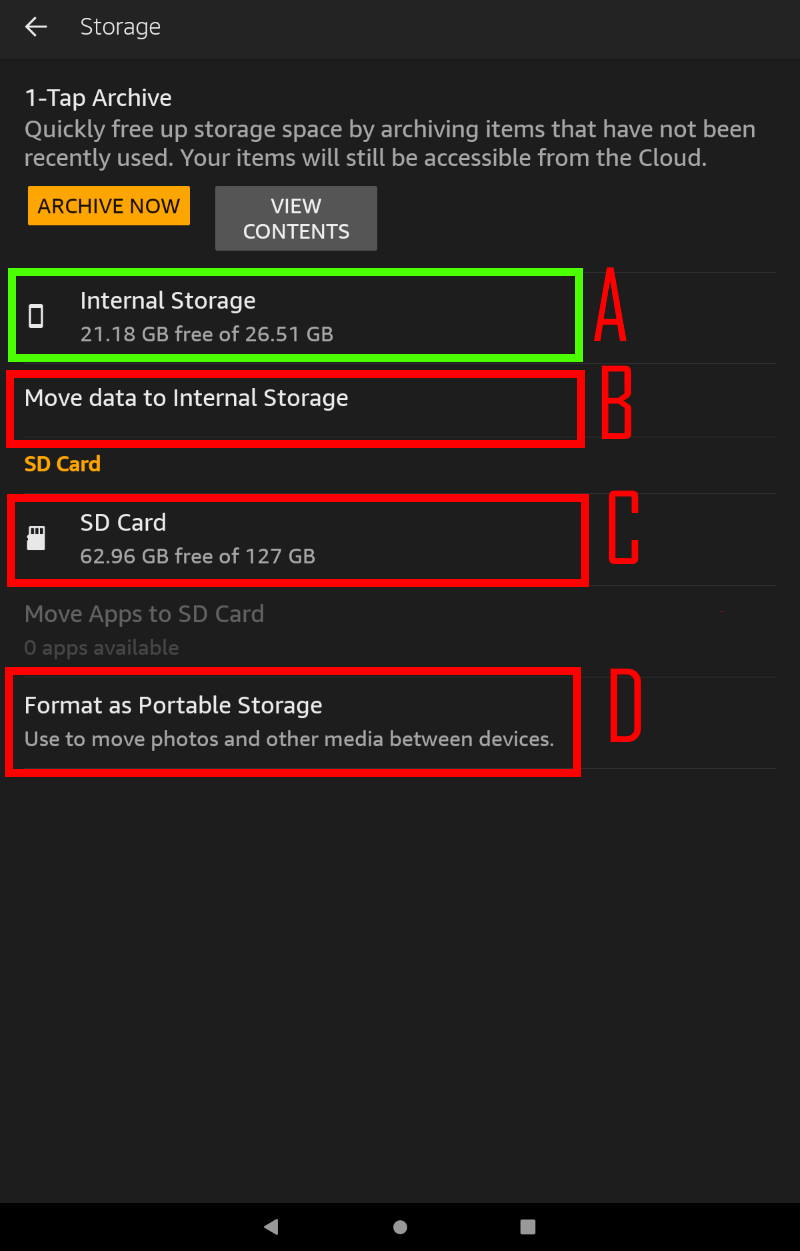
For example, you can move some files from the internal storage to a micro SD card to free up more internal space by tapping “Move data to internal storage” (marked as B in the screenshot above).
Normally, these files are saved to the internal storage before you use the micro SD card as adoptable storage.
Please note. “internal storage” here refers to the micro SD card. As shown below, you can tap Move contents to move some movable data to the micro SD card. 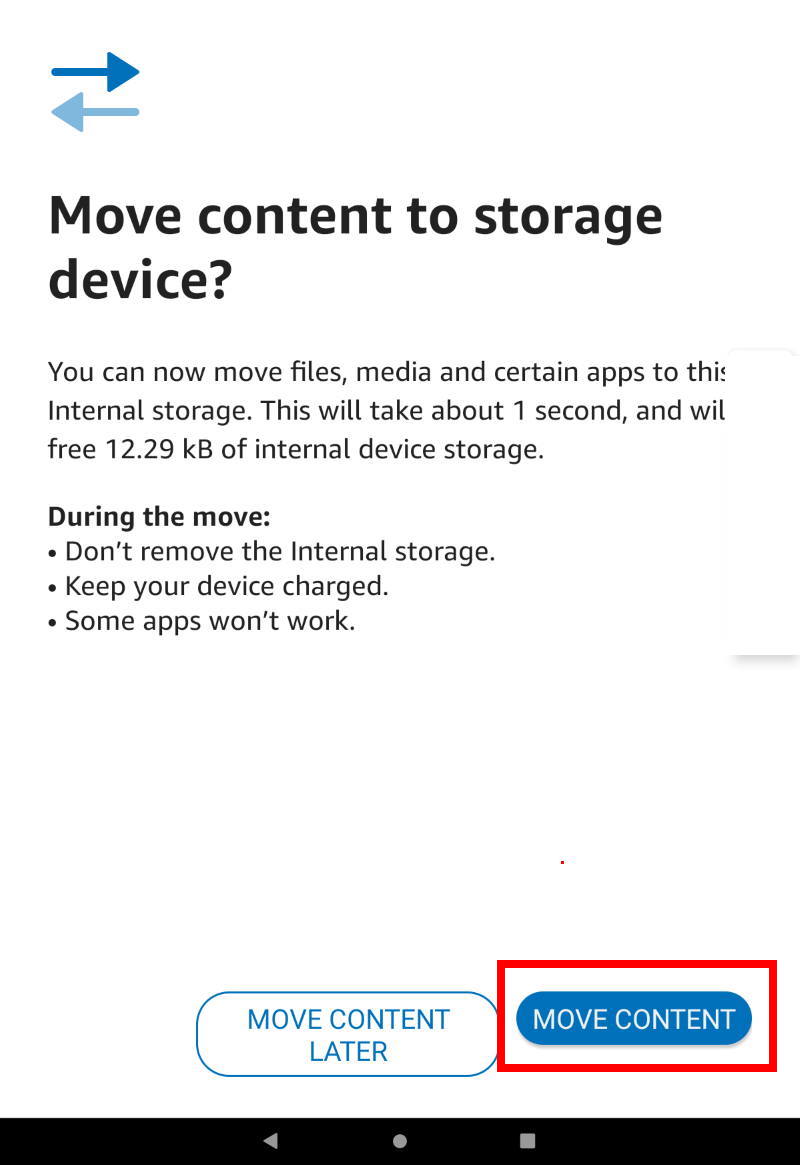
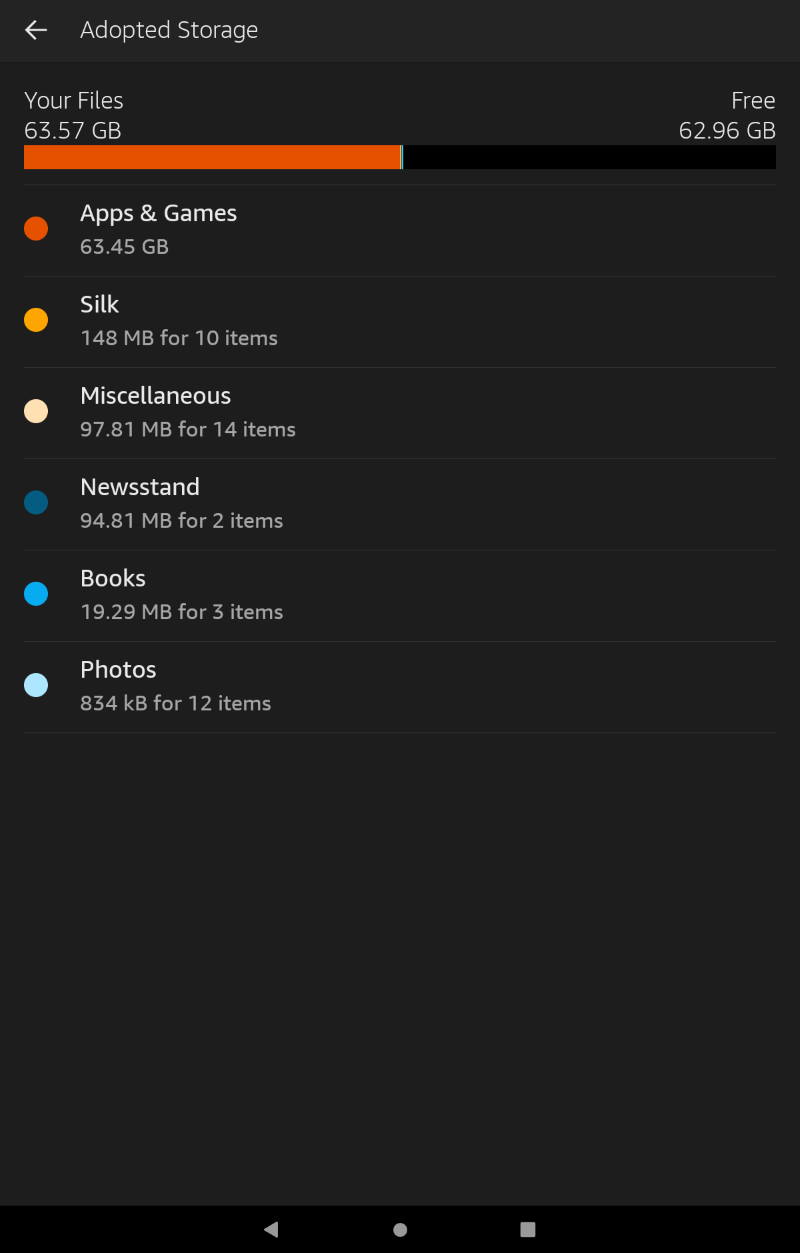
You can also check the storage usage of the micro SD card by tapping “SD card” (marked as C in the screenshot ). As shown below, the detailed usage of the SD card is provided. For example, in this case, 63.57GB space of the 128GB SD card was used. Most of them (63.45GB) were used by apps and games.
If you want to switch to portable storage, you can tap “Format as portable storage” (marked as D in the screenshot). As mentioned earlier, switching between portable storage and adoptable storage needs to erase all data on the card.
Why do you MUST eject the SD card or power off the tablet if you want to remove the SD card on Fire tablets?
Regardless of the usage (portable or adoptable) of the micro SD card, you can only remove the SD card from the Fire tablet AFTER
- Ejecting the SD card or
- Powering off the tablet.
In the storage settings, Fire OS removed the ejection option. But the pre-installed Files app and some third-party file manager apps have the option for you to eject the SD card.
Of course, the safest way to change or remove the micro SD card for the Fire tablet is to power off the tablet first.
If you remove the SD card from a Fire tablet without ejecting the SD card or powering off the tablet, the card may be corrupted, especially when you use the micro SD card as adoptable storage.
Do you have any questions about using the micro SD card on the Fire tablet?
If you have any questions or encounter any problems related to using the micro SD card as adoptable storage or portable storage on Fire HD 10 2019 (9th Gen), Fire HD 10 2021 (11th Gen), Fire HD 10 Plus, Fire HD8 2018(8th Gen), Fire HD 8 2020 (10th Gen), Fire HD 8 2022 (12th gen), Fire HD 8 Plus, Fire 7 (9th,12th Gen), and Fire Max 11 (13th Gen), please let us know in the comment box below.
Detailed information on how to use Google Play Store on Fire tablets can be found here.
Need advice on choosing a Fire tablet? Check the Fire Tablet Buyer's Guide now.
You may check other Fire tablet how-to guides and tutorials on the Fire tablet how-to guides page.
You may also reach us via our Facebook page or the contact us form.



Can’t transfer brought music says card is offline??!!
Did you try to reboot the tablet? Are you using the SD card as portable storage or adoptable storage?
Our Facebook page || Fire tablet guide || Galaxy S6 Guides || Galaxy S7 Guides || Android Guides || Galaxy S8 Guides || Galaxy S9 Guides || Google Home Guides || Headphone Guides || Galaxy Note Guides || Moto G Guides || Chromecast Guides || Galaxy S10 Guides || Galaxy S20 Guides || Samsung Galaxy S21 Guides || Samsung Galaxy S23 Guides || Samsung Galaxy S23 Guides || Samsung Galaxy S24 Guides || Samsung Galaxy S25 GuidesCan you encrypt the micro sd card?
No, Amazon, for some unknown reasons, only allows you to encrypt the internal storage, not the SD card.
Our Facebook page || Fire tablet guide || Galaxy S6 Guides || Galaxy S7 Guides || Android Guides || Galaxy S8 Guides || Galaxy S9 Guides || Google Home Guides || Headphone Guides || Galaxy Note Guides || Moto G Guides || Chromecast Guides || Galaxy S10 Guides || Galaxy S20 Guides || Samsung Galaxy S21 Guides || Samsung Galaxy S23 Guides || Samsung Galaxy S23 Guides || Samsung Galaxy S24 Guides || Samsung Galaxy S25 GuidesSimon:
Thank you for the article on using a Micro SD card with an Amazon Fire HD 10, 9th generation. I am using a 512GB Micro SD card as portable storage to hold music and podcasts. And I have been successful saving about 61GBs of music and about 9GBs of podcasts on the Micro SD card and I am able to use foosbar 2000 to play the music and the podcasts. The problem that I am having is to copy movies to the Micro SD card. Over time I have used the digital ownership rights to copy either DVD or Blu-ray movies onto my Windows PC. I am trying to copy a few of the movies to the Fire HD 10, so that I have a few available and I do not have to worry about any last minute downloads at the airport. However I get the message that the 5 to 12 GB movie files are too large too copy onto the Micro SD card. Note that I formatted the Portable Storage capabilities when the Micro SD card was in the Amazon Fire HD 10, hoping that this would make everything compatible. Obviously I was wrong. Can you help me overcome this storage issue that I am having with the Fire HD 10? Thanks. Steve.
The large file issue was very likely caused by the file system. You should back up all files on the SD card, and then format the SD card on a PC. When formating, you should choose the file system as exFAT. (on Windows 10, the default should be exFAT for SD card). If the file system is FAT32, the maximum file size is 4GB. The file size limitation is far larger than 512GB.
Our Facebook page || Fire tablet guide || Galaxy S6 Guides || Galaxy S7 Guides || Android Guides || Galaxy S8 Guides || Galaxy S9 Guides || Google Home Guides || Headphone Guides || Galaxy Note Guides || Moto G Guides || Chromecast Guides || Galaxy S10 Guides || Galaxy S20 Guides || Samsung Galaxy S21 Guides || Samsung Galaxy S23 Guides || Samsung Galaxy S23 Guides || Samsung Galaxy S24 Guides || Samsung Galaxy S25 GuidesWhere is the SD/microSD card slot? Do I have to remove the rear cover?
The SD card slot of Fire tablet is on the side of the tablet with a small cover. In most models, it is close to the rear camera. It is also close to the power button but on a neighbouring side.
If you cannot find it, you may let us know the model.
The back cover of the Fire tablet is non-removable.
Our Facebook page || Fire tablet guide || Galaxy S6 Guides || Galaxy S7 Guides || Android Guides || Galaxy S8 Guides || Galaxy S9 Guides || Google Home Guides || Headphone Guides || Galaxy Note Guides || Moto G Guides || Chromecast Guides || Galaxy S10 Guides || Galaxy S20 Guides || Samsung Galaxy S21 Guides || Samsung Galaxy S23 Guides || Samsung Galaxy S23 Guides || Samsung Galaxy S24 Guides || Samsung Galaxy S25 GuidesBelieve it or not, Fire HD 10 9th Generation doesn’t recognize (!) exFAT formatted cards (“unsupported file system” error), even though I’m fairly certain previous generations of 7 and 8 inch Fire Tabs do. The card simply won’t mount. If you try to format it in the tablet, it always comes back FAT32.
Yes, unfortunately, Amazon removed the support for exFAT in the Fire HD 10 2019, very likely due to some components (without exFAT license) used.
If you need to exceed the 4GB limit, you probably have to use it as internal storage. But it will make the SD card useless for other devices.
Our Facebook page || Fire tablet guide || Galaxy S6 Guides || Galaxy S7 Guides || Android Guides || Galaxy S8 Guides || Galaxy S9 Guides || Google Home Guides || Headphone Guides || Galaxy Note Guides || Moto G Guides || Chromecast Guides || Galaxy S10 Guides || Galaxy S20 Guides || Samsung Galaxy S21 Guides || Samsung Galaxy S23 Guides || Samsung Galaxy S23 Guides || Samsung Galaxy S24 Guides || Samsung Galaxy S25 GuidesWe have a San-Disk 32gb SD card in the kids kindle fire 10 as internal storage but every time the device is switched off and on it reports:
“SD card missing – Insert device again”
The card is still present in the kindle and I I log in to the adults side I can see the card is present under the Settings – Storage page.
This is the 2nd SD card we have tried (previous one was a 64gb card) with the same issue being encountered.
Any ideas?
Not sure about this issue. If you use the SD card as internal storage, it is recommended to unlock it with the adult account first after a reboot.
If the SD card has no issues and you get the same issue with the adult account after a reboot, you can try to back up all your files and try a factory data reset.
Our Facebook page || Fire tablet guide || Galaxy S6 Guides || Galaxy S7 Guides || Android Guides || Galaxy S8 Guides || Galaxy S9 Guides || Google Home Guides || Headphone Guides || Galaxy Note Guides || Moto G Guides || Chromecast Guides || Galaxy S10 Guides || Galaxy S20 Guides || Samsung Galaxy S21 Guides || Samsung Galaxy S23 Guides || Samsung Galaxy S23 Guides || Samsung Galaxy S24 Guides || Samsung Galaxy S25 GuidesTries the factory reset when the first card presented issues, but that made no difference.
It’s a specific kinds kindle so boots up straight into the restricted kids system. Would seem to be very silly if you first have to log into the adult side to make the external internal memory work? Makes it pretty pointless!
My guess is probably there are some bugs in the Fire OS/FreeTime.
When using the micro SD card as internal storage, the SD card is fully encrypted and partitioned especially. Some bugs may prevent it from being decrypted or mounted properly if it is not unlocked to the adult account.
Our Facebook page || Fire tablet guide || Galaxy S6 Guides || Galaxy S7 Guides || Android Guides || Galaxy S8 Guides || Galaxy S9 Guides || Google Home Guides || Headphone Guides || Galaxy Note Guides || Moto G Guides || Chromecast Guides || Galaxy S10 Guides || Galaxy S20 Guides || Samsung Galaxy S21 Guides || Samsung Galaxy S23 Guides || Samsung Galaxy S23 Guides || Samsung Galaxy S24 Guides || Samsung Galaxy S25 Guidescan i put a wireless sd card in my kindle hd 10 tablet and play it on my tv?
No, the tablet can only take a micro SD card. Currently, the form factor of all wireless SD card is bigger (standard/full-sized SD card).
Besides, most features of a wireless SD card are available in Android already. The wireless SD card is mainly for cameras.
Our Facebook page || Fire tablet guide || Galaxy S6 Guides || Galaxy S7 Guides || Android Guides || Galaxy S8 Guides || Galaxy S9 Guides || Google Home Guides || Headphone Guides || Galaxy Note Guides || Moto G Guides || Chromecast Guides || Galaxy S10 Guides || Galaxy S20 Guides || Samsung Galaxy S21 Guides || Samsung Galaxy S23 Guides || Samsung Galaxy S23 Guides || Samsung Galaxy S24 Guides || Samsung Galaxy S25 GuidesCan move apps to SD card on the amazon fire hd 10 2019 model?
Can move apps to micro SD card? Amazon fire hd 10 tablet?
The option for you to move apps to SD card is removed because you can use the SD card as internal storage in Fire HD 10 9th Gen.
You can do it in older Fire HD tablets.
Our Facebook page || Fire tablet guide || Galaxy S6 Guides || Galaxy S7 Guides || Android Guides || Galaxy S8 Guides || Galaxy S9 Guides || Google Home Guides || Headphone Guides || Galaxy Note Guides || Moto G Guides || Chromecast Guides || Galaxy S10 Guides || Galaxy S20 Guides || Samsung Galaxy S21 Guides || Samsung Galaxy S23 Guides || Samsung Galaxy S23 Guides || Samsung Galaxy S24 Guides || Samsung Galaxy S25 GuidesI reset my Kindle Fire 10 9th Gen because it wouldn’t perform system updates, wouldn’t download books, included On Deck (which I had never heard of or knew was there!) with about 15 videos that couldn’t be deleted, had under 1GB of internal memory even though most of my games/apps were on the 125GB SD card installed. After the reset, I was so happy to find your article on How to Use a Micro SD Card. It was such a HUGE help!!
PS Although On Deck seems to be gone from my device, any information on what it is/how to prevent its return would be helpful. Hoping it won’t appear again….just curious.
Thanks.
Not sure about which On Deck app. Probably you installed it accidentally. I do not think Amazon pre-installs that app.
Our Facebook page || Fire tablet guide || Galaxy S6 Guides || Galaxy S7 Guides || Android Guides || Galaxy S8 Guides || Galaxy S9 Guides || Google Home Guides || Headphone Guides || Galaxy Note Guides || Moto G Guides || Chromecast Guides || Galaxy S10 Guides || Galaxy S20 Guides || Samsung Galaxy S21 Guides || Samsung Galaxy S23 Guides || Samsung Galaxy S23 Guides || Samsung Galaxy S24 Guides || Samsung Galaxy S25 GuidesI have a Fire HD 8 and have my SD card set to tablet storage. I am trying to download my purchased movies since I have a 256 GB sd card. For some reason when I try to download movies, I am getting an error saying I don’t have enough storage. It looks as though it is not loading them to the sd card which is showing as adoptable storage with 219 GB still free. Why isn’t it putting the movies onto the SD card.
When you choose to use the SD card as tablet storage, you need to follow the instructions and finish the initialization/formatting process.
Probably you did not finish the process, and therefore, it shows as portable storage now. You should back up your files on the micro SD card, then choose to use it as tablet storage and finish the process. You can always check it later.
Our Facebook page || Fire tablet guide || Galaxy S6 Guides || Galaxy S7 Guides || Android Guides || Galaxy S8 Guides || Galaxy S9 Guides || Google Home Guides || Headphone Guides || Galaxy Note Guides || Moto G Guides || Chromecast Guides || Galaxy S10 Guides || Galaxy S20 Guides || Samsung Galaxy S21 Guides || Samsung Galaxy S23 Guides || Samsung Galaxy S23 Guides || Samsung Galaxy S24 Guides || Samsung Galaxy S25 GuidesI added a 400gb sd card to my fire 8 HD tablet as internal storage. It was formatted but internal storage still sits 25gb and SD Card is just Yello with no options. When I download apps and videos 25gb lessened to 20gb. Why isn’t it going to the SD card?
Did you format the micro SD card as internal storage? If yes, you should see the option (don’t do it) “Format as portable storage” below the SD card on the Settings — Storage page.
You can try to use the button ” Move data to Internal storage” as explained in the guide, to move some movable data to the SD card. The location of the entry is a bit confusing (it is above the “SD card”).
Our Facebook page || Fire tablet guide || Galaxy S6 Guides || Galaxy S7 Guides || Android Guides || Galaxy S8 Guides || Galaxy S9 Guides || Google Home Guides || Headphone Guides || Galaxy Note Guides || Moto G Guides || Chromecast Guides || Galaxy S10 Guides || Galaxy S20 Guides || Samsung Galaxy S21 Guides || Samsung Galaxy S23 Guides || Samsung Galaxy S23 Guides || Samsung Galaxy S24 Guides || Samsung Galaxy S25 Guides