Android developer options give app developers a lot of options to test the app under various simulated conditions. You can also enable developer options on Amazon Fire tablets.
But for normal users, sometimes, you may also need some features that are under developer options. For example, when you need to run an ADB (Android Debug Bridge) command to backup the phone, or take lots of screenshots of Amazon Fire tablet from your PC (if you just want to take a few, you can do this on the tablet with Power and volume up button as illustrated in this guide), you need turn on USB Debugging (enable ADB).
By default, the developer options on Amazon Fire tablet is hidden with the recent Fire OS. This is consistent with other Android devices which hide developer options since Android Jelly Bean 4.2,
But it is very easy to enable and access developer options on Amazon Fire tablet. In this guide, Fire tablet refers to Fire, Fire HD, Kindle Fire HD, Fire HDX and Kindle Fire HDX.
This Fire tablet how-to guide will show you how to enable and access developer options on an Amazon Fire tablet, and how to disable and hide the developer options on an Amazon Fire tablet (after you enable them).
How to enable and access developer options on Amazon Fire tablet?
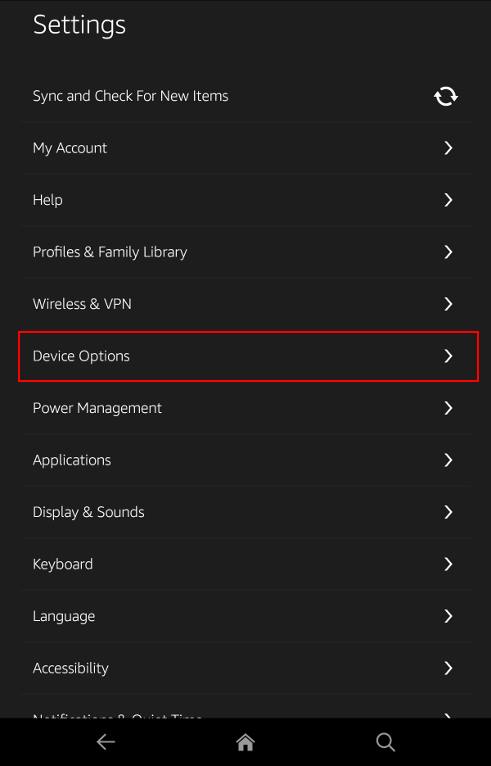
Step 1: Go to Settings–Device Options
In your Amazon Fire tablet, go to Settings by swiping down from the status bar (top of the screen) or tap Settings app in the app drawer.
Then tap Device Options as shown below.
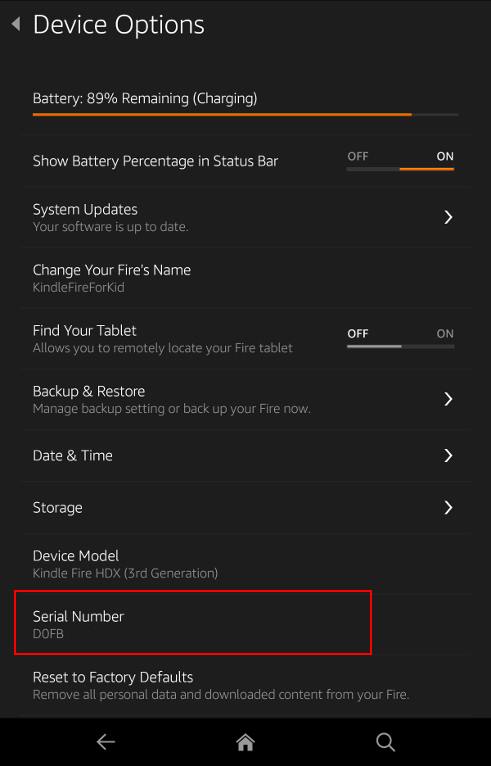
Step 2: Tap Serial Number Field 7 times
In the Device Options page, tap the serial number field 7 times.
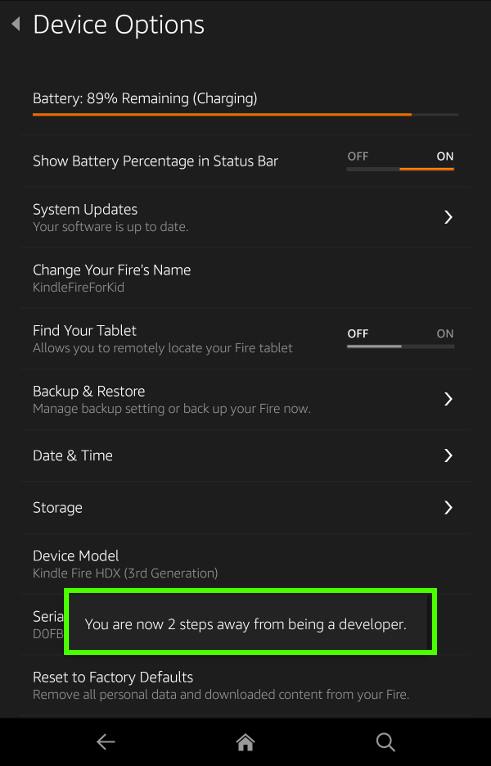
After tapping the serial number 2 times, it starts to pop out the message as shown below.:
You are now X steps away from being a developer
Continue to tap the field to 7 times and the message will notify you the developer options are enabled on your Amazon Fire tablet.
Step 3: Access and play with developer options in Amazon Fire tablet
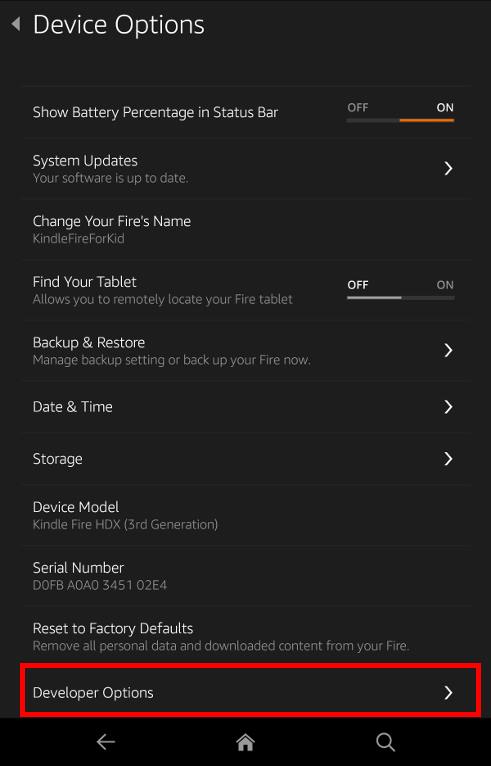
Now, in Settings— Device Options page, you can find a new entry of developer options. This means you successfully enabled developer options on Amazon Fire tablet.
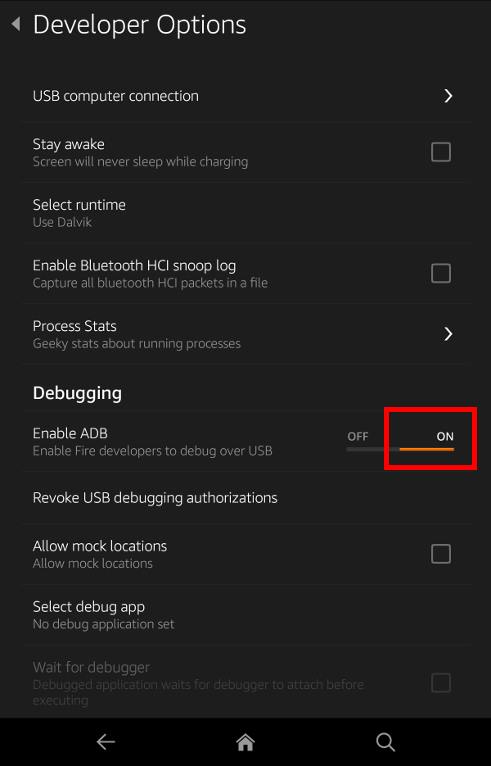
Tap Developer options as shown below to access the developer options.
Please note, you should NOT enable/disable the options unless you know what you are doing. Some may degrade the performance of your Fire tablet significantly.
Most of the options are for developers who can simulate the behavior of their apps under different situations, e.g., low memory.
For most Amazon Fire tablet owner, you may want to enable ADB (USB debugging) for Amazon Fire tablet so that you can use ADB commands from the PC.
How to hide developer options on Amazon Fire tablet?
After the Developer options are enabled, you can hide them again if you do not want to use them or you do not want your kids to mess up the developer options on your Fire tablet.
It is not so complicated to hide developer options on the Amazon Fire tablet.
It is absolutely NOT necessary to reset the tablet to disable or hide developer options after enabling them.
You can disable or hide developer options on the Amazon Fire tablet by clearing the data for the Settings app.
Step 1: Go to Settings — Applications
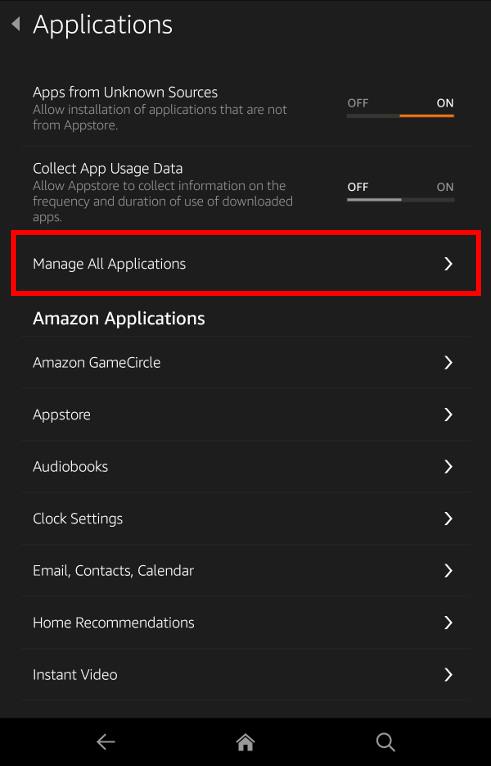
You can go to Settings– Applications f=on your Fire tablet.
Tap Manage All Applications as shown below.
Step 2: Switch to All Applications
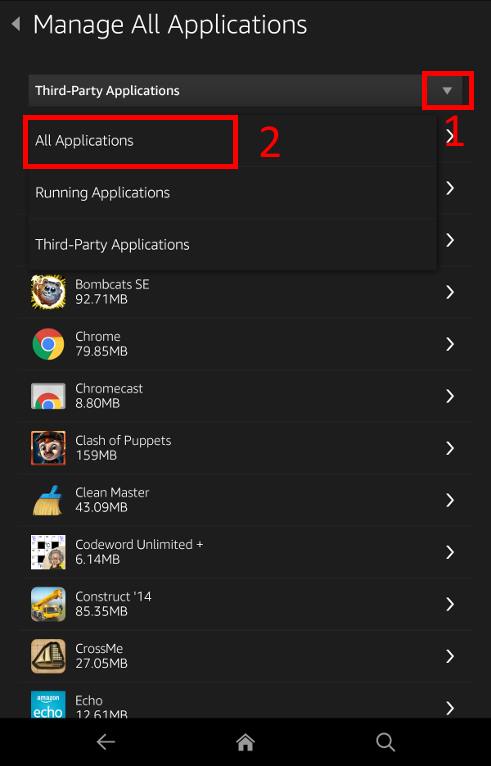
By default, Third-party applications are shown.
Tap the arrow down button on the right side of Third-Party Applications as shown below.
Then in the drop-down list, tap All Applications as shown below.
Step 3: Clear data for Settings app
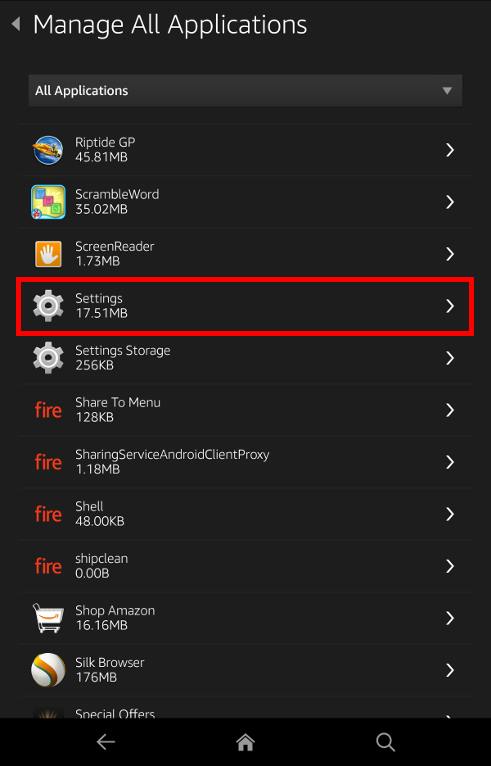
Scroll down to find Settings.
Tap Settings as shown below.
Tap Clear data as shown below.
This will clear the saved data about the Settings app. It will NOT remove your account or other settings.
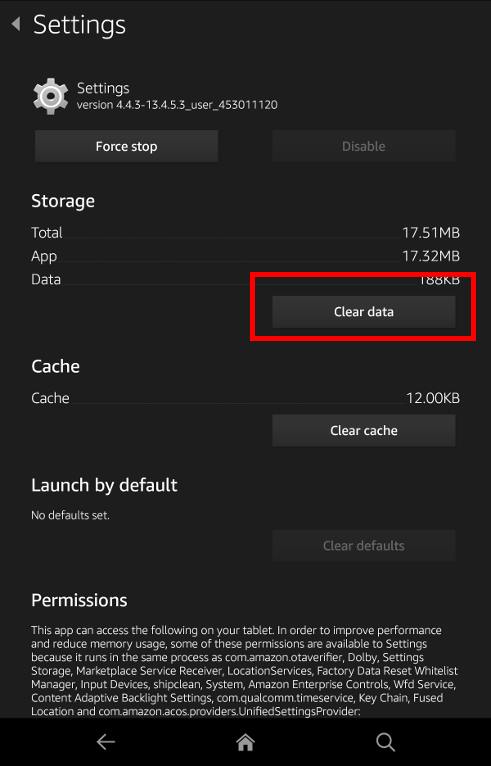
You now should get the popup warning message:
Clear Application Data?
This will remove all data from this application including saved contents, accounts and settings. The application will remain installed on your device. You should only clear data if the application is seriously misbehaving and you want to have a clean installation of the application.
Tap OK as shown below.
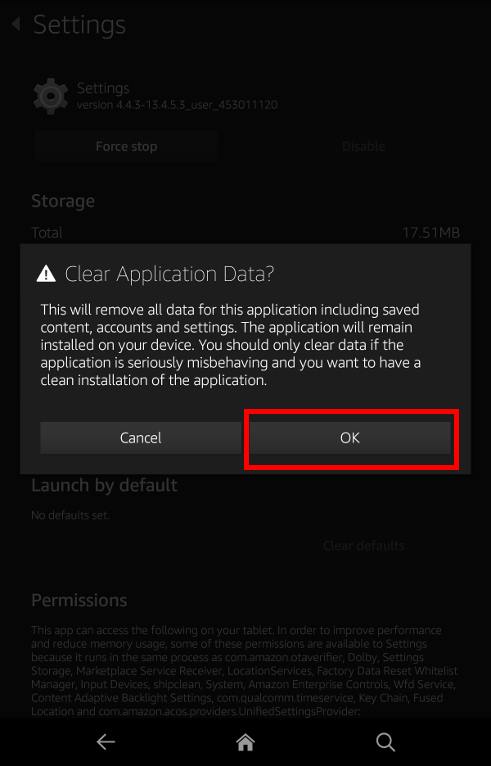
This will essentially reset the menu for Settings, and therefore will hide developer options on Amazon Fire tablet.
Please note, this operation will not only hide developer options but also disable all settings in developer options. If you need the developer options on your Amazon Fire tablet again, you have to enable the developer options first.
In newer Fire OS 7 and Fire OS 8, you can turn off developer options on the developer options page.
Can you enable and access developer options on Amazon Fire tablet (Fire HD, Fire HDX and Kindle Fire HDX)? Can you disable and hide developer options on Amazon Fire tablet?
If you have problems enabling and accessing developer options on Amazon Fire tablets, please let us know in the comment box below.
Or if you need help disabling or hiding developer options on the Fire tablet, please also leave your questions or problems in the comment box below.
We will try to help you find a solution.
Detailed information on how to use the Google Play Store on Fire tablets can be found here.
Need advice on choosing a Fire tablet? Check the Fire Tablet Buyer's Guide now.
You may check other Fire tablet how-to guides and tutorials on the Fire tablet how-to guides page.
You may also reach us via our Facebook page or the contact us form.



Hi,
Thanks for your very detailed description of how to reach google services on tablets and phones, I have just finished almost all thing works properly.
I have 2 question:
1. On tablet I defined a second profile for my wife. In this profile the google apps are not present, so I tried to install them in the same way, but 2 of the 4 files could not be installed. Also cannot the chrome install from 1market. gmail could be installed, but not works. Developement menu, under this proflie could not be reached, with the 7 taps.
Is it possible at all to put google apps to thesecond profile?
2. After finishing your steps, google play worked fine. Later I have added my wife’s account beside mine in gmail. After that when I start google play, it starts, but instead of offered apps I just see a message, like my administrator not allow to see any apps. However I can search for apps, and then I can see results, and also install any. But first it worked correctly.
I would be glad if you have some advice, thanks in advance. Gerg
I didn’t test the solution with multiple Google accounts. Anyway, don’t expect too much on Google account support in fire tablets.
Our Facebook page || Fire tablet guide || Galaxy S6 Guides || Galaxy S7 Guides || Android Guides || Galaxy S8 Guides || Galaxy S9 Guides || Google Home Guides || Headphone Guides || Galaxy Note Guides || Moto G Guides || Chromecast Guides || Galaxy S10 Guides || Galaxy S20 Guides || Samsung Galaxy S21 Guides || Samsung Galaxy S23 Guides || Samsung Galaxy S23 Guides || Samsung Galaxy S24 Guides || Samsung Galaxy S25 GuidesThanks, for your answer. Then it seems it will be good for me with one account, however I will try a bit more.
Hi,
Thank you for your guide, Your guide was really useful and accurate!
Issue:
I enabled developer options as per your instructions, on my wife’s kindle, worked perfectly.
I disabled the developer options in the settings, by clearing the ‘settings data’, again worked perfectly.
But, the ‘logcat’ continues to appear in the upper right corner of the kindle.
Any idea on how I turn this off?
Thanks,
John
Hi again,
I figured it out.
In developer options, ‘Show GPU usage’ was turned on by default.
So, I re-enabled developer mode, unchecked this developer option, and then cleared memory for ‘settings data’.
This worked for me.
(Surprisingly, clearing settings data, doesn’t clear the developer options settings)
Thanks again,
John
Thank you for sharing the solution.
Our Facebook page || Fire tablet guide || Galaxy S6 Guides || Galaxy S7 Guides || Android Guides || Galaxy S8 Guides || Galaxy S9 Guides || Google Home Guides || Headphone Guides || Galaxy Note Guides || Moto G Guides || Chromecast Guides || Galaxy S10 Guides || Galaxy S20 Guides || Samsung Galaxy S21 Guides || Samsung Galaxy S23 Guides || Samsung Galaxy S23 Guides || Samsung Galaxy S24 Guides || Samsung Galaxy S25 GuidesOK, so I got to where I clear settings data but then what? No instructions after that? New to all this and need to know how I can download play store apps after following your instructions.PLEASE HELP!
What do you want to do? We have a guide on installing Google play store. You need follow it.
Our Facebook page || Fire tablet guide || Galaxy S6 Guides || Galaxy S7 Guides || Android Guides || Galaxy S8 Guides || Galaxy S9 Guides || Google Home Guides || Headphone Guides || Galaxy Note Guides || Moto G Guides || Chromecast Guides || Galaxy S10 Guides || Galaxy S20 Guides || Samsung Galaxy S21 Guides || Samsung Galaxy S23 Guides || Samsung Galaxy S23 Guides || Samsung Galaxy S24 Guides || Samsung Galaxy S25 GuidesWill this work for a Kindle Fire 8.9 HD 2nd generation? Tried the tapping the S/N number 7 times and no luck. Does not appear that this trick works for the 2nd generation Kindle Fire HD’s.
Not sure. Normally, for Amazon fire tablets, we just tap serial number. In real Android devices, we tap build number. But in fire or Kindle fire, there is no build number.
Our Facebook page || Fire tablet guide || Galaxy S6 Guides || Galaxy S7 Guides || Android Guides || Galaxy S8 Guides || Galaxy S9 Guides || Google Home Guides || Headphone Guides || Galaxy Note Guides || Moto G Guides || Chromecast Guides || Galaxy S10 Guides || Galaxy S20 Guides || Samsung Galaxy S21 Guides || Samsung Galaxy S23 Guides || Samsung Galaxy S23 Guides || Samsung Galaxy S24 Guides || Samsung Galaxy S25 GuidesI have a kindle fire hd 7 and it did not do anything when i pressed serial number 7 times
You need to tap it quick enough.
Our Facebook page || Fire tablet guide || Galaxy S6 Guides || Galaxy S7 Guides || Android Guides || Galaxy S8 Guides || Galaxy S9 Guides || Google Home Guides || Headphone Guides || Galaxy Note Guides || Moto G Guides || Chromecast Guides || Galaxy S10 Guides || Galaxy S20 Guides || Samsung Galaxy S21 Guides || Samsung Galaxy S23 Guides || Samsung Galaxy S23 Guides || Samsung Galaxy S24 Guides || Samsung Galaxy S25 GuidesI have a Kindle Fire one of the early ones and can not figure out how to enable developer options, it is system version 6.3.4_user_4120720 Any ideas ?
Can you find Build number or serial number?
Our Facebook page || Fire tablet guide || Galaxy S6 Guides || Galaxy S7 Guides || Android Guides || Galaxy S8 Guides || Galaxy S9 Guides || Google Home Guides || Headphone Guides || Galaxy Note Guides || Moto G Guides || Chromecast Guides || Galaxy S10 Guides || Galaxy S20 Guides || Samsung Galaxy S21 Guides || Samsung Galaxy S23 Guides || Samsung Galaxy S23 Guides || Samsung Galaxy S24 Guides || Samsung Galaxy S25 GuidesHello,
I have a kindle fire hd 8.9.
I cannot seem to get to the developers mode thru tapping serial number. BOCA 06042505 OFEU
Is there something I am missing?
Suggestions would be greatly appreciated.
Thank you
Not sure. Did you see any animation when tapping it quickly?
Our Facebook page || Fire tablet guide || Galaxy S6 Guides || Galaxy S7 Guides || Android Guides || Galaxy S8 Guides || Galaxy S9 Guides || Google Home Guides || Headphone Guides || Galaxy Note Guides || Moto G Guides || Chromecast Guides || Galaxy S10 Guides || Galaxy S20 Guides || Samsung Galaxy S21 Guides || Samsung Galaxy S23 Guides || Samsung Galaxy S23 Guides || Samsung Galaxy S24 Guides || Samsung Galaxy S25 GuidesNo animation…nothing 🙁
What’s the version of fire OS? Do you get animation when tapping other fields?
Our Facebook page || Fire tablet guide || Galaxy S6 Guides || Galaxy S7 Guides || Android Guides || Galaxy S8 Guides || Galaxy S9 Guides || Google Home Guides || Headphone Guides || Galaxy Note Guides || Moto G Guides || Chromecast Guides || Galaxy S10 Guides || Galaxy S20 Guides || Samsung Galaxy S21 Guides || Samsung Galaxy S23 Guides || Samsung Galaxy S23 Guides || Samsung Galaxy S24 Guides || Samsung Galaxy S25 Guidesmy latest fire doesn’t have the enable ADB option in the developer options!! please advise
What do you have in the USB section of the developer options.
Our Facebook page || Fire tablet guide || Galaxy S6 Guides || Galaxy S7 Guides || Android Guides || Galaxy S8 Guides || Galaxy S9 Guides || Google Home Guides || Headphone Guides || Galaxy Note Guides || Moto G Guides || Chromecast Guides || Galaxy S10 Guides || Galaxy S20 Guides || Samsung Galaxy S21 Guides || Samsung Galaxy S23 Guides || Samsung Galaxy S23 Guides || Samsung Galaxy S24 Guides || Samsung Galaxy S25 GuidesI have a kindle fire hd8 5 generation. There are two overlays on the screen that will shrink but not go away. How do I remove them?
What overlay? You may share the screenshot on our Facebook page so that others may know what you are referring to.
Our Facebook page || Fire tablet guide || Galaxy S6 Guides || Galaxy S7 Guides || Android Guides || Galaxy S8 Guides || Galaxy S9 Guides || Google Home Guides || Headphone Guides || Galaxy Note Guides || Moto G Guides || Chromecast Guides || Galaxy S10 Guides || Galaxy S20 Guides || Samsung Galaxy S21 Guides || Samsung Galaxy S23 Guides || Samsung Galaxy S23 Guides || Samsung Galaxy S24 Guides || Samsung Galaxy S25 GuidesHi,
This didn’t fix the error I was having with uploading certain photos to webpages. I keep getting the error ‘insufficient memory to perform the previous operation’. I Googled it, and after hours of Google continuously providing f**& all useful results, I finally found several videos that indicated that locating your developer options on android devices and ticking the option to delete all data regarding operations after performing them would work. Unfortunately, this advice is complete horse*£$%^ I’m still getting the same error. 5th gen Kindle Fire’s are absolutely awful – nothing works they should be thrown in a fire pit and burnt to death. Not sure whether I’m referring to the tablet or the makers there 😦
I have same issue. In the usb section of Developers options I haveUSB debugging, Revoke USB debugging, bug report shortcut, select mock location app, enable view attribute inspection, select debug app, wait for debugger, verify apps over USB(Unable to click), and logger buffer sizes
Enable USB debugging in recent Android versions (since Android 6?) equals enabling ADB in older versions. The other entries may also depend on Android version and vendor.
What are you looking for?
Our Facebook page || Fire tablet guide || Galaxy S6 Guides || Galaxy S7 Guides || Android Guides || Galaxy S8 Guides || Galaxy S9 Guides || Google Home Guides || Headphone Guides || Galaxy Note Guides || Moto G Guides || Chromecast Guides || Galaxy S10 Guides || Galaxy S20 Guides || Samsung Galaxy S21 Guides || Samsung Galaxy S23 Guides || Samsung Galaxy S23 Guides || Samsung Galaxy S24 Guides || Samsung Galaxy S25 GuidesThis doesn’t seem to work for the Amazon Fire HD8, 8th Gen (2018). Fire OS 6.3.1.5.
When I go to “Settings–>Device Options”, the Serial Number or Build Number fields are not present. They are within the next sub-menu “About Fire Tablet”. So when I go to “Settings–>Device Options–>About Fire Tablet”, both the Serial Number and Build Number fields are present. However, tapping (slowly or quickly) either of these fields 7 or more times, does nothing. I even tried quickly tapping the Device Model field, and still nothing. Those are the only 3 fields within the “About Fire Tablet” sub-menu. Is there a more updated guide for my version of Fire HD8? Thanks.
For the 8th and 9th gen of Fire tablet, in Settings –-Device options —About Fire tablet, then tap Serial number field 7 times.
We will try to update this guide, which was written a few years ago.
Our Facebook page || Fire tablet guide || Galaxy S6 Guides || Galaxy S7 Guides || Android Guides || Galaxy S8 Guides || Galaxy S9 Guides || Google Home Guides || Headphone Guides || Galaxy Note Guides || Moto G Guides || Chromecast Guides || Galaxy S10 Guides || Galaxy S20 Guides || Samsung Galaxy S21 Guides || Samsung Galaxy S23 Guides || Samsung Galaxy S23 Guides || Samsung Galaxy S24 Guides || Samsung Galaxy S25 GuidesI have a Kindle Fire HD 7″ (2013). It won’t let me enable developer options by pressing the S/N 7 times. Can you find another way?
If you keep tapping the serial number field, what do you get?
Our Facebook page || Fire tablet guide || Galaxy S6 Guides || Galaxy S7 Guides || Android Guides || Galaxy S8 Guides || Galaxy S9 Guides || Google Home Guides || Headphone Guides || Galaxy Note Guides || Moto G Guides || Chromecast Guides || Galaxy S10 Guides || Galaxy S20 Guides || Samsung Galaxy S21 Guides || Samsung Galaxy S23 Guides || Samsung Galaxy S23 Guides || Samsung Galaxy S24 Guides || Samsung Galaxy S25 GuidesI also have one, and I got nothing after tapping 20 times.
i have kindle fire 6.3.4 and tapping serial number 100 times does nothing